
Technical SEO · Crawling
Crawl Errors: What They Are, Why They Happen, and How to Fix Them
A crawl error is a failed fetch attempt, not a failed ranking. This guide walks through exactly where crawl errors occur, what Google’s current documentation says about each type, and how to diagnose and fix them using the reports Google Search Console actually has today.
MA
SEORAF · Published September 9, 2026
Practitioner note: I build data-driven SEO strategies from real testing and Google’s official documentation. This guide applies the same evidence-first approach to diagnosing crawl failures across robots.txt, DNS, server responses, redirects, and Search Console.
What Are Crawl Errors?
A crawl error occurs when a crawler — Googlebot, Bingbot, or another search or AI crawler — attempts to fetch a URL and the request fails, times out, or returns a non-success condition before the content can be evaluated.
That’s the key distinction to hold onto throughout this guide: a crawl error happens before a page’s content is ever assessed for search. If Googlebot never successfully receives a response, nothing about that page’s quality, relevance, or structure has been judged yet — the failure happened one step earlier, at the fetch itself.
This matters in practice: “my page isn’t ranking” and “my page has a crawl error” are often treated as the same problem, but they aren’t. A crawl error is a broken connection between the crawler and your server. An indexing problem happens after a successful fetch, when Google has the content and decides not to add it to the index for an unrelated reason. The next section draws that line precisely — it’s the single most useful distinction for triaging a “why isn’t this page showing up” investigation.
Crawl errors are also distinct from crawlability in general — crawlability is about whether your site’s architecture allows crawling at all, while a crawl error is a specific failed attempt within that broader process, which SEORAF covers in full in its guide to crawling.
Crawl Errors vs. Indexing Problems
Why This Distinction Matters
Treating every “page not indexed” situation as a crawl error wastes effort: checking server logs and DNS records when the real cause is a duplicate canonical tag, or auditing content quality when the real cause is a robots.txt file returning a server error. Google’s own reporting keeps these separate for this reason — the Page indexing report lists dozens of possible non-indexing reasons, and only some are genuine crawl failures. The rest are decisions Google made after successfully crawling the page.
Where Soft 404 Sits Between the Two
One case blurs this line on purpose: a soft 404. A soft 404 is a page that returns a normal 2xx success response — the crawl itself works fine — but whose content looks, to Google’s quality systems, like an error page: empty, thin, or a generic “nothing here” message. Google’s crawling documentation(opens in new tab) is explicit that this classification happens at the content-interpretation layer, not because the server returned any kind of error status. That’s why soft 404 is best understood as a bridge case rather than belonging cleanly to either category.
How crawl errors, indexing problems, and soft 404 differ
| Crawl Error | Indexing Problem | Soft 404 (bridge case) | |
|---|---|---|---|
| Fetch outcome | Failed, blocked, or timed out | Succeeded | Succeeded (2xx status) |
| Where it’s classified | Crawl layer | Indexing/quality layer | Both — successful crawl, flagged at the quality layer |
| Typical example | 500 server error, DNS timeout, unreachable robots.txt | Duplicate content, noindex tag, canonical mismatch | A thin or empty page returning a normal 200 |
Keep this table in mind as you read the rest of this guide: everything from here through the Search Console section is about the crawl layer specifically — failures that happen before content is ever evaluated.
Are Crawl Errors Bad for SEO?
The honest answer is “it depends,” but that’s not useful on its own — what it depends on is two independent variables: scope (does the error affect one URL or the whole site?) and persistence (is it a one-off blip or an ongoing condition?). Crossing those two variables gives a genuinely useful severity read, faster than debating any individual error in isolation:
Crawl error severity by scope and persistence
| Transient (self-resolves quickly) | Persistent (ongoing) | |
|---|---|---|
| URL-specific | Low severity — e.g., a single page briefly returning 503 during a deploy | Moderate — e.g., a broken internal link steadily feeding Googlebot a 404 |
| Site-wide | Moderate — e.g., a short hosting outage affecting all pages for an hour | High — e.g., robots.txt unreachable for days, or sustained 5xx across the site |
A handful of 404s from pages you deleted months ago sits in the lowest-severity cell and generally doesn’t need fixing — Google’s own guidance is that you only need to address 404s you’re actively linking to or listing in your sitemap. The highest-severity cell is the one most likely to affect search visibility: persistent site-wide failures can reduce crawling and, if they continue, can eventually affect indexed URLs. This scope-times-persistence lens is the framework the rest of this guide is built around, starting with the diagnostic workflow section, where it becomes the first triage question.
The Four Layers Where Crawl Errors Happen
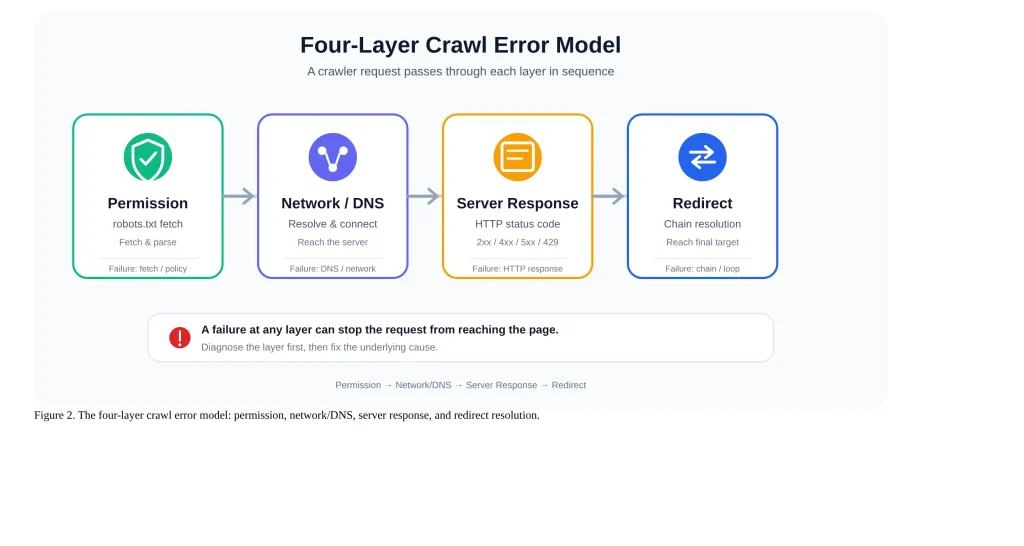
Every crawl attempt passes through the same sequence, and a failure can occur at any point along it. Organizing crawl errors by where in that sequence they happen — rather than as a flat, alphabetical list of status codes — makes it much easier to know where to look first when something’s wrong. This guide covers four layers, in the order a request actually encounters them:
- Permission layer — can the crawler even retrieve your robots.txt file to find out what it’s allowed to crawl?
- Network/DNS layer — can the crawler resolve your domain and establish a connection at all?
- Server-response layer — what HTTP status code does your server return once connected?
- Redirect-resolution layer — if the response is a redirect, does the chain resolve cleanly to a final destination?
Permission-Layer Errors: When robots.txt Itself Fails
Google crawlers download and parse robots.txt before crawling a site to determine which paths they are permitted to request — the permission mechanism standardized by the IETF’s Robots Exclusion Protocol, RFC 9309(opens in new tab). If that single file can’t be retrieved, the consequences aren’t limited to one URL — they can affect crawling of your entire site.
The robots.txt Fetch-Failure Cascade
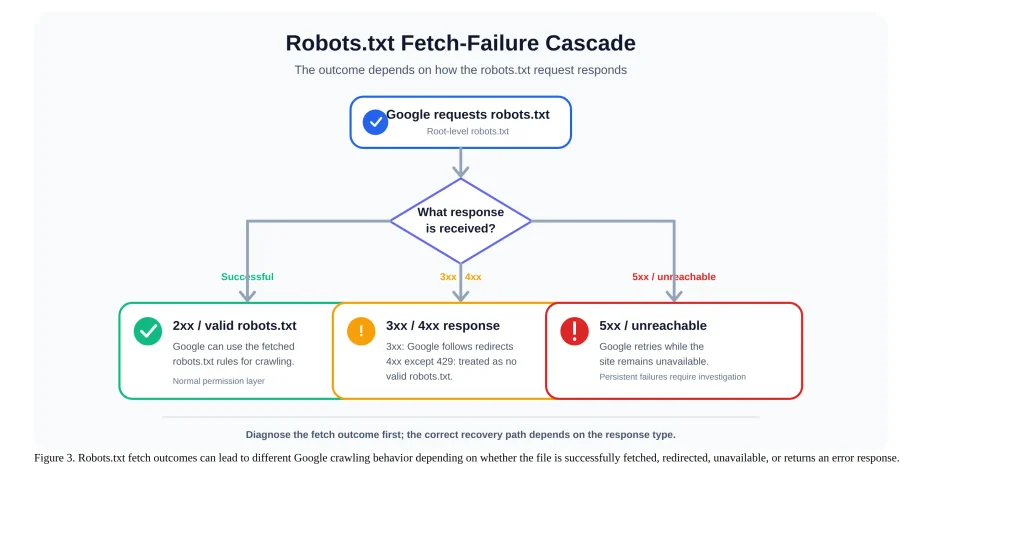
According to Google’s documentation on how it interprets the robots.txt specification(opens in new tab), an unreachable robots.txt file triggers a specific, time-based sequence rather than an immediate site-wide shutdown:
- First 12 hours: Google stops crawling your site entirely while it keeps retrying the robots.txt fetch.
- 12 hours to 30 days: Google falls back to the last successfully retrieved version of robots.txt and continues crawling under those rules, while still retrying for a fresh copy.
- Beyond 30 days: the outcome branches. If the rest of your site is otherwise reachable, Google assumes no robots.txt file exists and crawls without restriction. If your site is also unreachable at that point, Google stops crawling altogether, though it continues periodically checking whether robots.txt has come back.
Google generally caches a successfully fetched robots.txt file for up to about 24 hours, and may extend that cache when a fresh fetch is not possible.
Redirect Handling for robots.txt Specifically
Redirects involving robots.txt follow a different, shorter rule than general page crawling. Google follows at least five redirect hops when fetching robots.txt; if it cannot obtain a valid file after following redirects, it treats the result as a 404. That is important because a missing or 4xx robots.txt file is treated as though no valid robots.txt exists, so normal crawling restrictions are not applied. The general page redirect behavior covered later in this guide is separate.
A 4xx response other than 429 when fetching robots.txt is treated as though no valid robots.txt exists, so Google does not apply crawl restrictions from that file.
For full robots.txt syntax, directive precedence, and configuration guidance, see SEORAF’s dedicated guide to robots.txt.
A Worked Example
Consider a site migrating hosting providers where, mid-switch, the origin server briefly returns 502 errors for every request, including robots.txt. For the first 12 hours, Google pauses crawling entirely and keeps retrying. If the issue resolves, verify that robots.txt is again reliably retrievable and review the affected crawl reports. If the errors persist, Google can fall back to the last successfully retrieved robots.txt version while it continues retrying the fetch. Only past 30 days does the branching outcome described above apply. This is why a short, monitored migration window rarely causes lasting crawl damage, while a silent robots.txt failure can quietly suppress crawling for weeks before anyone notices a traffic drop.
Network and DNS-Layer Errors
How DNS and Connectivity Failures Affect Crawling
When Googlebot can’t resolve your domain’s DNS records or can’t establish a network connection at all, Google’s documentation treats this comparably to a server returning 5xx errors: crawl rate drops immediately. The consequence is more urgent than it might sound — already-indexed URLs on an unreachable site can be removed from the index within days, not weeks, if the problem persists. That’s a notably tighter timeline than most of the server-response errors covered later in this guide.
Diagnosing DNS and Network Errors
Google’s own troubleshooting documentation for network and DNS errors(opens in new tab) recommends a sequence like this:
- Check your DNS records — A, CNAME, and NS entries — using a tool like
digto confirm they resolve correctly and point where you expect. - Review firewall and IP-allowlist rules to make sure they aren’t inadvertently blocking Google’s crawling infrastructure.
- If you’ve recently changed DNS settings, allow for propagation; Google notes that some DNS changes may take up to 72 hours to propagate.
- For deeper connection-level issues, packet-capture tools such as tcpdump or Wireshark can confirm whether requests are reaching your server at all.
For a full methodology on cross-referencing crawl behavior against your own server logs, see SEORAF’s guide to log file analysis.
DNS Errors vs. Server Errors: Telling Them Apart
These are easy to confuse because both result in a failed crawl attempt, but the diagnostic path differs completely. A DNS error means the crawler couldn’t even find out which server to talk to — the domain failed to resolve to an IP address. A server error means the crawler reached a server, which then returned a failure status. Crawl Stats’ Host Status breakdown resolves the ambiguity quickly, since DNS resolution and server connectivity are reported as separate categories — you don’t need to guess which layer failed based on symptoms alone. This separation matters because the two failure types call for entirely different fixes: DNS record corrections in one case, application or infrastructure debugging in the other.
Server-Response-Layer Errors: 4xx and 5xx
Once a connection is successfully established, your server returns an HTTP status code, and this is where most of the individual error types SEO practitioners talk about actually live.
4xx Errors and What Google Does With Them
For 401, 403, 404, 410, and other 4xx responses, Google’s crawlers generally do not use the response content for indexing. Previously indexed URLs that continue returning 4xx responses can be removed over time, and Google gradually reduces crawling of those URLs. Google’s documentation on HTTP status codes(opens in new tab) also notes that 4xx responses do not provide a general crawl-rate throttling mechanism.
One instruction is easy to miss but matters in practice: Google explicitly says 401 and 403 responses should not be used as a way to limit or throttle crawl rate, because they have no effect on crawl rate at all. If you’re trying to slow Googlebot down, blocking it with an access-denied response doesn’t accomplish that — it simply means that content goes uncrawled while your crawl rate stays wherever it already was.
Why 429 Is Different From Other 4xx Codes
A 429 (“Too Many Requests”) is handled differently from most 4xx responses. Google treats 429 as a server-overload signal and can reduce crawling in response. If 429s appear unexpectedly, review rate-limit, WAF, or application controls rather than treating 429 as a general SEO throttling tool.
5xx Errors and Crawl-Rate Impact
Server errors — 500, 502, 503, and 504 — cause an immediate reduction in crawl rate, proportionate to how many URLs are affected. Already-indexed pages are generally preserved in the short term, since Google recognizes server errors can be transient, but persistent failures lead to removal from the index. Recovery isn’t instantaneous either: once your server resumes returning successful responses, Google’s crawl rate recovers gradually rather than snapping immediately back to its prior level.
Because 5xx errors can be intermittent, a manual test through Search Console’s URL Inspection tool may succeed even when Google’s own automated crawl attempt failed moments earlier — the live test and the actual crawl aren’t necessarily hitting your server at the same moment or under the same load. This is a common source of confusion during incident response: a site owner sees the page load fine in a browser and in the URL Inspection tool, and reasonably assumes the problem is already resolved, while Search Console continues showing elevated server-error counts for a period afterward simply because it takes time for enough successful crawl attempts to accumulate and shift the aggregate picture.
One practical implication follows directly from the “transient vs. persistent” distinction in the severity framework above: a single 500 error during a deploy is essentially noise, but the same status code appearing across a large share of requests for several hours is the trigger that actually moves the needle on crawl rate. Watching the proportion of failing requests in your logs — not just their existence — is a more reliable severity signal than treating any 5xx sighting as an emergency.
Soft 404: A Bridge Case
As introduced earlier, a soft 404 is a page that returns a normal 2xx success status but whose content Google’s systems interpret as functionally an error page. This is broader than just literally empty pages — it commonly includes populated-but-substantively-empty templates, such as an out-of-stock product page with no alternative content, or a search-results page returning zero results with no supporting text. The crawl itself succeeds; the classification happens afterward, at the content-quality layer, which is why fixing a soft 404 means either returning a genuine 404/410 status or adding real content, not troubleshooting anything at the network or server level.
Server-response status codes and how Google’s crawlers handle them
| Status code | Crawler behavior | Direct crawl-rate effect |
|---|---|---|
| 401 Unauthorized | Content ignored; URL not indexed | None |
| 403 Forbidden | Content ignored; URL not indexed | None |
| 404 Not Found | Content ignored; crawl frequency of that URL gradually decreases | None |
| 410 Gone | Handled within the 4xx family; content is not used for indexing and persistent responses can lead to removal | None |
| 429 Too Many Requests | Treated as a server-overload signal | Slows crawl rate |
| 500 / 502 / 503 / 504 | Content ignored; indexed URLs at risk if persistent | Slows crawl rate, proportionate to volume |
| 2xx classified as Soft 404 | Fetched successfully; flagged at the quality/indexing layer | None (crawl itself is unaffected) |
Redirect-Resolution-Layer Errors
Redirect Hop Limits
Google documents that crawlers generally follow up to ten redirect hops for general web crawling, although specific Google products can differ. Long chains are therefore best avoided even when they remain below the documented limit.
The status code you use for the redirect itself carries meaning too: a 301 is treated as a strong signal that Google should process the destination as the canonical version, while a 302 is treated as a weaker signal by default. The two codes are formally distinct in the underlying HTTP Semantics specification, RFC 9110(opens in new tab) — a 301 implies permanence, a 302 implies a temporary change — and Google’s own guidance recommends using whichever one actually reflects the real situation, rather than defaulting to 301 out of habit.
Chains, Loops, and Malformed Redirect Targets
When a redirect chain is too long, loops, or otherwise fails to resolve to a usable destination, Google may not successfully process the destination. Search Console can report these cases as redirect errors. The practical fix is to make the redirect map resolve cleanly to the intended final URL.
This is a common byproduct of website migrations, where redirect rules accumulate over time — a page redirected during one migration gets redirected again during a later one, and the resulting chain can exceed the limit without anyone noticing until Search Console flags it. An outdated XML sitemap still listing pre-migration URLs is a frequent, easily-overlooked source of this: Google keeps revisiting sitemap-listed URLs, walks straight into the chain, and reports the same redirect error repeatedly until the sitemap itself is updated.
A practical way to think about the ten-hop limit: it absorbs a migration or two’s worth of accumulated redirects, but it isn’t unlimited. A URL redirected across three separate site restructurings is already using three of those ten hops before any accidental loop or platform-generated redirect (like a CMS auto-adding a trailing-slash redirect) adds more. Periodically flattening chains back to a single hop keeps real headroom against the limit, rather than relying on Google’s tolerance as a substitute for a clean redirect map.
How to Find Crawl Errors in Google Search Console
Search Console’s crawl-error reporting has changed structure over the years, and a meaningful amount of content still in circulation describes an interface that no longer exists. This section reflects the current reports as of this guide’s publication.
The Page Indexing Report
Found under Indexing > Pages in Search Console, the Page indexing report(opens in new tab) lists specific reasons individual URLs aren’t indexed. The crawl-layer reasons relevant to this guide include: Server error (5xx), Redirect error, URL blocked by robots.txt, Blocked due to unauthorized request (401), Not found (404), Blocked due to access forbidden (403), URL blocked due to other 4xx issue, and Soft 404. To keep the report from growing indefinitely, it only surfaces 404s Google has actually seen within roughly the past month, rather than every 404 ever encountered.
The Crawl Stats Report and Host Status
Found in Property Settings, the Crawl Stats report(opens in new tab) gives a more aggregate, site-wide view through its Host Status assessment, which rolls up three categories: robots.txt fetching, DNS resolution, and server connectivity. A significant problem in any one category can lower the overall availability status shown for your site. Within the “Crawl responses” breakdown, the categories most relevant to crawl errors specifically include: robots.txt not available, Unauthorized (401/407), Server error (5xx), Other client error (4xx), DNS unresponsive, DNS error, Fetch error, Page could not be reached, Page timeout, and Redirect error.
Search Console and server logs answer different questions. Crawl Stats summarizes Google’s crawling activity, while server logs record requests that actually reach your infrastructure. A mismatch between the two therefore does not by itself prove that either source is wrong; use both to establish what Google reported and what your server actually received.
Diagnosing and Fixing Crawl Errors: A Practical Workflow
Site-Wide vs. URL-Specific Triage
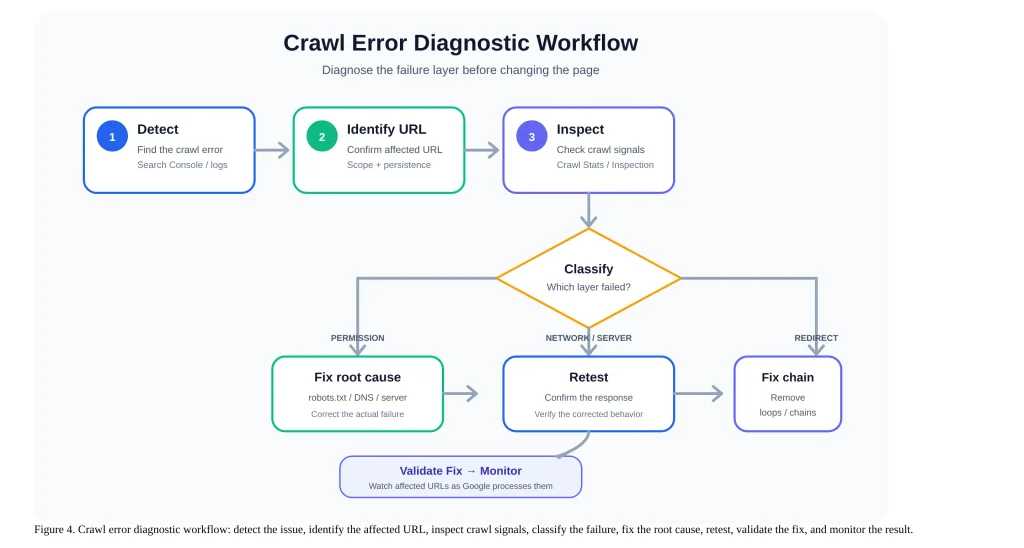
The scope-times-persistence framework introduced earlier gives this section its starting question: is the Crawl Stats Host Status flagged (site-wide) or are only specific URLs showing errors in the Page indexing report (URL-specific)? Site-wide problems take priority regardless of persistence, since they can be blocking crawl access to everything else you’d otherwise be troubleshooting — there’s little value in chasing individual 404s while robots.txt is actively unreachable and suppressing crawling entirely.
A practical workflow is to check Host Status early when a problem may be site-wide, then use Page indexing and URL Inspection for URL-specific diagnosis. If all three Host Status categories — robots.txt fetching, DNS resolution, server connectivity — are in good standing, move directly to the per-URL reasons with confidence you’re looking at genuinely isolated issues. If Host Status flags a problem, resolve that first; many per-URL errors clear on their own once the underlying site-wide issue is fixed, since they were downstream symptoms rather than independent problems.
Crawl error diagnostic reference: cause, symptom, detection, and fix
| Error type | Typical cause | Symptom | Where to detect it | Fix |
|---|---|---|---|---|
| robots.txt unreachable | Server error or timeout serving the file | Site-wide crawl halt | Crawl Stats Host Status | Restore server availability; confirm robots.txt returns 200, 404, or 410 |
| DNS failure | Misconfigured records or connectivity problems | Site unreachable; persistent problems can affect indexed URLs | Crawl Stats DNS resolution | Correct DNS records; review network/firewall controls; allow time for DNS propagation |
| Server connectivity / timeout | Overload, network failure, or bot-protection misconfiguration | Inconsistent crawl access | Crawl Stats + server logs, cross-referenced | Review firewall/WAF and rate-limit rules; verify legitimate crawler traffic is not unintentionally blocked |
| 4xx (401/403/404/410) | Auth misconfiguration, deleted content, or broken links | Specific reason shown per URL | Page indexing report | Fix auth config if unintended; 301 if content moved; leave as-is if deliberate |
| 429 | Rate-limit or overload condition | Crawl rate can be reduced | Crawl Stats + server/application logs | Review rate-limit/WAF configuration and remove unintended blocking |
| 5xx | Application or infrastructure error | Crawl rate drop; indexed URLs at risk if sustained | Crawl Stats + Page indexing report | Fix the underlying application or infrastructure issue |
| Redirect chain/loop | Unflattened redirects, often from migrations | “Redirect error” reason shown | Page indexing report | Flatten to a single hop; update internal links to point at the final destination |
| Soft 404 | 2xx response with content interpreted as an error page | URL fetched successfully but classified as Soft 404 | Page indexing report + URL Inspection | Return an appropriate 4xx when the resource is gone, or improve the page when it should remain useful |
Validating a Fix
After correcting an issue, the Page indexing report offers a “Validate Fix” option against the affected reason category. It’s worth understanding what this actually does: validation monitors affected URLs as Google processes them; it does not guarantee an immediate recrawl. Google says validation can take about two weeks or sometimes longer.
If validation later comes back as failed, inspect the affected examples again and verify that the underlying condition is actually resolved across the relevant URLs. A common pattern is fixing the visible symptom — say, restoring a single redirect — while a sibling URL in the same chain still exceeds the hop limit, or while a caching layer continues serving the old response to some crawl requests. A failed validation is the signal to re-check the fix’s actual scope, not to repeat the same fix again.
Preventing Crawl Errors
Most of the fixes above are reactive. A smaller set of practices reduces how often you need them:
- Maintain a governed redirect map as a single source of truth, and reconcile it against live server behavior after every migration — not just when a rule is added, but when old rules might now point at other redirects, which is how chains quietly accumulate past the hop limit described earlier.
- Verify legitimate crawler traffic and review firewall/WAF rules explicitly in bot-protection and firewall rules, rather than relying on user-agent string matching alone, since user-agent strings can be spoofed and shouldn’t be the only gate deciding whether legitimate crawl traffic gets a 403 or 429.
- Monitor robots.txt uptime as its own check, separate from general site uptime monitoring, given the disproportionate, site-wide consequences of a robots.txt-specific outage described earlier.
- Track status-code distribution by URL pattern in your own server logs, not just in aggregate — a spike confined to one template or directory usually points to a specific deploy or configuration change, while a spike spread evenly across the site points toward an infrastructure-level cause. See SEORAF’s guide to log file analysis for a full methodology.
High crawl-error volume also has a secondary cost: it consumes crawl attention that could otherwise go toward your genuinely important pages. For the full picture of how that trade-off works, see SEORAF’s guide to crawl budget.
A Note on AI Crawlers
This guide uses Google’s published documentation for Google-specific crawl behavior. AI-focused crawlers operated by other providers can have different roles and documented controls, so Google’s 4xx, 5xx, redirect, DNS, or robots.txt behavior should not be generalized to every AI crawler. For provider-specific governance, see SEORAF’s AI crawler access guide when that page is confirmed live.
Frequently Asked Questions
Does Google Search Console still have a “Crawl Errors” report?
No. The old dedicated Crawl Errors report is not the current Search Console reporting model. Use the Page indexing report for URL-level reasons and Crawl Stats for broader crawling and host-availability information.
How long does it take Google to recrawl a page after I fix an error?
There’s no fixed recrawl timeline. Validate Fix monitors progress for affected URLs, and Google says validation can take about two weeks or sometimes longer depending on the issue.
Is a 404 error something I need to fix?
Usually not. Google generally recommends fixing 404s that are linked from your site or listed in your sitemap, while intentional 404s for removed resources can be left as 404s. A 404 on a page you intentionally removed, with no lingering internal links pointing to it, is expected and not something that needs remediation.
Does a 403 error slow down Googlebot’s crawl rate?
No. Google states that 401 and 403 responses do not affect crawl rate. A 429 is treated differently because Google can interpret it as a server-overload signal.
Why do I see crawl errors for URLs that never existed on my site?
This is typically a discovery problem, not a site problem: Googlebot found the URL somewhere — an old external backlink, a scraper-copied link, or a typo in someone else’s page — and attempted to crawl it. Since you never created that URL, it correctly returns a 404. Per the earlier point about which 404s actually need attention, these don’t require a fix on your end unless you happen to have real content that URL should map to, in which case a redirect is worthwhile; otherwise, the 404 is the correct response and can be left alone.