
Semrush Site Audit: How to Set Up, Read and Prioritize Results
A Semrush Site Audit can return a long list of errors, warnings and notices from a single crawl, and the list says little about which items deserve your time. This guide shows how to set up and run a Semrush Site Audit, choose the crawl settings that change what you see, read the Site Health score without over-trusting it, and decide what to fix first. It also covers plan limits, why audits fail, and where Semrush’s rules differ from Google’s own guidance.
The short version
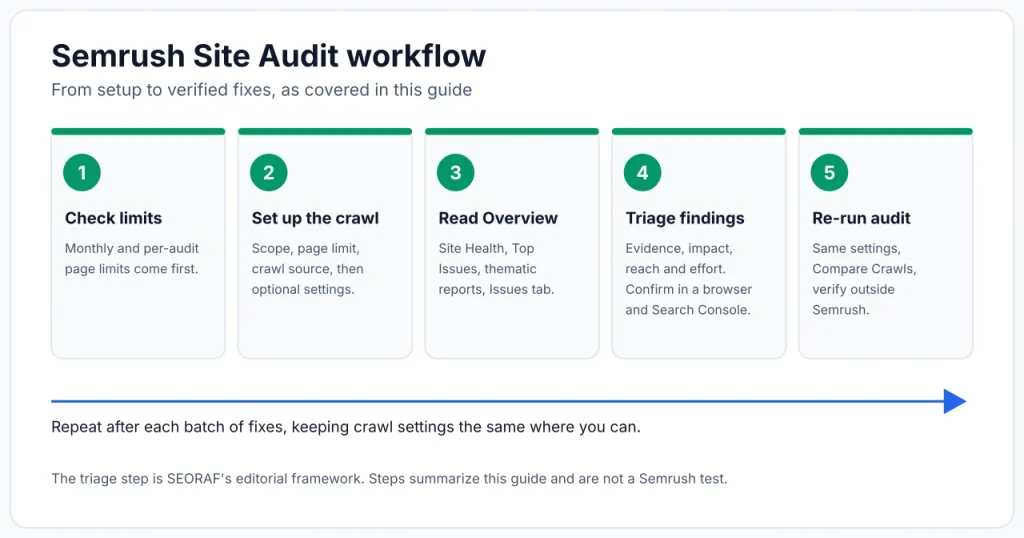
- Check your plan’s monthly and per-audit page limits before you configure anything.
- Set the scope, page limit and crawl source. Start with the defaults, then adjust the user agent, crawl delay and JavaScript rendering only if you have a reason.
- Read the Overview: Site Health, Top Issues and the thematic reports.
- Triage findings by evidence, impact, reach and effort, and confirm important ones in a browser and in Search Console.
- Re-run with the same settings and use Compare Crawls to check progress.
Last verified: 22 October 2026 against Semrush’s knowledge base and Google Search Central. Semrush changes its interface, plans and limits often, so check the live product before relying on any number here. This guide is based on official documentation and SEORAF’s editorial judgment. It is not a report of hands-on testing, and it contains no screenshots.
By Mousume Akter, Founder & Editor, SEORAF. SEORAF is an independent SEO knowledge resource, not an agency.
What Is Semrush Site Audit?
Semrush describes Site Audit as a tool that crawls a domain and produces a report showing potential technical problems, with recommendations for improving the site’s technical health. It groups what it finds into errors, warnings and notices, and it summarizes the result in a Site Health score. Semrush documents more than 140 checks.
What the crawler checks
According to Semrush’s issue list, the checks cover these areas:
- Crawlability and site architecture, including status codes, redirects, robots.txt, sitemaps and internal links
- On-page elements such as titles, meta descriptions, headings and image alt attributes
- HTTPS implementation, including certificates, mixed content and redirects to HTTPS
- International SEO, mainly hreflang values and links
- Performance-related checks such as page size, compression and caching of JavaScript and CSS files
- AI Search checks, which Semrush added to the tool (covered in a later section)
The Overview report links to thematic reports that focus on one area at a time. Semrush’s documentation names Crawlability, HTTPS Implementation, International SEO, Performance, Internal Linking, Markups and Core Web Vitals. Semrush adjusts this set over time, so your interface may show a slightly different list.
What it cannot tell you
A Semrush Site Audit reports what Semrush’s own crawler can reach and measure. That has four consequences:
- It is not Google’s view of your site. Whether Google has indexed a page, and which version it treats as canonical, is something you confirm in Google Search Console.
- The Site Health score is Semrush’s own metric. It is not a Google ranking factor, and a higher score does not guarantee better rankings.
- Many thresholds are Semrush’s own rules of thumb. A finding is a prompt for review, not proof of a ranking problem.
- A crawler can be blocked, slowed or misled by your server, so some findings are artifacts of the crawl rather than real problems. Semrush says as much in several issue descriptions.
For a broader view of how Semrush performs across its other tools, see SEORAF’s Semrush review. This guide stays focused on Site Audit.
Semrush Site Audit Limits by Plan
Limits decide whether an audit can cover your whole site, so check them before you configure anything. Semrush’s documentation for the SEO Toolkit gives these crawl limits:
| SEO Toolkit plan | Pages per month | Pages per audit | Simultaneous audits | JavaScript rendering |
|---|---|---|---|---|
| Pro | 100,000 | 20,000 | 2 | No |
| Guru | 300,000 | 20,000 | 2 | Yes |
| Business | 1,000,000 | 100,000 | 5 | Yes |
Source: Semrush knowledge base pages on configuring Site Audit, SEO Toolkit pricing and limits, and Site Audit troubleshooting. Semrush documents JavaScript rendering as a Guru and Business feature. Verified 22 October 2026. Plan names, bundles and limits can change.
Pages per month vs pages per audit
Two separate limits apply. The monthly allowance is the total number of pages you can crawl across all audits in a month. The per-audit limit caps a single crawl. On the Pro and Guru toolkits, a site with more than 20,000 pages cannot be crawled completely in one audit, so you would need to scope audits to sections of the site or import a specific list of URLs.
Frequent scheduled audits use the monthly allowance faster. Semrush tells users to base the page limit on their subscription and on how often they re-audit.
JavaScript rendering and simultaneous audits
If your internal links or main content only appear after scripts run, a crawl without rendering may miss them, which changes the results. If you start an audit while you are already at your plan’s concurrent limit, Semrush shows an error saying you have reached the limit for simultaneously running campaigns.
The free account
Semrush’s own blog has described a free account that can crawl up to 100 pages per month, and its troubleshooting page confirms that a free account can run one audit at a time. I could not confirm the current free allowance on Semrush’s pricing page, so treat the 100-page figure as unverified and check the live terms. For plan prices and the current plan lineup, see SEORAF’s Semrush pricing plans guide, and for trial terms see Semrush free trial.
How to Set Up a Semrush Site Audit
When you create your first project in Semrush, Site Audit launches automatically for that domain. For later projects, you create a project from the Site Audit tool and configure the audit yourself, as described in Semrush’s guide to configuring Site Audit. The setup wizard has five steps. The first, General settings, is enough to start a crawl, and the other four are optional. Menu labels change from time to time, so follow the sense of each step if your screen differs.
Before you start, work through this short list:
- Decide which version of your domain is live (with or without www). Semrush notes that entering a root domain whose version does not exist is a common cause of DNS resolution failures.
- Check whether your robots.txt, security plugin, CDN or host blocks unknown bots. If it does, the crawl may fail or return misleading results (see the troubleshooting section).
- Know your plan’s per-audit and monthly limits so the crawl does not use more of your allowance than you intend.
Choose the scope
The Scope field takes a domain, a subdomain or a subfolder. By default Site Audit crawls the root domain including subdomains and subfolders. To limit the crawl, enter a subdomain or subfolder and clear the Crawl all subdomains checkbox. Semrush’s example is auditing only a blog by entering blog.example.com or example.com/blog/, depending on how the blog is built.
Set the limit per audit
Enter how many pages Site Audit should crawl per audit. A full-site crawl gives a more complete picture when your page count fits within your limits. When it does not, a narrower scope or a targeted URL list usually gives more useful results than a partial crawl that stops somewhere arbitrary.
Pick a crawl source
The Pages to crawl setting controls how SiteAuditBot finds URLs. There are four sources:
| Crawl source | How it works | When it fits |
|---|---|---|
| Website | Follows links from the homepage using a breadth-first approach | You want to see the site as a link-following crawler reaches it. It finds the pages easiest to reach from the homepage, which are not always the most important ones. Semrush suggests a sitemap source if you want to prioritize by importance. |
| Robots.txt sitemap | Crawls only the URLs in the sitemap linked from robots.txt | Your sitemap is accurate and you want to prioritize the pages you submit |
| Sitemap by URL | Crawls one sitemap you specify | The sitemap is not linked from robots.txt. Only one sitemap is used at a time. |
| Import URLs from file | Crawls a .csv or .txt file with one URL per line | You have several sitemaps, or you want to check specific pages and conserve your crawl allowance |
Source: Semrush knowledge base, Configuring Site Audit. Verified 22 October 2026.
Editorial note: a sitemap-based crawl audits the pages you listed, so it will not reveal pages that exist but are missing from the sitemap. Running a website crawl now and then helps catch those.
Schedule recurring audits
The Schedule setting offers Weekly (any day you choose), Daily or Once, and you can re-run an audit at any time. Semrush recommends regular scheduling so you notice new issues quickly. Match the frequency to how often your site changes, and remember that each scheduled crawl draws on your monthly page allowance.
Advanced Crawl Settings That Change Your Results
The optional steps change what the crawler sees, which changes what it reports. Semrush also shows a notice when your crawler settings differ from the previous audit, because that can explain unexpected changes in results. Compare audits only when the settings are the same, or note what changed.
| Setting | Options and behavior | Why it matters |
|---|---|---|
| User agent | SiteAuditBot (Mobile) is the default. SiteAuditBot (Desktop) and OpenAI-Search are the other options. | The default audits your site roughly the way Google’s mobile crawler would. OpenAI-Search checks whether OpenAI’s search bot can crawl the site. |
| Crawl delay | Minimum (about one second between pages), 1 URL per 2 seconds, or respect the delay in robots.txt | A slower crawl takes longer but puts less load on a fragile server. |
| JS rendering | Runs JavaScript so the crawler sees what visitors see. Off means HTML only. | Matters for JavaScript-heavy pages. Semrush says it can change the Health Score by exposing more content and more issues. |
| Allow/disallow rules | Include or exclude subfolders | Keeps the crawl focused. Use the trailing slash, because /shoes also matches /shoes-men. |
| URL parameter rules | Lists parameters to ignore while crawling | Stops the crawler spending your allowance on parameter variants of the same page. |
Source: Semrush knowledge base, Configuring Site Audit. Verified 22 October 2026.
User agent
Older tutorials describe choosing Googlebot as the crawler. Semrush now says Googlebot Desktop and Mobile are no longer in the dropdown, although existing campaigns set to Googlebot keep using it until you change them. The SiteAuditBot options do not mean Google sees your site exactly as Semrush does. For that, use Search Console.
Crawl delay
The Respect robots.txt option makes SiteAuditBot follow a Crawl-delay line in your robots.txt. That setting affects Semrush’s crawler only. Google’s 2019 note on unsupported robots.txt rules names crawl-delay among the rules it does not handle, so do not assume a Crawl-delay line influences how Googlebot crawls your site.
JavaScript rendering
With rendering off, Site Audit reads only the HTML, which is faster and lighter on your server but less accurate for pages that build content or links with JavaScript. If your homepage hides links to the rest of the site inside JavaScript, Semrush advises turning rendering on (Guru and Business) or switching the crawl source to a sitemap.
Allow/disallow and URL parameter rules
Use these to focus the audit. Enter the path after the domain, for example /shoes/mens/, and include the trailing slash. For parameters, list the ones that create duplicate versions of pages, such as pagination, language or tracking parameters. Semrush then strips them while crawling so a page with and without a parameter counts once.
Staging sites, logins and blocked crawlers
For sites behind a login or still in development, the Restrictions to bypass step offers three options:
- Bypass robots.txt and meta robots disallow rules: you upload a verification file Semrush provides to your site root to prove ownership.
- Crawl with credentials: you enter a username and password for the protected area.
- Crawl with a Web Bot Auth signature: for hosting platforms such as Shopify that block unknown bots by default.
Use these only on sites you own or are authorized to audit.
Running the Audit and Reading the Overview
Click Start audit and wait. Crawl time depends on your crawl delay setting and the size of the audit. Once the crawl finishes, the Overview report is your starting point.
Overview widgets
The Overview shows the Site Health score, totals for errors, warnings and notices, a Top Issues list, thematic report previews, and an AI Search Health widget. Semrush’s issue list ranks the three severity levels by harm: errors are the most harmful, warnings are harmful, and notices are the least harmful. Semrush still says notices can affect your SEO, so review them after the higher-priority items.
Thematic reports
Use the thematic reports when you want to review one area at a time, such as HTTPS migration problems, hreflang implementation, crawlability or internal linking. The Crawlability report, for example, includes widgets for crawl depth, sitemap versus crawled pages, and HTTP status codes.
The Issues tab
The Issues tab lists every check that found something. Each issue has a How to fix tooltip with Semrush’s explanation, and you can open the list of affected pages. Treat the tooltip as a starting point and verify each case yourself before changing anything.
How Site Health Is Calculated (and How Not to Read It)
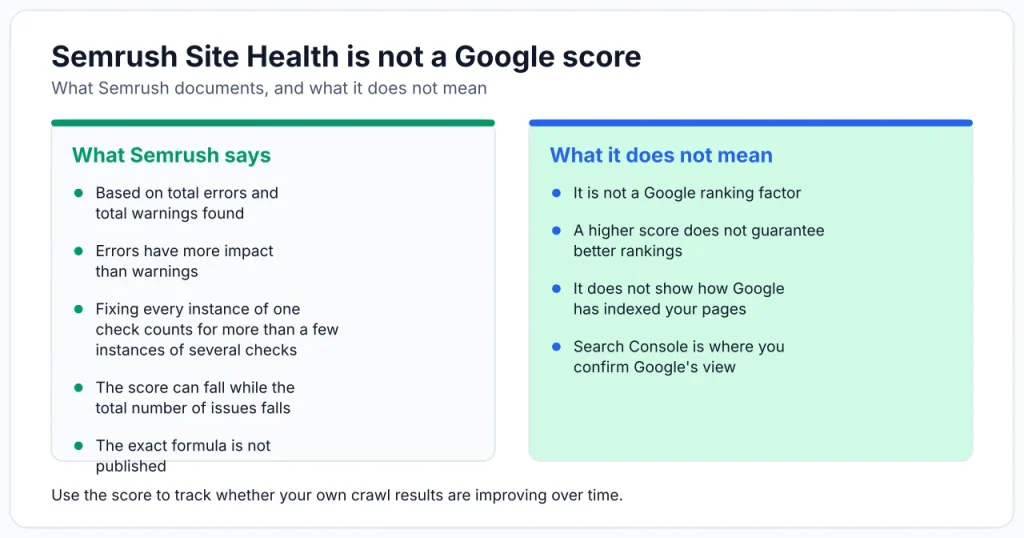
Semrush’s explanation of the score says it is based on the total errors and total warnings found on the crawled pages, with errors having more impact than warnings. The same page tells you to fix notices too because they can still affect SEO, and it says errors weigh more than warnings and notices. It does not publish the exact formula. Several details in that explanation affect how you should interpret the score:
- Check types matter. The type of check, the number of distinct checks triggered and how many instances of a check you fix all count. Fixing every instance of one check, such as all broken links, has a bigger effect than fixing a couple of instances each of two different checks.
- Page count does not drive the score. The frequency of each error is what counts, so a larger site is not automatically penalized.
- The score can fall while issues fall. A crawl can surface a heavily weighted new issue, such as slow pages, at the same time you clear minor ones. Total issues may drop while the score drops too.
- Settings change it. Turning on JavaScript rendering can expose more content and so more issues. Excluding a check removes it from future scoring.
- Each crawl can find different things. Because the bot follows links from the homepage, Semrush says every crawl can discover new issues on the same site.
The widget also lets you compare your score with a benchmark labeled Top-10% websites, and you can select an industry. Treat that as loose context. Semrush does not publish a universal threshold for a good score, so use your own trend over time instead of a target number you found in a tutorial.
Editorial note: The Site Health score is a proprietary Semrush metric, not a measure Google uses to rank pages. Use it to track whether your own crawl results are improving, not as a goal to maximize.
Errors, Warnings and Notices: How to Prioritize What to Fix
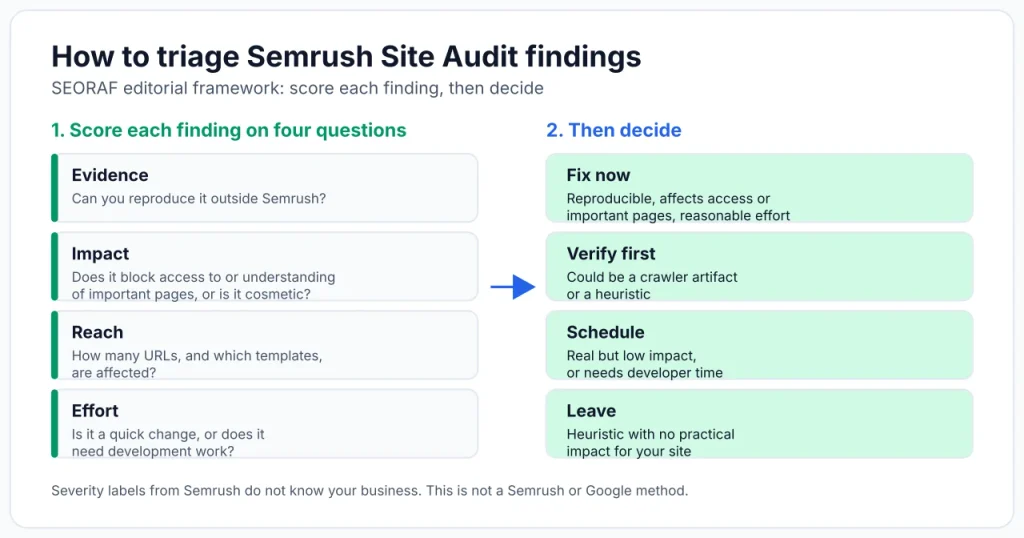
Semrush suggests working through errors first, then warnings and notices. That is a reasonable default, but severity labels do not know your business. The framework below adds judgment on top of Semrush’s labels. It is SEORAF’s editorial approach, not a Semrush or Google method.
A practical triage order
Score each finding on four questions:
- Evidence: Can you reproduce it outside Semrush? Open the URL in a browser, check the HTTP response and compare with Search Console. A finding you cannot reproduce is a candidate for a crawler artifact.
- Impact: Does it stop users or crawlers reaching or understanding important pages (for example 5xx responses, blocked pages, broken canonicals), or is it cosmetic (for example an underscore in a URL)?
- Reach: How many URLs, and which templates, are affected? One template fix can clear thousands of instances.
- Effort: Is it a quick setting or content change, or does it need development work?
Start with findings that have strong evidence, high impact and broad reach, especially when the effort is low. Defer findings with weak evidence or low impact.
Illustrative example (hypothetical, not real data): suppose a crawl reports many broken internal links. Open the affected-pages list and check whether they come from one place, such as a footer or navigation template. If they do, one template edit fixes all of them, and the finding scores high on reach and low on effort. If instead each link sits in separate old posts, the same count means far more work and may rank lower.
Top Issues and Google Analytics
The Top Issues widget on the Overview lists the most important issues based on how often they occur and their priority level, which makes it a quick place to start. Semrush also suggests connecting Google Analytics so the Crawled Pages report can show visit data next to issues. That helps you fix problems on pages that actually receive traffic first. The Orphaned pages (from Google Analytics) check depends on that connection.
Fix, verify or leave: decision rules
| Decision | When it applies | Examples |
|---|---|---|
| Fix now | Reproducible, affects access or important pages, reasonable effort | 5xx errors on key pages, broken canonical links, expired certificates, important pages blocked by mistake |
| Verify first | Could be a crawler artifact or a heuristic | Broken links reported for pages that open fine in a browser, a sudden spike in 4xx errors, issues that appear only after a settings change |
| Schedule | Real but low impact, or needs developer time | Missing alt attributes, uncompressed files, long URLs |
| Leave | Heuristic with no practical impact for your site | A short page that fully answers its query, an intentional temporary redirect, an intentional noindex page |
SEORAF editorial framework. These categories are recommendations, not Semrush or Google rules.
If you would rather have someone interpret an audit for you, SEORAF offers an SEO audit service. For a tool-agnostic list of what to check, see the advanced SEO audit checklist.
Common Semrush Site Audit Issues and Next Steps
The tables below cover issues Semrush documents that readers commonly ask about. Each row says what Semrush reports, how to investigate it, and what to do. A tool-reported issue is not the same as a confirmed ranking problem, so each row includes situations where the advice may not apply. Descriptions come from Semrush’s issue list unless noted.
Crawlability, status codes and security
| Issue | What it means and why it may matter | How to investigate | Next step and caveats |
|---|---|---|---|
| Pages returning 5XX status code | The server could not complete the request. It can stop users and crawlers reaching the page. | Check server logs and uptime. Reload the URL several times, and at different times of day. | Fix with your host or developer. If errors appear only during the crawl, your server may be struggling with the crawl load. Semrush suggests the 1 URL per 2 seconds crawl delay for sites the crawl slows down. |
| Pages returning 4XX status code, broken internal links | The page or link target is not reachable, so visitors and crawlers hit dead ends. | Use the affected-pages list to find the linking pages, then open the target in a browser. | Remove or update the link, or redirect a moved page. Semrush notes its crawler can flag a working link as broken if a DDoS protection system blocks it or the server is overloaded or misconfigured, so verify before editing. |
| Pages couldn’t be crawled | Semrush says the server took more than five seconds to respond or refused access. | Test response time, then check whether your firewall, CDN or host blocks the bot. | Ask your host to allowlist SiteAuditBot if blocking is the cause. A slow response is worth fixing regardless of Semrush. |
| Redirect chains and loops | URLs redirect through several hops or in circles, which wastes crawl effort and slows loading. | Follow the redirect path from the affected-pages list. | Semrush advises no more than three redirects in a chain and recommends pointing each URL directly at the final destination. |
| Temporary redirects (302/307) | Semrush flags them as warnings because they signal a temporary move. | Check whether the redirect is meant to be permanent. | Use a permanent redirect for a permanent move. Leave a temporary redirect in place if the move really is temporary. |
| Mixed content, certificate problems | Insecure elements on HTTPS pages, or an expired, mismatched or old-protocol certificate, trigger browser warnings. | Open the page in a browser and check the certificate details and the console. | Serve all resources over HTTPS and renew or replace the certificate. Certificate and protocol changes usually need your host. |
| Pages blocked from crawling (notice) | A robots.txt rule or a noindex tag keeps search engines from using the page. | Check robots.txt and the page source or response headers. Compare with Search Console. | Confirm important pages are not blocked by mistake. Intentionally blocked pages need no action. |
Source for issue descriptions: Semrush knowledge base, What Issues Can Site Audit Identify. Verified 22 October 2026. Investigation and next-step advice is SEORAF editorial guidance.
Canonicals, duplicates, redirects and sitemaps
| Issue | What it means and why it may matter | How to investigate | Next step and caveats |
|---|---|---|---|
| Pages with duplicate content issues | Semrush treats pages as duplicates when their content is 85% identical, and says several URLs for similar content can dilute signals. | Compare the listed URLs. Check which version you want indexed and what canonical tags say. | Consolidate with a redirect or a canonical tag, or make the pages meaningfully different. Some duplication, such as printer-friendly or parameter versions, is normal and best handled by consistent canonicals. |
| Broken or multiple canonical URLs | A canonical pointing to a missing page, or several different canonicals on one page, makes the preferred URL unclear. | View the page source and the HTTP headers. | Keep one valid canonical per page. A theme or SEO plugin can output a second canonical, so check both. |
| Incorrect pages in sitemap.xml | Sitemap URLs that redirect, return non-200 responses or duplicate other content. | Open the sitemap and spot-check URLs. | List only final, canonical, indexable URLs. Semrush also flags sitemaps over 50 MB uncompressed or 50,000 URLs and recommends splitting them with an index file. |
| Orphaned pages | Pages with no internal links pointing to them. Semrush finds them by comparing the crawl with sitemap or Google Analytics data. | Review the list and decide which pages still matter. | Link to valuable pages, remove obsolete ones, and leave pages that deliberately need no links. |
Source for issue descriptions: Semrush knowledge base, What Issues Can Site Audit Identify. Verified 22 October 2026. Duplicate-content handling: read Google’s own documentation on consolidating duplicate URLs before deciding.
On-page and internal-link checks
| Issue | What it means and why it may matter | How to investigate | Next step and caveats |
|---|---|---|---|
| Missing or duplicate title tags and meta descriptions | Titles and descriptions help users and search engines tell pages apart. Semrush reports duplicates only when they are exact matches. | Sort affected pages by template or section. | Write a unique, accurate title for each page. Semrush notes it is better to have no meta description than a duplicate one. Search engines may display different text in results. |
| Title too long, low word count, no H1, multiple H1 tags | These are Semrush heuristics. Examples are titles over 70 characters and pages under 200 words. | Judge each page by its purpose, not the threshold. | Treat them as review prompts. A short page can fully answer its query, and these thresholds are Semrush’s own rules of thumb, so check Google’s guidance before treating any of them as a requirement. |
| Pages that need more than three clicks to reach | Deep pages are harder for users and crawlers to find. | Check the crawl-depth widget in the Crawlability report. | Link important pages from higher-level pages. Not every page needs to sit near the homepage. |
| Internal links with nofollow, non-descriptive or missing anchor text | Internal nofollow links may stop link signals flowing, and vague anchors tell users little about the target. | Review the affected links and their source pages. | Remove accidental nofollow attributes and rewrite vague anchors to describe the target page. |
| Images without alt attributes | Alt text helps accessibility and image understanding. | Filter to content images versus decorative ones. | Add accurate alt text to informative images. Decorative images may legitimately have empty alt text. |
Source for issue descriptions: Semrush knowledge base, What Issues Can Site Audit Identify. Verified 22 October 2026.
Where Semrush thresholds are heuristics, not Google rules
Several Semrush explanations present rules of thumb as if they were search-engine requirements. A few examples worth keeping in mind:
- Numeric thresholds such as 70-character titles, 200-word pages, 3,000 links per page, URLs over 200 characters, 85% duplicate similarity and the three-click depth rule are Semrush’s own checks.
- Crawl-delay is respected by Semrush’s crawler. Google’s 2019 note lists it among unsupported robots.txt rules.
- Page speed and word count. Semrush’s explanations call page load speed one of the most important ranking factors and word count a quality signal. Those are Semrush’s statements, not rules I could verify in Google’s documentation. Its speed check also measures only HTML load time, not images, JavaScript or CSS.
- Older advice. Semrush’s duplicate-content advice still mentions rel=next and rel=prev attributes and URL-parameter handling in Search Console, and its robots.txt advice points to Google’s robots.txt Tester. Google’s tools and guidance change, so check Google’s current documentation before acting on any of these.
The practical rule is to use Semrush to find candidates, then use Google’s documentation and Search Console to decide whether Google is actually affected. For background on crawling, see SEORAF’s guides to crawling in SEO and the technical SEO guide.
AI Search Health: What the Score Measures
Semrush added an AI Search Health score to Site Audit. According to its documentation, the score reflects AI-search checks in Site Audit, whether AI crawlers are blocked by your robots.txt, and technical readiness such as schema markup, crawlable navigation, internal links and llms.txt. A separate Blocked from AI Search widget shows how many pages are blocked from different AI search bots, out of eight crawlers Semrush tracks.
To view your site as OpenAI’s search bot would, set the user agent to OpenAI-Search before running the audit, then filter the Issues tab by AI Search.
Read this section with care. Semrush lists a missing llms.txt file as a notice. Google’s AI optimization guide says you do not need llms.txt or similar AI-specific files to appear in Google Search, including its generative AI features, and a later clarification says maintaining one for other systems neither helps nor harms your Google visibility. So an llms.txt notice may matter for other AI services, but it is not a documented Google Search requirement. Google’s announcement of the guide also says SEO best practices remain relevant to its AI features. The AI Search Health score is a Semrush metric, not evidence of visibility in any AI product.
Re-running the Audit and Comparing Crawls
After you fix a batch of issues, use the Re-run campaign button to crawl again and see how the results change. Keep three points in mind:
- Keep settings consistent. If you change settings between crawls, Semrush shows a notice that this may affect results.
- Use Compare Crawls and Progress. Per Semrush’s Compare Crawls and Progress documentation, Compare Crawls puts two audits side by side so you can see which issues were fixed and which are new, and you can compare any two audits back to your first. The Progress report charts issue counts and other metrics over time.
- Verify outside Semrush. A fixed issue disappearing from a Semrush report shows the crawler no longer sees it. Confirm important fixes in a browser and in Search Console.
You can also send issues to Trello or, through Zapier, to other task managers, or export the list of affected pages for a developer. Semrush additionally suggests adding a note in its Position Tracking tool each time you make a change, so you can compare visibility later. A note marks when you made a change. It does not prove the change caused a ranking movement.
Why a Semrush Site Audit Fails or Looks Wrong
Semrush’s troubleshooting guide lists several reasons a crawl can fail or return thin results. If you see an Auditing domain has failed error, your server is likely blocking SiteAuditBot, and you can download the crawl log to share with your developer or host.
| Symptom or cause | What to check | What to try |
|---|---|---|
| robots.txt blocks the crawler | Look for Disallow rules that apply to SiteAuditBot or all bots | Allow SiteAuditBot, or use the ownership-verified bypass option |
| noindex or nofollow on the homepage | Semrush says such tags on the main page can stop the crawl | Remove them from pages you want audited, or use the bypass option |
| Firewall, CDN or security plugin blocks the bot | Look at your CDN, WAF and plugins. Semrush names Cloudflare, Imperva, ModSecurity and Sucuri as common cases. | Allowlist SiteAuditBot. Semrush lists the ports (80 and 443) and an IP range (85.208.98.128/25). Confirm the range in Semrush’s troubleshooting page before using it, since it can change. |
| Platform blocks unknown bots | Hosts such as Shopify may block them by default | Use the Web Bot Auth signature option |
| Page or resource size is too large | Semrush says it cannot process a landing page, or total JavaScript and CSS, over 2 MB | Reduce page weight |
| Domain does not resolve | You entered the root domain but only the www version exists, or the reverse | Enter the correct version and redirect the other one |
| Links hidden in JavaScript | The crawl finds few pages beyond the homepage | Turn on JS rendering (Guru and Business), or crawl from a sitemap |
| Login gate or staging site | The crawler reaches only a login page | Use the credentials option |
| Limits reached | Check your monthly crawl budget, and whether you hit the simultaneous-audit limit | Wait for the monthly refresh, finish a running audit, or purchase additional limits |
| Audit seems stuck near the end | Semrush says the final phase checks external links and images, so pages with many of them can take longer. Crawl time otherwise depends on your crawl delay and audit size. | Wait, or stop the crawl yourself. Stopping and saving shows the incomplete results as your audit, and discarding keeps your crawl budget. Semrush advises contacting support if an audit is stuck for more than 24 hours. |
Source: Semrush knowledge base, Troubleshooting Site Audit, Configuring Site Audit, and the Semrush article on how long a crawl takes (read through a localized copy). Verified 22 October 2026. Shared hosting may not let you allowlist bots or edit robots.txt.
When Another Tool or a Manual Check Helps
Site Audit is one view of your site, not the only one. Which other option fits depends on what you need:
- Google’s own view of crawling and indexing: use Search Console.
- More control over custom crawls: a desktop crawler may fit. SEORAF’s Screaming Frog free vs paid features comparison covers one option.
- A quick, lightweight check: try the free SEO audit tool on SEORAF.
- Comparing Semrush with other platforms overall: see Semrush vs Ahrefs and SE Ranking vs Semrush.
Frequently Asked Questions
How many pages can Semrush Site Audit crawl?
It depends on your plan. Semrush documents 100,000 pages per month (20,000 per audit) on Pro, 300,000 per month (20,000 per audit) on Guru, and 1 million per month (100,000 per audit) on Business. Check the live pricing page for current plans.
Is Semrush Site Audit free?
Semrush’s blog has described a free account with a 100-page monthly Site Audit allowance, but I could not confirm that on the pricing page, so check the live terms. Features such as JavaScript rendering are documented as Guru and Business only. See the free account section above for details.
Can I still crawl as Googlebot?
Not for new setups. Googlebot Desktop and Mobile were removed from the user agent dropdown, leaving SiteAuditBot (Desktop), SiteAuditBot (Mobile) and OpenAI-Search. Existing campaigns set to Googlebot keep using it until you change the setting.
How often should I schedule an audit?
Semrush recommends scheduling regularly and offers daily, weekly and one-time schedules. The right frequency is an editorial judgment: match it to how often your site changes, and remember that each crawl uses part of your monthly page allowance.
Why did my Site Health score drop after I fixed issues?
Semrush explains that a crawl can find a new, heavily weighted issue at the same time you clear minor ones, so the total number of issues can fall while the score falls. Changed crawler settings, such as turning on JavaScript rendering, can also change the result.
Will fixing Site Audit issues improve my rankings?
Nobody can promise that. Semrush frames the tool as a way to find and fix technical problems that may hold a site back. Fixing a real access or indexing problem can help your pages be found, but a better Site Health score alone does not guarantee better rankings. Confirm changes in Search Console and judge results over time.
Sources and Last Verified
Product facts in this guide come from the Semrush documentation below, verified on 22 October 2026. Statements about what to fix first, and the decision framework, are SEORAF’s editorial recommendations. This page does not claim hands-on testing.
- Semrush: Audit your website
- Semrush: Configuring Site Audit
- Semrush: How is Site Health Score calculated?
- Semrush: What issues can Site Audit identify?
- Semrush: Troubleshooting Site Audit
- Semrush: SEO Toolkit pricing and limits
- Semrush: AI Search Health in Site Audit
- Semrush: Site Audit thematic reports
- Semrush: Compare Crawls and Progress
- Semrush blog: SEO audit tools (free account allowance)
- Google Search Central: A note on unsupported rules in robots.txt
- Google Search Central: A new resource for optimizing for generative AI in Google Search
- Google Search Central: Optimizing your website for generative AI features on Google Search