
SEO Crawler Guide: How to Crawl a Website for SEO Audits
By Mousume Akter, Founder & Editor, SEORAF. Last reviewed: 18 October 2026.
An SEO crawler is software that follows links across a website, requests each URL, and records what comes back: status codes, redirects, indexing directives, canonical tags, page elements and links. It shows you your site as a crawler can reach it. It does not show what Google crawled, rendered or indexed, and Google states that third-party tools have no access to its internal ranking data. Treat a crawl as a fast way to generate hypotheses, then confirm the important ones with Search Console, server logs or a manual check.
This guide shows how to choose a crawler for your site, configure and run a crawl safely, read the results, and decide which findings deserve a fix and which can be ignored. It also separates crawling from rendering, indexing and ranking, and separates what Googlebot does from what a third-party crawler does.
For how Googlebot discovers, schedules and fetches URLs, see SEORAF’s guide to crawling in SEO. For the wider subject, see the Technical SEO hub. This article focuses on using crawlers as audit tools.
How claims are labeled. Where it matters, claims are tagged as Google-documented (stated in Google Search Central or Search Console documentation, linked in the text), Practitioner observation (common professional practice that Google does not document) or SEORAF recommendation (editorial judgment). This guide cites no published research and presents no SEORAF test results. Examples are hypothetical and labeled as such. Google’s documentation and vendor products change, so check the linked pages before acting on anything time-sensitive.
SEORAF is an independent SEO knowledge resource. This guide does not promise rankings, traffic or indexing, and it contains no affiliate links.
What Is an SEO Crawler Guide and What Can It Tell You?
An SEO crawler, also called a site crawler or website spider, is software you run against a site to inventory its URLs and record how each one behaves. It starts from one or more URLs, follows links, requests each page, and writes what it finds into a table you can filter and export.
What a crawl produces
Columns vary by tool, but most crawls record the following for every URL:
- Response: status code, redirect target, final URL, response time and file size.
- Directives: meta robots tag,
X-Robots-Tagheader and whether robots.txt blocks the URL. - Duplication signals: the declared canonical URL and repeated titles or content.
- On-page elements: title, meta description, headings, hreflang and structured data.
- Links: internal and external links in and out, anchor text and crawl depth.
- Rendered content, if the tool’s JavaScript rendering is switched on.
That is an inventory: a snapshot taken from one machine, at one time, with one set of settings. Change the settings and the inventory changes.
SEO crawler, Googlebot and AI crawlers are different things
| Crawler type | Who runs it | Purpose | Where your evidence comes from |
|---|---|---|---|
| SEO audit crawler | You, your team or a consultant | Diagnose a site’s technical and on-page structure | The crawl export itself, which reflects that tool’s settings |
| Googlebot | Discover and fetch pages for Google Search | Search Console (URL Inspection, Page indexing, Crawl Stats) and your server logs | |
| AI crawlers | Each AI provider, under its own user agents | Varies by provider and by bot (for example training, search or user-requested fetches) | Each provider’s documentation, your robots.txt rules and your server logs |
Table 1. Three kinds of crawler that are often confused.
Google-documented: Googlebot is the name for two crawlers, Googlebot Smartphone and Googlebot Desktop. They obey the same robots.txt token, so you cannot target one without the other in robots.txt. For most sites Google primarily indexes the mobile version, so most Googlebot requests come from the smartphone crawler.
Other crawlers often fake Googlebot’s user-agent string. Google’s guidance is to verify a suspicious request with a reverse DNS lookup or by matching the IP address against Google’s published ranges (see Verifying Googlebot). The same logic applies in reverse: setting your own crawler’s user agent to “Googlebot” does not make it Googlebot.
AI companies run their own crawlers under separate user agents, and each provider documents its own. A third-party SEO crawler cannot tell you whether they reached your site. SEORAF’s crawling guide covers that topic; this article does not.
Crawling, rendering, indexing and ranking are different events
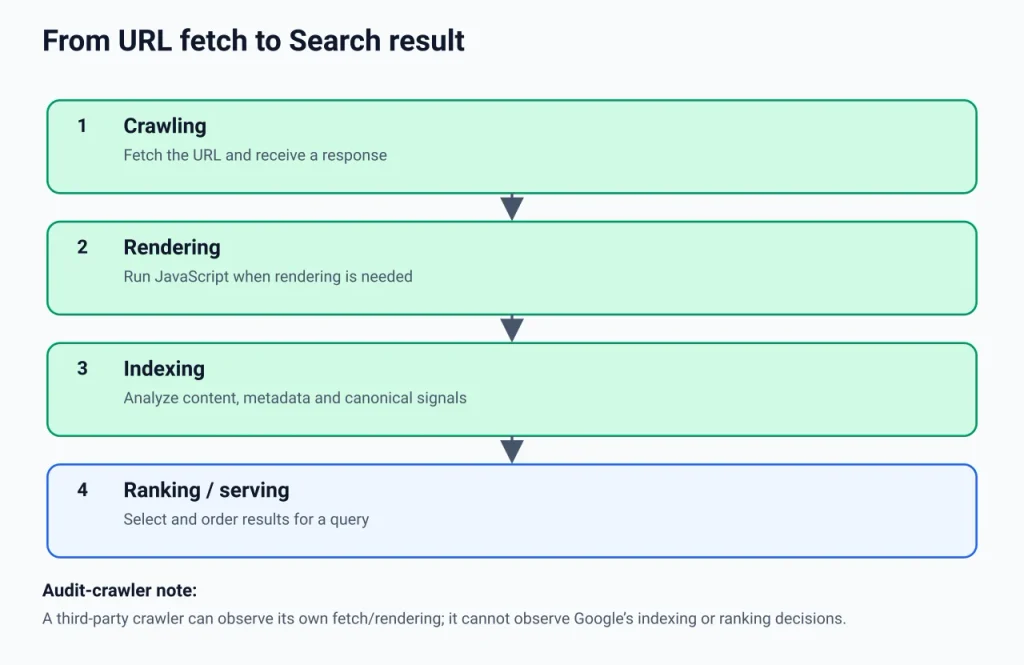
Google-documented: Google describes three stages of Search: crawling, indexing and serving. Rendering sits between crawling and indexing for pages that rely on JavaScript. In plain terms:
- Crawling is fetching a URL: requesting it and receiving a response.
- Rendering is running the page’s JavaScript so the content a browser would show becomes available. Google’s JavaScript documentation describes a render queue and a headless Chromium.
- Indexing is analyzing the content and metadata and deciding whether to store it. This includes working out which URL is the canonical version of duplicates. Google says indexing is not guaranteed.
- Ranking (serving) happens when someone searches: Google selects and orders results from its index.
A URL can pass one stage and fail the next. A third-party crawler can observe a fetch and, if you enable it, a rendering on its own infrastructure. It cannot observe Google’s indexing or ranking decisions.
What a crawl can and can’t prove
A crawl can show that, at the time of the crawl and with your settings, a URL was reachable, what status the server returned, what directives and canonical tag were present, which links the page contained, and (with rendering on) what content appeared after JavaScript ran.
A crawl cannot show whether Google has crawled, rendered or indexed a URL; which URL Google picked as the canonical; how often Googlebot visits; or how a page performs for real queries. Google-documented: its guidance on third-party tools says they can’t guarantee performance, that any predictions are the tool’s own, and that Google doesn’t evaluate or approve them. It recommends Search Console as the first-party source.
Takeaway: use a crawler to find what to check, and use Google’s own tools to check it.
How an audit crawler discovers and records URLs
Understanding the loop a crawler runs explains most surprises in a crawl report, especially why it finds fewer (or more) URLs than you expect.
Start points, link following and the URL queue
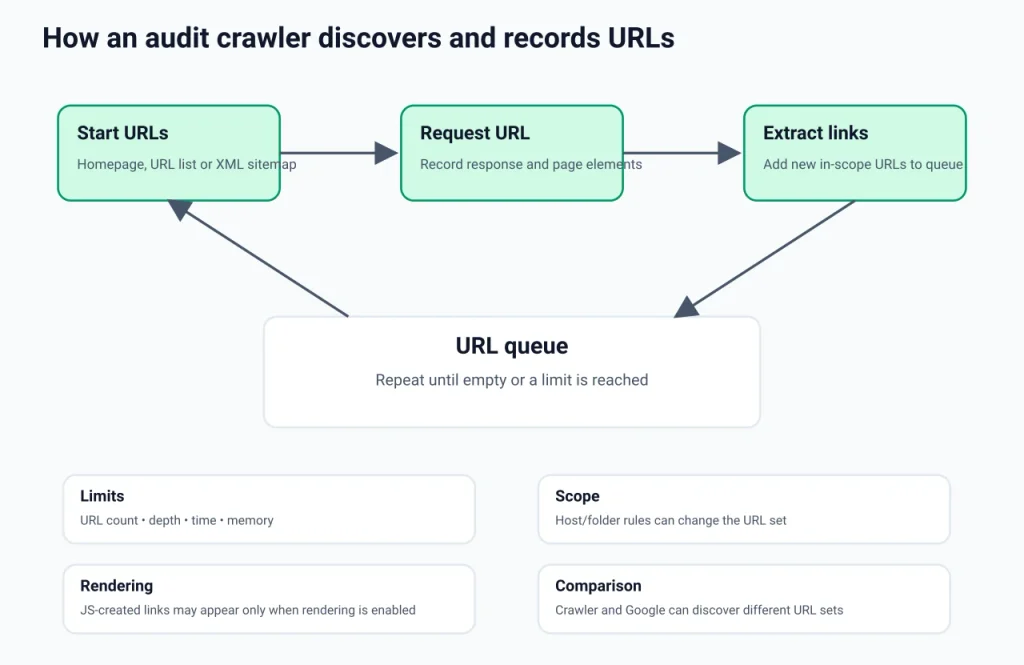
A crawler begins with start URLs, usually your homepage. It requests a URL, records the response and the page’s elements, extracts the links, adds new in-scope URLs to a queue, and repeats. It stops when the queue is empty or a limit (URL count, depth, time or memory) is reached. Most tools also let you supply a URL list or an XML sitemap as an extra source, which matters for finding pages that no link points to.
Which links a crawler can follow
Google-documented: Google can generally crawl a link only if it is an <a> element with an href attribute, and the URL has to resolve to a real web address (see Google’s link guidance). Navigation built from click handlers with no href is a classic way to hide pages from crawlers. Audit tools differ in what they follow, so check your tool’s documentation instead of assuming it matches Google.
Why your crawler and Google can disagree about your URLs
Expect the two URL sets to differ. Common reasons:
- Different discovery sources. Google-documented: Google finds pages mainly through links from pages it already knows, and also through sitemaps. Your crawler only knows its start URLs, the links it finds and whatever extra sources you add.
- Scope and limits. Many tools restrict a crawl to a host or folder and stop at a URL limit.
- Access. A firewall, rate limiter or login wall may treat your crawler differently from Googlebot.
- Rendering. Links created by JavaScript only exist if you enable rendering.
- Time. Google’s knowledge of your site accumulates over months; your crawl is one afternoon.
Takeaway: a crawl that returns far fewer URLs than you expect is a finding in itself. Work out why before analyzing anything else.
Crawlable, indexable, or both: reading directives correctly
Crawlability and indexability in crawl-report terms
Crawlable means a crawler can reach and fetch the URL: it is linked or listed, not blocked, and the server answers. Indexable means nothing on the page tells search engines to keep it out, and its signals (canonical, redirect, status code) do not point elsewhere. Most audit tools show an “indexability” column. That label is the tool’s own logic applied to the page, not a statement about Google’s index. A page marked indexable can still be absent from Google, and a page marked non-indexable (for example, because it canonicalizes to another URL) may be exactly as you intended.
robots.txt, noindex, canonical and password protection
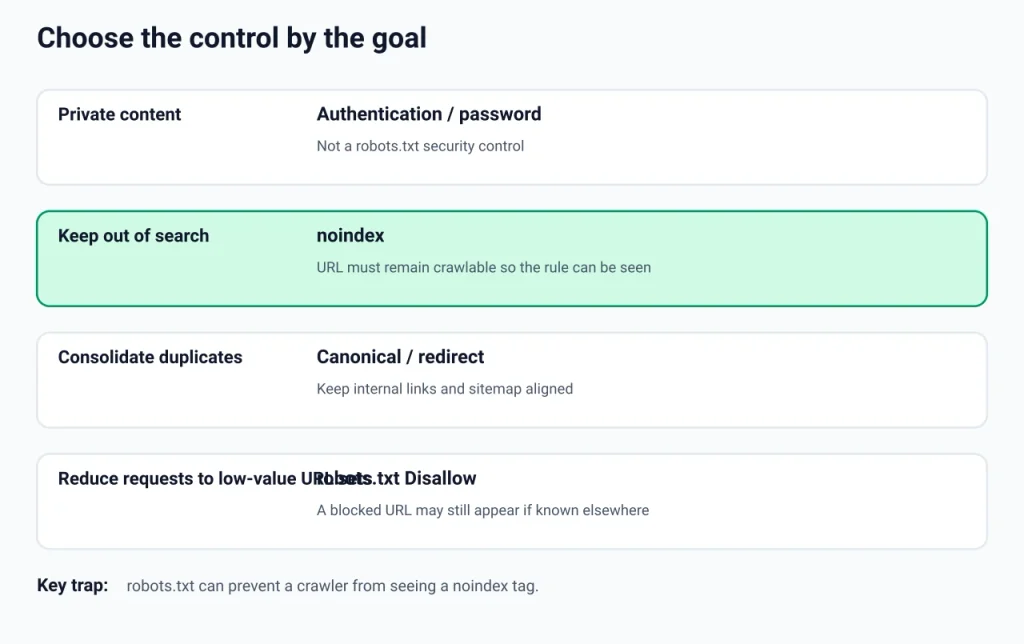
These four controls solve different problems. Mixing them up is one of the most common sources of bad audit advice.
| Goal | Mechanism | Must the URL be fetchable? | What to check in a crawl | Common trap |
|---|---|---|---|---|
| Stop crawlers requesting low-value URLs | robots.txt Disallow | No, that is the point | Blocked-by-robots.txt report | A blocked URL can still be indexed if other pages link to it, usually without a description |
| Keep a page out of Google’s results | noindex meta tag or X-Robots-Tag header | Yes. The crawler has to see the tag | Noindex in the directives or indexability column | Blocking the same URL in robots.txt hides the noindex |
| Consolidate duplicate URLs | Redirect, rel="canonical", consistent internal links and sitemap entries | Yes | Canonical column, canonical target status | A canonical is a hint, so Google may choose another URL |
| Keep content private | Authentication or password protection | Not applicable | 401 or 403 responses | robots.txt is not security; some crawlers ignore it |
Table 2. Four controls, four different jobs.
Google-documented: Google’s robots.txt introduction says a robots.txt file is mainly for managing crawl traffic and is not a mechanism for keeping a page out of Google, and that a disallowed URL can still be indexed if it is linked from elsewhere. Its noindex documentation says the page must not be blocked by robots.txt and must be accessible to the crawler for the rule to work, and that noindex inside robots.txt is not supported by Google. Its canonicalization documentation describes a canonical preference as a hint, not a rule, with signals such as HTTPS, redirects, sitemap inclusion and rel="canonical".
The blocked-and-noindexed trap
Suppose a page carries this tag:
<meta name="robots" content="noindex">and robots.txt also disallows the page’s path. A crawler that obeys robots.txt never fetches the page, so it never sees the tag. Googlebot behaves the same way. Per Google, the page can then stay in results if it is linked from elsewhere. If you want a page deindexed, allow it to be crawled until Google has seen the noindex and dropped it. Google also notes that a page may keep appearing until it is recrawled, which for less important pages can take a long time.
How to find this in a crawl: filter for URLs that are blocked by robots.txt, then check whether they are also expected to be noindexed. Because a robots-obeying crawler won’t fetch them, you may need to view the page source manually or temporarily crawl without obeying robots.txt on your own site. Treat the result as a lead to verify in URL Inspection.
A decision rule for choosing the control
- Does the content have to be private? Use authentication. Nothing else is a privacy control.
- Should it stay out of search results but remain reachable? Use
noindex, and leave the URL crawlable. - Is it a duplicate or near-duplicate you need to keep live? Use a canonical, and make internal links and sitemap entries point to the same URL.
- Is it a large set of low-value URLs that burns server capacity? Consider robots.txt, accepting that the URLs may still appear in results if linked elsewhere.
SEORAF recommendation: choose by the goal, then confirm that the crawl’s directive columns match your intent. SEORAF’s crawling guide links to dedicated pages on robots.txt and sitemaps; this article does not repeat their syntax.
How to run a website crawl, step by step
Step 1: Decide the question and the scope
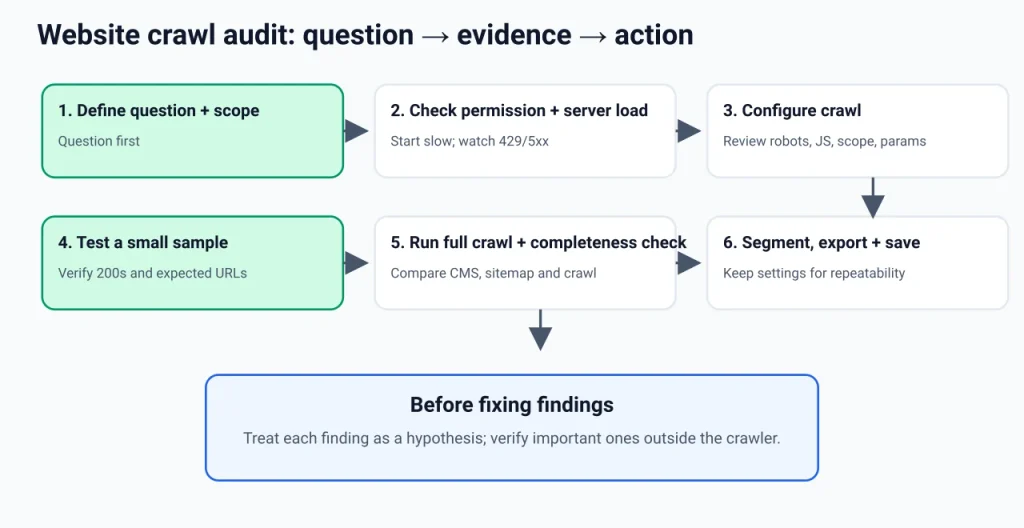
A crawl without a question produces a pile of data. Write the question first, for example: “Did the redesign leave internal links pointing to old URLs?”, “Which URLs carry noindex?”, or “Do any important pages sit more than a few links from the homepage?” Then set the scope to match: the whole site, one folder, one template sampled across the site, or a supplied URL list.
Step 2: Check permission and server load
Crawl your own sites, or sites where you have permission. For a staging site behind a login, set the tool up with authentication. Google-documented: when a server returns 429 or 5xx responses, or has network errors, Google’s crawlers slow down (see how status codes and network errors affect Google Search). A third-party crawler won’t necessarily be that polite, so SEORAF recommendation: start at a low speed, especially on shared hosting, and watch for 429s, 5xx responses and rising response times. If they appear, stop, slow down and resume.
Step 3: Configure the crawl
Defaults are a starting point, not a recommendation. Review these settings against your question:
| Setting | When to change it | Why | Risk |
|---|---|---|---|
| robots.txt handling | Obey by default. On your own site, also review which URLs it blocks | Matches how well-behaved crawlers act, and shows what you have excluded | Ignoring robots.txt on a site you don’t control can overload areas the owner excluded |
| User agent | Keep the tool’s default unless a site serves different content by user agent | A user-agent string doesn’t make a crawler Googlebot | Firewalls may block spoofed agents, and results may mislead |
| JavaScript rendering | Switch on when content or links appear only after scripts run | Shows the rendered page the way a browser would | Slower and heavier; compare raw and rendered results on a sample first |
| Scope (host, subdomains, folder) | Match your question | Tool defaults differ; some start from the folder you enter | Missing sections, or crawling more than you meant to |
| Parameters and URL patterns | Sites with filters, sessions or tracking parameters | Prevents the crawl from ballooning | Excluding too much can hide real duplicate-URL problems. Run one uncapped sample crawl |
| Speed and limits | Shared hosting or fragile servers | Avoids causing the errors you then report | Slower crawls |
| Extra sources | When looking for orphan pages | Add the XML sitemap, a URL list and, where the tool supports it, Search Console or analytics data | API permissions and quotas |
| Authentication and cookies | Staging or members-only areas | Lets the crawler see the pages you want checked | Don’t let a crawler hit actions that change data, such as delete or checkout links |
Table 3. Crawl settings worth reviewing before you start. Names and options vary by tool.
Step 4: Run a small test crawl
Crawl a limited number of URLs or a single folder first. Check that the start URL returns a 200, that the URLs look like the ones you expect, that status codes are plausible, and that nothing important is blocked. Fixing a setting after a hundred URLs is cheaper than after a hundred thousand.
Step 5: Run the full crawl and check it is complete
Before analyzing anything, compare the crawl against what you know: the number of published pages in your CMS, the number of URLs in your XML sitemap, and the number of URLs your crawler reports as indexable. Large gaps mean the crawl is incomplete or your assumptions are wrong. Look for 403, 429 and timeout clusters, for a crawl that stopped at a limit, and for sections with no links in.
Illustrative example (hypothetical numbers, not a measurement): imagine a WordPress site with roughly 300 published posts and pages. If the crawl reports 45 URLs, don’t start fixing issues. Check whether the start URL redirects, whether scope or a URL limit applied, whether robots.txt blocked sections, and whether the navigation is built from links without href attributes.
Step 6: Export, segment and save
Sitewide totals hide patterns. Segment by directory, template, status code and indexability so that a template-level problem shows up as one cluster rather than hundreds of rows. Save the crawl and its settings so you can run the same configuration later and compare.
Takeaway: a crawl with a defined question, a safe speed and a completeness check is worth more than a bigger crawl.
What to look for in the crawl report
Treat every finding as a hypothesis. Before acting on one, ask four questions: Is it real (does it reproduce outside the crawler)? Is it intended? Does it affect an important, indexable URL? Can I confirm it with Google’s own data? The sections below cover what each finding looks like, what it may mean and how to check it.
Status codes, redirects and broken links
Google-documented in its status code and network error guidance:
- Googlebot follows a limited number of redirect hops (the page says up to 10, and notes that the number can depend on the crawler type). 301 and 308 are permanent redirects.
- All 4xx errors except 429 are treated the same way: they tell the indexing pipeline the content doesn’t exist.
- 429 and 5xx responses make Google’s crawlers slow down, and content received with a 5xx status is ignored. Network timeouts and DNS errors are treated similarly to 5xx errors.
- A soft 404 is a page that tells users it doesn’t exist but returns a 200 status. A crawler sees a normal 200, so these usually surface through Search Console rather than your crawl.
Google’s redirect documentation adds that permanent redirects are a strong signal that the target should be canonical and temporary redirects a weak one.
SEORAF recommendation: redirects and broken links are among the most reliable crawl findings because they are deterministic: the crawler asks, the server answers. Fix the source of the problem. If a navigation link points to a redirecting URL, update the link to the final URL rather than adding more redirects.
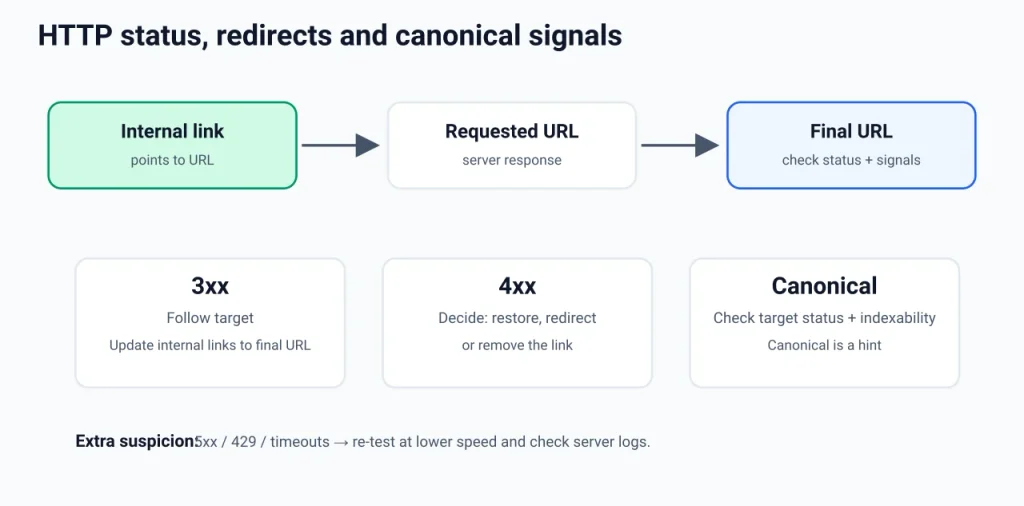
If an internal link leads to a 404, decide whether to restore the page, redirect it to a genuinely equivalent page, or remove the link. This guide does not claim that redirect chains cost a specific amount of ranking, because Google’s documentation reviewed for this article doesn’t say so. Chains still add requests and delay, and they usually point to messy migration rules.
Intermittent 5xx errors or 429s deserve extra suspicion: your own crawl may have caused them. Re-test those URLs at a lower speed and check server logs before concluding the site is unstable.
Directives: noindex and blocked URLs
List every URL with noindex and every URL blocked by robots.txt, then ask whether each should be. Common intended cases are thank-you pages, internal search results and admin areas. Problem cases are important pages carrying noindex after a theme or plugin change, staging directives left in production, and URLs that appear in the XML sitemap while being noindexed or blocked. Confirm with the page source, HTTP headers and URL Inspection.
Canonicals and duplicate URLs
Patterns worth a look:
- Canonical tags that point to a different URL than the page itself (sometimes intended, sometimes a template error).
- Canonical targets that redirect, return an error or carry noindex, which sends contradictory signals.
- The same content available at HTTP and HTTPS, with and without www, with and without a trailing slash, or with parameters.
- Internal links and sitemap entries that point to non-canonical versions.
Google-documented: some duplicate content on a site is normal and isn’t a violation of Google’s spam policies, but multiple URLs for the same content can confuse users and make performance harder to track. A declared canonical is a hint, so Google may pick a different one. The way to see Google’s choice is URL Inspection in Search Console, which reports the user-declared and Google-selected canonical. SEORAF recommendation: when they differ, first align your internal links, redirects and sitemap with the version you want, rather than only editing the tag.
Internal links, crawl depth and orphan pages
Crawl depth in an audit tool is the number of link hops from the start URL in that crawl. It is a tool metric, not a Google metric. Don’t treat any particular depth number as a rule. Use it comparatively: do your most important pages sit closer to the homepage than minor pages, and do key sections get linked from navigation or relevant pages? SEORAF’s site architecture guide covers structure and internal linking in depth.
Orphan pages are URLs with no internal links pointing to them. A crawler that starts at your homepage cannot find a true orphan, so orphans only appear when you add another source (the XML sitemap, Search Console, analytics, server logs or a CMS export) and compare it with the crawl.
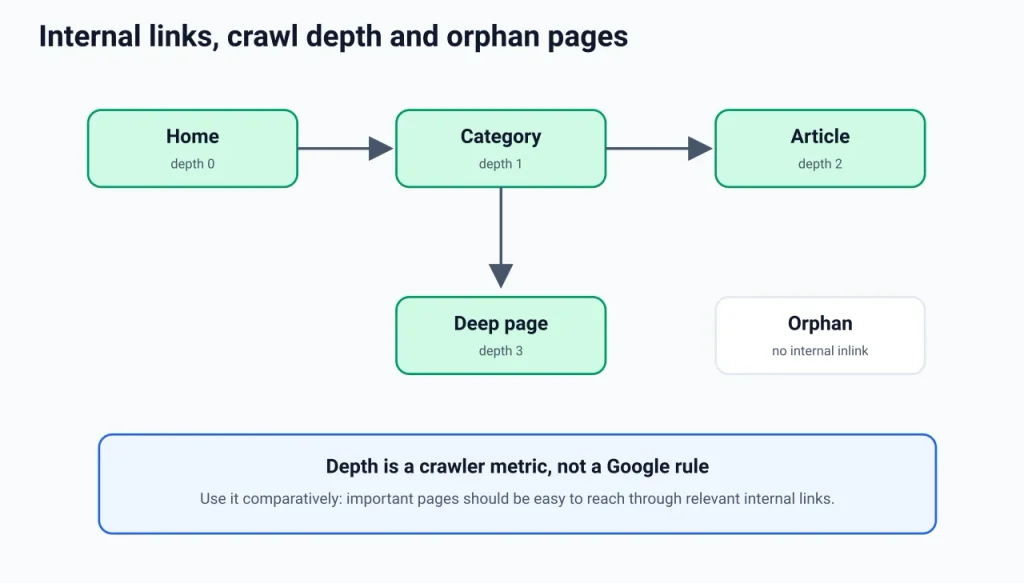
SEORAF recommendation: an orphan is a problem only if the page should be discovered, indexed or visited. Old campaign pages may be fine as they are. Pages you want to rank need links from relevant pages, and pages with no value can be merged or removed.
Raw HTML versus rendered HTML
If your tool offers JavaScript rendering, compare the raw HTML (what the server sent) with the rendered HTML (what exists after scripts ran).
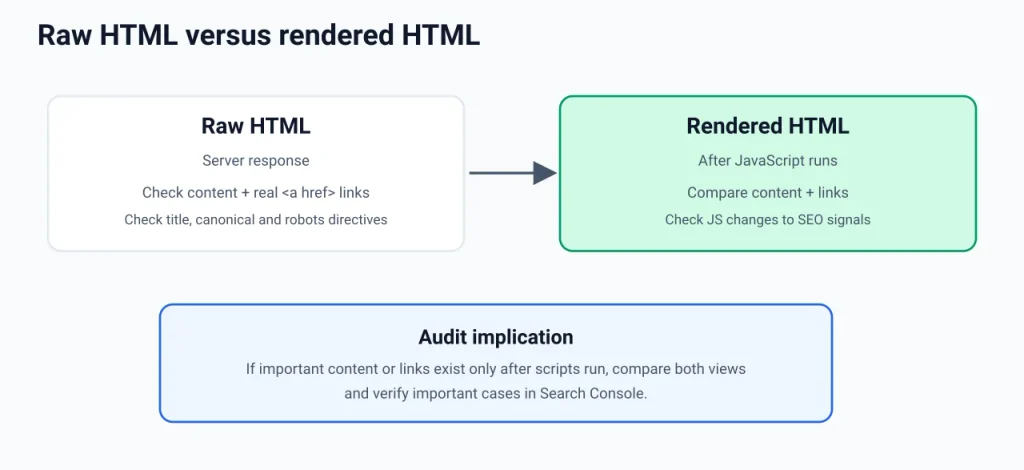
Check whether the main content is present in each, whether internal links appear as real <a href> elements in each, and whether JavaScript changes the title, canonical or robots directives.
Google-documented: in Google’s JavaScript SEO basics, Googlebot fetches a URL, checks robots.txt, parses links in the HTML, and queues pages with a 200 status for rendering unless a robots meta tag or header says not to index them. A headless, evergreen Chromium then renders the page, and Google parses the rendered HTML for links again. Google also says it won’t render JavaScript from blocked files or on blocked pages. SEORAF note: because the docs describe skipping rendering for pages that carry a noindex in the raw HTML, don’t rely on JavaScript to remove a noindex later. Treat this as an inference to verify with URL Inspection.
Size limits (Google-documented, verify before relying on it): Google’s Googlebot page says that, when crawling for Search, Googlebot fetches the first 2 MB of a supported file type (64 MB for PDFs), that each resource referenced in the HTML is fetched separately under the same limit, and that other Google crawlers can have different limits. Earlier documentation and many articles cite 15 MB, which Google now describes as a default across its crawling infrastructure. Your crawler may not enforce Google’s cutoff, so a very large page can look complete in a crawl while Google considers only part of it.
XML sitemap versus crawl
Google-documented: submitting a sitemap is a hint, not a guarantee that Google will crawl every URL, and Google’s sitemap guidance says to list canonical URLs and notes a limit of 50 MB uncompressed or 50,000 URLs per file. A clean sitemap lists URLs that return 200, are indexable and are the canonical version. Compare it with your crawl to find sitemap URLs that redirect, error, carry noindex or canonicalize elsewhere. The next section extends this comparison.
A quick reference for common findings
| Crawl finding | What it may mean | How to verify | Who usually fixes it |
|---|---|---|---|
| Internal links to 3xx URLs | Links still point to old URLs after a move | Check the “inlinks” for the redirecting URL and its final status | Content editor, theme or navigation owner |
| Redirect chain (A to B to C) | Redirect rules were stacked over time | Follow the chain manually and count hops | Developer or server administrator |
| Redirect loop | Conflicting rules send URLs back and forth | Open the URL; browsers report too many redirects | Developer |
| Internal link to a 404 | Deleted or moved page, or a typo | Find the linking pages; decide restore, redirect or unlink | Content editor |
| 5xx, 429 or timeouts | Server errors, or your crawl overloaded the host | Re-test at lower speed; check server logs | Host or developer |
| Page says “not found” but returns 200 | Soft 404 | View the page; check Search Console for soft 404 reports | Developer |
| Noindex on a page that should rank | Template, plugin or leftover staging setting | View source and headers; run URL Inspection | Developer or SEO |
| Blocked by robots.txt | A Disallow rule matches the URL | Read the matching rule in robots.txt | SEO or developer |
| Canonical points to another URL | Consolidation by design, or a template error | Check the target’s status and indexability; compare with Google’s selected canonical | SEO or developer |
| Canonical target redirects, errors or is noindex | Contradictory signals | Open the target URL and check its response | Developer |
| URL found only via sitemap or another source | Orphan page | Compare sources; decide whether the page matters | Content editor or SEO |
| Content or links only in rendered HTML | Page depends on JavaScript | Compare raw and rendered HTML; inspect the URL in Search Console | Developer |
| Sitemap URLs that redirect, error, noindex or canonicalize elsewhere | Sitemap lists the wrong URLs | Compare the sitemap file with the crawl | SEO or whoever manages the sitemap plugin |
Table 4. Crawl findings, their possible meaning and how to verify them.
Reconcile the crawl with Search Console, sitemaps and logs
No single source gives the full picture. The most useful audits compare several: the crawl (what your crawler can reach), the XML sitemap (what you declare), Search Console (what Google reports) and, where available, server logs or analytics (what was actually requested or visited). The overlaps and gaps tell you where to look.
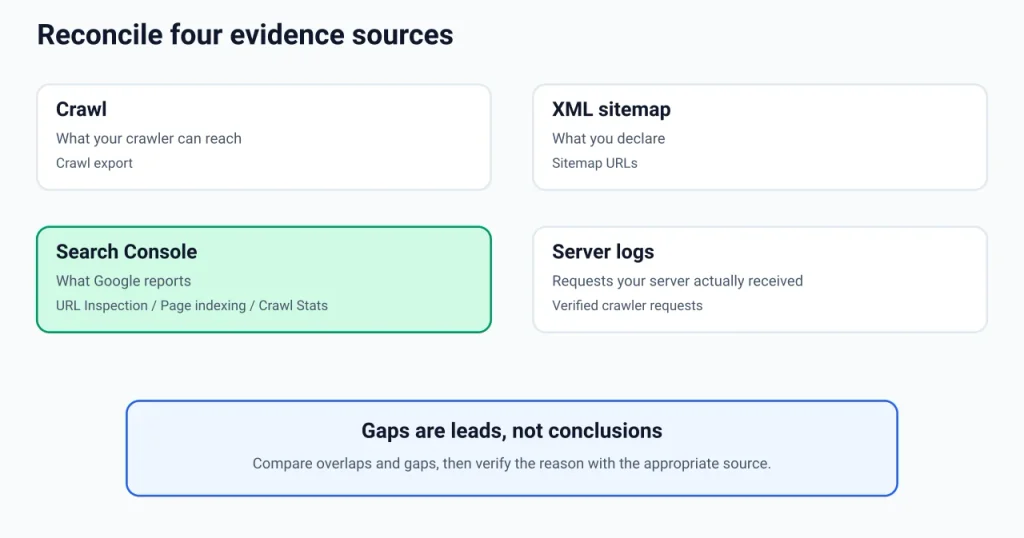
Compare the URL sets
| Pattern | Likely meaning | Next check |
|---|---|---|
| In the crawl, not in the sitemap | An important page missing from the sitemap, or a low-value URL that shouldn’t be there | Decide whether it should be indexable. If yes, add it, and link to it internally |
| In the sitemap, not in the crawl | Orphan page, blocked URL or out-of-scope section | Check internal links, robots.txt and your crawl scope |
| In the sitemap but redirects, errors, noindex or canonicalizes elsewhere | The sitemap is out of date or misconfigured | Regenerate or filter the sitemap so it lists only canonical, indexable URLs |
| In the crawl and sitemap, reported by Search Console as discovered but not crawled | Google knows the URL but hasn’t fetched it yet | Check internal links and server health; for small sites this is often a matter of time and links |
| Reported as crawled but not indexed | Google fetched the page and chose not to index it | Inspect the URL; look at duplication, canonicals and whether the page adds something unique |
| Indexable in the crawl, not indexed in Google | Many possible causes (see troubleshooting) | Run URL Inspection and compare Google’s rendered HTML |
| In logs, analytics or Search Console, not in the crawl | Old URLs, parameter URLs, orphans or pages outside your scope | Find where the URL is linked from; decide redirect, noindex or leave |
Table 5. What gaps between sources usually mean. Search Console wording changes, so check the current status names in the Page indexing report.
See SEORAF’s Google Search Console guide for how to read the Page indexing report and URL Inspection. This article doesn’t repeat that walkthrough.
Where server logs fit
Server logs record the requests your server actually received, including those from Googlebot, so they are direct evidence of crawling that no audit crawler can provide. Because user-agent strings can be faked, verify Googlebot requests by reverse DNS or published IP ranges before drawing conclusions.
SEORAF recommendation: logs are worth the effort for large or complex sites, after migrations, or when Search Console and your crawl disagree in ways you can’t explain. For a small site, URL Inspection and the Crawl Stats report in Search Console usually answer the practical questions, and many shared hosts make logs awkward to get.
When crawl budget matters, and when it doesn’t
Don’t confuse your crawler’s URL limit with Google’s crawl budget. Google-documented: Google’s crawl budget guide says crawl budget depends on a crawl capacity limit (how much Google can crawl without straining your server) and crawl demand (how much Google wants to crawl, which varies with site size, update frequency, quality and relevance). It says the guide is mainly for very large or frequently updated sites: roughly a million or more unique pages that change about weekly, or around ten thousand or more pages that change daily, or sites where a large portion of URLs show “Discovered – currently not indexed” in Search Console. It also says that new pages typically take at least several days to be noticed, and that better server availability doesn’t automatically raise crawl budget.
SEORAF recommendation: for most small and mid-sized sites, crawl budget is unlikely to be the primary cause of a page not appearing. Rule out discovery (is the page linked and in the sitemap?), server errors and the page’s own value first. If you do fit Google’s large-site profile, SEORAF’s crawling guide explains the concept in more detail, and your crawl can help find low-value URL patterns, such as parameters and endless filters, that generate crawl waste.
Prioritize findings by impact, scope, evidence and effort
Crawlers flag deviations from generic best practice, and many flags are harmless on your site. A useful audit ends with a short ordered list, not a long export. Judge each finding on four factors:
- Impact: if the finding is real, does it affect access, indexing, consolidation or user experience on pages that matter?
- Scope: is it one URL, a whole template or the entire site?
- Evidence: is it confirmed outside the crawler (URL Inspection, a manual check, logs), or only suggested by the tool?
- Effort: can a template or setting fix it in one go, or does it need many manual edits or developer time?
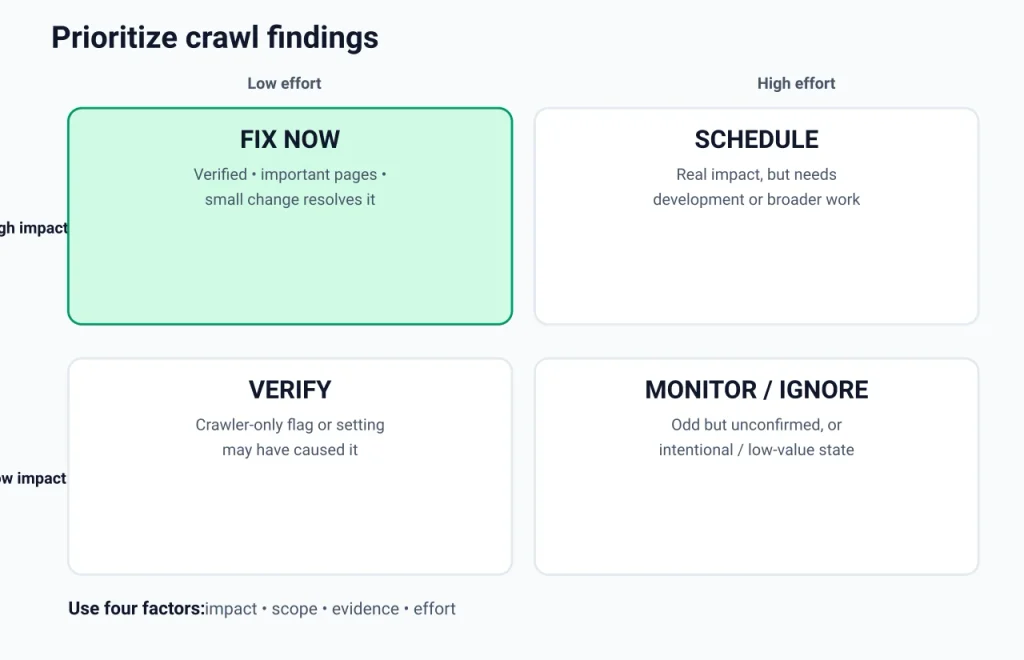
Illustrative prioritization
The table below is an illustrative classification, not measured data. Your own answers may differ.
| Example finding | Impact | Scope | Evidence needed | Effort | Suggested handling |
|---|---|---|---|---|---|
| An important service page carries unintended noindex | High | One page | URL Inspection and page source | Low | Fix now |
| robots.txt blocks CSS or JavaScript that pages need to render | High | Site-wide | Compare blocked resources with rendered output | Low to medium | Verify, then fix now |
| Main navigation links point to redirecting URLs | Low to medium | Every page | The crawl is sufficient evidence | Low | Schedule as a quick win |
| 5xx errors on important URLs during the crawl | High if real | Varies | Re-test at lower speed; check server logs | Varies | Verify first |
| Sitemap lists redirecting and noindex URLs | Medium | Many URLs | Compare sitemap with crawl | Low | Fix the sitemap settings |
| Redirect chain of three hops on old URLs | Medium | Few URLs | Follow the chain manually | Low | Schedule |
| Older low-value posts with no internal links | Low | Some URLs | Compare sources and decide value | Low | Decide keep, merge or remove |
| Parameter pages canonicalized to the main page on purpose | None if intended | Many URLs | Confirm the intent | None | No action |
Table 6. Example prioritization using impact, scope, evidence and effort.
Decision rules: fix, schedule, monitor or ignore
- Fix now when a finding is verified, affects pages that matter, and a small change resolves it.
- Schedule when impact is real but the fix needs development time or touches many pages.
- Verify when the only evidence is the crawler’s flag, or the finding may have been caused by your crawl settings.
- Monitor when something looks odd but has no confirmed effect.
- Ignore when the state is intentional or the affected pages don’t matter. Not every warning requires a fix.
Intentional versus problematic
The same signal can be right or wrong depending on intent. Noindex on a thank-you page is correct; on a product category it is a problem. A 404 for a product you discontinued is normal; a 404 reached from your main menu is not. A canonical pointing to a parameter-free URL is usually deliberate; one pointing to the homepage from every blog post is a template bug. Keep a short note of intentional states so the next audit doesn’t reopen them.
Validate the fix
After a fix, run the same crawl configuration again and compare the two crawls. Then check Search Console later; Google has to recrawl and reprocess URLs, and its documentation makes no promise about timing or outcome. Record what you changed and when, so any later movement in indexing or traffic can be interpreted in context. A fix that clears the crawler’s flag is not proof that search performance will change.
Takeaway: fix verified, high-impact, low-effort problems first, and let the rest wait or go.
Common crawling mistakes
| Mistake | Why it misleads | Better approach |
|---|---|---|
| Crawling without a question | You get a huge export and no direction | Write the question and scope first |
| Treating the crawl as Google’s view | A fetch by your tool says nothing about Google’s indexing decisions | Confirm important findings in Search Console or logs |
| Running at full speed on fragile hosting | You may cause the 5xx errors and timeouts you then report | Start slow and watch error rates |
| Never looking at what robots.txt blocks | You miss important URLs or resources that are excluded by accident | Obey by default, then review the blocked list |
| Using a Googlebot user agent to “see what Google sees” | It doesn’t reproduce Googlebot’s IP or rendering and may trigger bot protection | Use URL Inspection to see Google’s view of a page |
| Wrong rendering setting | Missing content and links, or slow crawls with no benefit | Compare raw and rendered output on a sample |
| Reading only sitewide totals | A template-level problem disappears into the noise | Segment by directory, template and status |
| Blocking noindexed URLs in robots.txt | The noindex is never seen | Allow crawling until the URLs drop out |
| Fixing every warning | Time goes to low-impact items while real issues wait | Use the impact, scope, evidence and effort rubric |
| Not saving the crawl and settings | You can’t compare before and after | Save the configuration and recrawl the same way |
Table 7. Process mistakes that lead to bad audits.
Troubleshooting scenarios
| Symptom | Likely causes | How to confirm | Next step |
|---|---|---|---|
| The crawl finds far fewer URLs than expected | Start URL redirects or is blocked; scope or URL limit; navigation without crawlable links; JavaScript-only links; firewall blocking the crawler | Check the start URL’s response, the homepage’s outlinks, and raw versus rendered links | Adjust scope or rendering, add a sitemap source, then recrawl |
| Many 403, 429 or 5xx responses | Firewall or CDN rate limiting; overloaded server | Look at when errors occur and check server logs | Slow the crawl; with the host’s permission, allow your crawler’s IP |
| Everything shows as blocked by robots.txt | A sitewide Disallow: / (often a staging leftover) or the wrong host | Open the site’s /robots.txt in a browser | Fix the file and confirm that production isn’t blocked |
| Indexable in the crawl, not indexed by Google | Not yet crawled, canonical chosen elsewhere, duplication, content Google chose not to index, or Google saw something different from your crawler | URL Inspection and the Page indexing report | Follow the steps below |
| Content is missing from raw HTML | Client-side rendering | Compare raw and rendered HTML; inspect the rendered HTML in Search Console | Ask developers about server-side rendering or prerendering for key content |
| The crawl finds far more URLs than expected | Parameters, filters, calendars, session IDs or duplicate URL variants | Segment URLs by pattern | Exclude patterns in the crawler, and decide the site-level treatment (canonical, noindex or robots.txt) |
| Redirect chains or loops after a migration | Stacked or conflicting redirect rules | Follow the chain from the first URL | Simplify rules and update internal links |
| Titles or canonicals differ between the crawl and the browser | JavaScript changes them, or the server varies by user agent or caching | Compare raw and rendered output | Investigate with a developer |
Table 8. Common crawl problems and where to look.
If the crawler finds far fewer URLs than expected
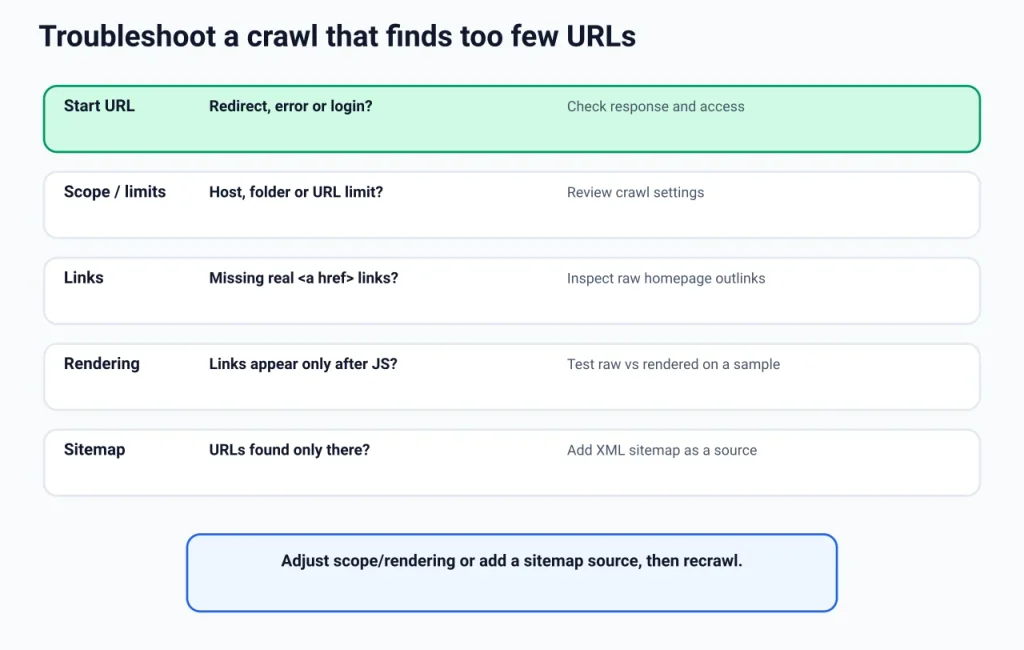
- Open the start URL in a browser and in the crawler. Does it redirect, error or require a login?
- Check the crawl’s settings for scope limits, URL limits and robots.txt handling.
- Look at the homepage’s outlinks. If the menu is missing, view the raw HTML for real
<a href>links. - Re-crawl a small sample with JavaScript rendering on and compare the link counts.
- Add your XML sitemap as a source and see which URLs appear only there.
If the crawler says a page is indexable but Google hasn’t indexed it
- Run URL Inspection. Note whether the URL is indexed, when Google last crawled it, and which canonical Google selected.
- Read the status reason in the Page indexing report. A URL that is discovered but not crawled calls for a different response from one that was crawled but not indexed.
- Compare Google’s rendered HTML with your crawl. If key content or links differ, you have a rendering or access problem.
- Check discovery: is the page linked from crawlable pages and listed in the sitemap?
- Check duplication and value: does another URL cover the same ground, and does the page offer something distinct?
- Make the fixes, then wait and recheck. You can’t force indexing, and Google doesn’t promise it.
SEO Crawler Guide: Choosing the Right Tool
This section helps you choose by need, not by brand. Google-documented: Google doesn’t evaluate third-party SEO tools, so no tool is “approved” by Google, and using one doesn’t guarantee ranking success. SEORAF’s tool reviews and comparisons live on separate pages; this guide doesn’t rank tools.
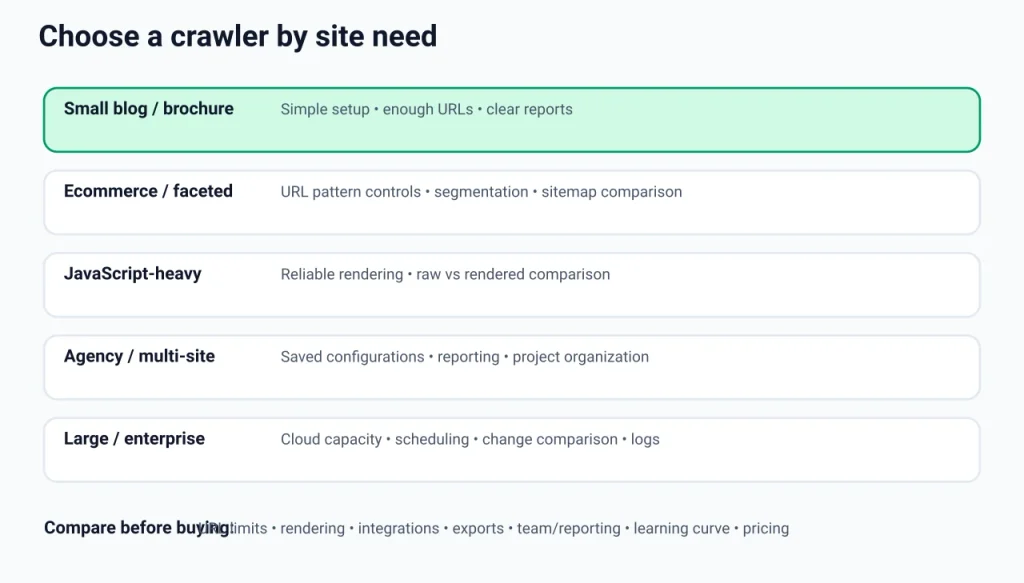
What to compare
| Criterion | Question to ask | Where to check |
|---|---|---|
| URL limits | How many URLs can I crawl on this plan or machine? | The vendor’s pricing and documentation pages |
| JavaScript rendering | Can it render pages and compare raw and rendered HTML? | Vendor documentation and a test crawl |
| Where it runs | Does it run on my computer or in the vendor’s cloud? | Vendor documentation |
| Scheduling and comparison | Can it recrawl on a schedule and show what changed? | Vendor documentation |
| Integrations | Can it pull in Search Console, analytics or sitemap data? | Vendor documentation |
| Custom extraction and exports | Can I pull specific elements and export clean data? | A trial or the free version |
| Team and reporting | Can several people use it, and can I share reports? | Vendor documentation |
| Learning curve | Will I be able to interpret the output without training? | Trial, tutorials, or the tool’s own guides |
| Pricing model | Is it a subscription or a licence, and what does it cost today? | The vendor’s current official pricing page |
Table 9. Criteria for comparing crawlers. Check every item on the vendor’s own page; features and prices change.
Match the crawler to the site
| Site type | What matters most | Notes |
|---|---|---|
| Small blog or brochure site | Simple setup, enough URL allowance, clear reports | A free or low-cost crawler plus Search Console often covers the basics |
| Ecommerce or faceted navigation | URL pattern controls, segmentation, large crawls, sitemap comparison | Parameter handling decides whether the crawl stays usable |
| JavaScript-heavy site | Reliable rendering and raw versus rendered comparison | Test on a sample of key templates first |
| Agency or multi-site work | Saved configurations, reporting, project organization | Check how clients’ data is handled |
| Large or enterprise site | Cloud capacity, scheduling, change comparison, log integration, permissions | Pair with server-log analysis |
Table 10. SEORAF’s recommendations for matching a crawler to a site type. These are judgments, not vendor claims.
Free versus paid
Free versions and trials commonly limit URL counts or features, so test one on a representative section of your site before committing. One verified example: the downloadable Screaming Frog SEO Spider is free to use for up to 500 URLs, and an annual licence removes that limit and unlocks advanced features, per its official pricing page. This guide doesn’t quote prices, because they vary by currency and change, and third-party sources disagree. For other tools, read the vendor’s page rather than a roundup.
SEORAF has separate pages on Screaming Frog free versus paid features, the Sitebulb review, the ContentKing review and Semrush Site Audit, plus a wider best SEO tools page. Check those and the vendors’ own pages for current limits. This guide contains no affiliate links; see SEORAF’s affiliate disclosure for how affiliate relationships are handled elsewhere on the site.
Takeaway: choose by site size, rendering needs and reporting needs. Search Console is free and shows Google’s side, so use it alongside whichever crawler you pick.
Frequently asked questions
Is an SEO crawler the same as Googlebot?
No. An SEO crawler is a tool you run to audit a site. Googlebot is Google’s crawler for Search. Your crawl can’t tell you what Googlebot fetched, rendered or indexed. Use Search Console and server logs for that.
Why do my crawler’s numbers differ from Search Console?
They measure different things: URLs your crawler could reach under your settings versus URLs Google has discovered, crawled and chosen to index over time. Scope, discovery sources, robots.txt handling, rendering and time all affect the counts. See the reconciliation section above.
Does a clean crawl mean Google will index my pages?
No. A clean crawl suggests you have no obvious technical blockers visible to your tool. Google says indexing isn’t guaranteed, and it depends on more than technical access.
Should my crawler obey robots.txt?
By default, yes. It matches how well-behaved crawlers act. On your own site it can also help to review which URLs robots.txt blocks, since blocked pages may be missing from your results. Don’t ignore robots.txt on sites you don’t control.
Can crawling slow down my site?
It can, especially on small servers, if the crawler requests pages quickly. Start at a low speed and watch response times and error rates. If you see 429 or 5xx responses, slow down or stop.
Can I crawl a site I don’t own?
This is not legal advice. As a courtesy and a risk-reducer, SEORAF recommends keeping to light, polite crawling that respects robots.txt and the site’s terms, and asking for permission before anything heavier.
How often should I crawl my site?
Google doesn’t publish a recommended schedule. SEORAF recommendation: crawl when something changes (a migration, redesign, template or plugin change, or large content update), and otherwise at intervals that suit how often your site changes and what you monitor.
Do I need a paid crawler?
Not always. A small site may fit within a free tier’s limits. Paid options matter when you need more URLs, rendering, scheduling, comparison or team features. Test with a sample first.
Can an SEO crawler show whether AI bots can access my site?
Not reliably. AI crawlers run separately under their own user agents. Review your robots.txt rules, your server logs and each provider’s documentation. SEORAF’s crawling guide discusses these crawlers.
Conclusion
- An SEO crawler shows your site as a crawler can reach it, not Google’s crawling, rendering, indexing or ranking decisions.
- Start with a question, a defined scope and a safe crawl speed, and confirm the crawl is complete before analyzing.
- Treat each finding as a hypothesis, and confirm important ones in Search Console, logs or a manual check.
- Prioritize by impact, scope, evidence and effort. Ignore intentional states and low-value flags.
- Crawl budget is mainly a large-site topic, so rule out discovery, server and content problems first.
Your next step: run a small, scoped crawl with your question written down, and compare it with your sitemap and Search Console data. SEORAF’s advanced SEO audit checklist and Google Search Console guide are useful companions. No crawl, fix or tool can guarantee rankings, traffic or indexing.
Sources and how this guide was checked
Google-specific statements were checked against Google Search Central documentation in October 2026. Google updates these pages, so check the current version before relying on a detail. SEORAF’s editorial policy explains how the site handles sources and corrections.
- In-depth guide to how Google Search works: crawling, indexing and serving; indexing isn’t guaranteed.
- Guidance on third-party SEO tools and advice: tools lack Google’s ranking data and aren’t evaluated by Google.
- Googlebot: smartphone and desktop crawlers, robots.txt token, file-size limits and verification.
- Verifying Googlebot and other Google crawlers.
- Link best practices for Google: crawlable links.
- JavaScript SEO basics: crawl and render queues, blocked resources.
- Introduction to robots.txt.
- Block Search indexing with noindex.
- What is canonicalization.
- How HTTP status codes, and network and DNS errors affect Google Search.
- Redirects and Google Search.
- Build and submit a sitemap.
- Optimize your crawl budget.
- Screaming Frog SEO Spider pricing: free version with a 500 URL limit, annual licence.