Google Search Console Guide (2026): Complete Setup, Reports, and SEO Mastery
✍️ Mousume Akter, SEO Strategist📅 Updated: June 2026📖 Beginner → Advanced⏱️ 35 min read
Quick Answer
Google Search Console is a free tool from Google that shows how Google finds, crawls, and indexes your website. It reports on search performance, indexing status, technical issues, manual actions, and security problems — data no third-party tool can provide. Every site owner, blogger, and SEO professional needs it regardless of traffic volume.
About This Guide
Written from direct experience auditing and optimising hundreds of sites using Google Search Console as the primary diagnostic instrument. Every workflow and benchmark reflects real SEO work, not documentation summaries.
Choose your starting point: New to GSC? Start at Section 1. Already set up? Jump to Section 3 (Performance) or Section 4 (Indexing). Diagnosing a problem? Go to Section 5 or the FAQ in Section 8.
Introduction
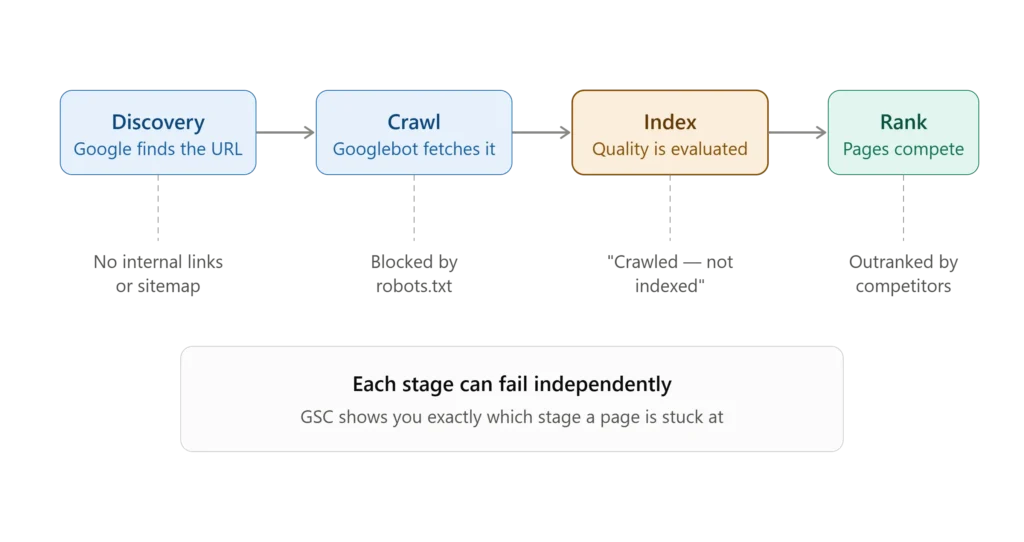
Publishing a page does not mean Google knows it exists. Every URL must pass through four critical stages—discovery, crawling, indexing, and ranking—and each stage can fail independently. Without Google Search Console, these processes remain invisible, making it difficult to understand why pages succeed or fail in Google Search.
This Google Search Console Guide takes you from complete beginner to advanced SEO workflows. You’ll learn how to set up Google Search Console correctly, analyze Performance reports, fix indexing issues, use URL Inspection, improve Core Web Vitals, monitor technical SEO, and build a monthly SEO audit workflow that drives long-term organic growth. Whether you manage a blog, business website, ecommerce store, or affiliate site, this guide will help you use Google’s own data to make better SEO decisions with confidence.
What Is Google Search Console and Why Every Website Needs It
The Gap Between Publishing and Ranking
Most people publish a page and wait for traffic — but publishing triggers nothing automatically. Google must discover your URL, crawl it, evaluate it against quality thresholds, and decide to index it before it can rank for anything. GSC is the only tool that shows you exactly where in that pipeline a page currently sits.
Discovery — Google finds your URL via sitemap, internal link, backlink, or direct submission. Crawling — Googlebot fetches the content. Crawling ≠ indexing — it only means Google has visited. Indexing — Google evaluates the content against a quality threshold. Most problems occur here. Ranking — Only indexed pages compete for positions against other indexed pages.
A published page is not a ranked page. GSC shows you exactly where in this pipeline your content sits.
💡 Information Gain: Most guides skip this model and jump straight to setup. Understanding that publishing triggers nothing automatically changes how you interpret every report in the tool — it’s what separates reactive GSC use from strategic use.
What GSC Actually Does
A free Google service requiring ownership verification. Once verified, it shows: which pages are indexed or excluded (and why), which queries generate impressions and clicks, technical health signals (Core Web Vitals, mobile usability, structured data), manual actions from human reviewers, and security issues.
Key data characteristics:
2–3 day delay — not real-time; today’s clicks won’t appear until roughly 48–72 hours later
16-month retention — data is permanently removed after 16 months with no recovery option; export annually
Sampling gap — GSC shows ~60–80% of your keyword footprint; queries below Google’s privacy threshold (roughly five impressions) are excluded entirely, not shown as zero — this is why short date ranges make your keyword footprint look smaller than it actually is
1,000-row display cap — the UI limits exports to 1,000 rows; use the API or Looker Studio for the complete dataset
💡 Expert Tip: Set up your property before launch. The 16-month retention clock starts at setup, not launch. Delaying setup is historical data permanently lost. Deleting and re-adding a property also destroys all history — never do this to “reset” a configuration issue; add a second property instead.
GSC vs Google Analytics 4
Dimension
Google Search Console
Google Analytics 4
What it measures
Before the click
After the click
Data source
Google’s crawl and index
JavaScript tracking tag
Shows search queries
Yes
Partially, via integration
Shows user behaviour
No
Yes
Reports indexing/manual actions/CWV
Yes
No
Best use case
Technical SEO, search performance
Traffic, conversions, behaviour
A traffic drop visible in GA4 might be caused by an indexing problem that only GSC can identify. Both tools are essential, and a 10–20% difference between GSC clicks and GA4 organic sessions is completely normal because they measure data differently.
To understand how these platforms work together, read our Google Search Console + Google Analytics 4 Integration Guide. It covers complete setup, property linking, report interpretation, and proven methods for troubleshooting large discrepancies between GSC and GA4 data.
Who Needs Google Search Console
Bloggers and content creators — GSC shows which posts generate impressions but no clicks, revealing your fastest traffic opportunity without publishing anything new. SEO professionals — non-negotiable; the primary diagnostic instrument for indexing, performance, and technical SEO that no other tool replicates. Affiliate publishers — algorithm updates disproportionately target affiliate and review content; GSC data lets you detect impact early and isolate affected pages before damage compounds across the site. Business owners — GSC shows the actual search queries driving traffic, informing content, product, and marketing decisions no paid tool can replicate without Google’s direct cooperation. Developers — URL Inspection reveals exactly what Googlebot sees when rendering a page, including JavaScript rendering failures completely invisible in a browser. Ecommerce operators — structured data reports show whether product schema is correctly implemented and eligible for rich results including star ratings; a missing AggregateRating field is a directly measurable daily CTR loss.
Key Takeaways — Section 1
GSC is Google’s direct communication channel — data no third-party tool can replicate
Publishing triggers nothing automatically; GSC shows which pipeline stage your content is stuck at
GSC and GA4 are complementary, not redundant
Set up before launch — the retention window starts at setup, not launch
How to Set Up Google Search Console
Quick Answer: Go to search.google.com/search-console, click Add Property, choose Domain property, enter your domain, and verify via DNS TXT record. Then submit your sitemap, link GA4, enable email notifications, and set user permissions before your first audit.
The two decisions made in the first five minutes — property type and verification method — determine your data quality for the life of the site.
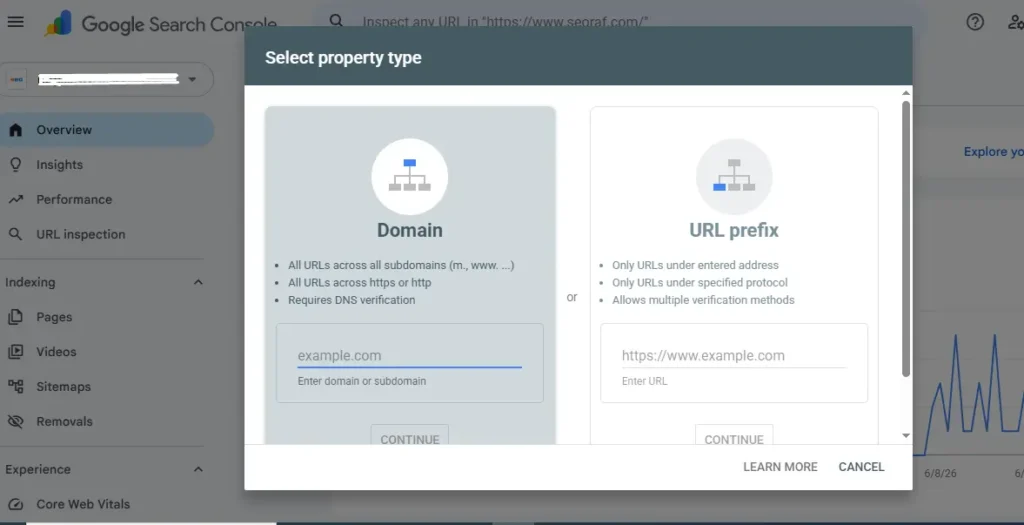
Domain Property vs URL Prefix
Domain property captures everything under your domain — HTTP/HTTPS, www/non-www, all subdomains — in one unified view via DNS verification only. Google’s recommended choice for most sites.
URL Prefix captures only the exact URL entered; variants become separate, fragmented properties. Offers five verification methods, but at the cost of incomplete data.
Dimension
Domain Property
URL Prefix
Captures all URL variants
Yes
No
Verification
DNS TXT only
5 methods
Google’s recommendation
✅ Yes
Specific use cases
Best for
Most sites
Subfolder tracking, no DNS access
⚠️ Common Mistake: Choosing URL Prefix because DNS feels complicated. It takes three minutes; the fragmentation from URL Prefix lasts forever.
💡 Information Gain: Run both simultaneously — Domain as primary, URL Prefix as backup. If your DNS record is accidentally deleted, URL Prefix keeps capturing data while you restore verification. Zero downside.
This choice is effectively permanent — Domain property gives a unified picture from day one.
Verification and Configuration
DNS TXT record (recommended) — add the record at your registrar; persists permanently once verified. HTML meta tag (best backup) — for WordPress/Rank Math: Settings → Webmaster Tools. Never edit theme files directly; updates overwrite manual edits.
⚠️ Warning: Treat your DNS record as permanent infrastructure, like an MX record. Deleting it during a migration revokes access for up to 48 hours — costly during a live security issue.
📌 Professional Standard: Maintain two verification methods always. Agencies should maintain three and audit quarterly.
If verification fails after 48 hours, the most common cause on Cloudflare-proxied sites is adding the DNS TXT record at the domain registrar instead of in Cloudflare’s DNS panel, since Cloudflare becomes the authoritative nameserver. For Shopify, Wix, and Squarespace, add the TXT record through each platform’s domain DNS settings. If DNS access is limited or unavailable, using the HTML meta tag verification method is the most reliable backup.
If you’re still having trouble verifying ownership, read our GSC Verification Troubleshooting Guide. It includes step-by-step instructions for Cloudflare, Shopify, Wix, Squarespace, and other popular platforms, along with practical DNS debugging techniques to resolve common verification issues quickly.
After verification, complete four steps:
Submit your XML sitemap (Indexing → Sitemaps) — confirm it returns 200 first. “Success” means Google read the file, not that every URL is healthy.
Enable email notifications — manual action, security issue, and “New Owner Added” (a security alert, not administrative).
Set permissions correctly — Owner access permits permanent deletion; agencies belong at User (Full) only. Note: a “Delegated Owner” loses access automatically if the granting Full Owner is removed — maintain at least two independent Full Owners for business continuity.
Link Google Analytics 4 — GA4 Admin → Search Console Links.
💡 Note: GSC is browser-based with no dedicated mobile app.
GSC Setup Completion Checklist
[ ] Domain property added and verified via DNS TXT record
[ ] URL Prefix property added as backup
[ ] XML sitemap validated (200 status) and submitted
[ ] User permissions reviewed — agencies at User (Full), never Owner
[ ] Google Analytics 4 linked
[ ] Baseline indexed page count recorded (healthy sites: 70–85% of submitted URLs)
[ ] URL Inspection run on five priority pages
Key Takeaways — Section 2
Domain property is Google’s recommended choice — captures all URL variants in one view
Two verification methods minimum; single-method failure risks a 48-hour blackout
Submit your sitemap only after confirming a 200 status
Agencies belong at User (Full) only — Owner access permits permanent deletion
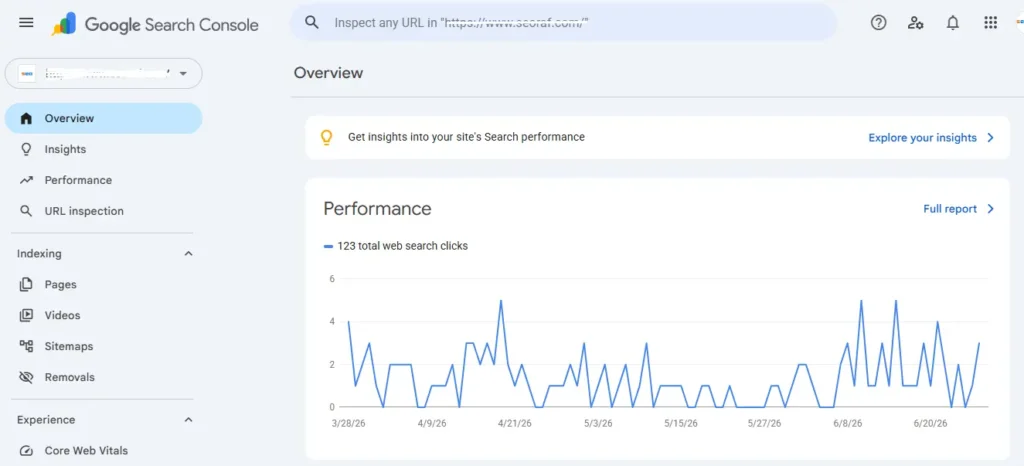
Find it under Search results. Enable all four metrics — reading one in isolation leads to wrong conclusions.
Enable all four metric toggles together — their relationship is more informative than any single metric alone.
The Four Core Metrics
Clicks — counted on organic result clicks; always higher than GA4 sessions (10–20% gap is normal; 50%+ signals a GA4 tracking problem).
Impressions — counted when your URL appears on a loaded SERP, regardless of scroll. Lower-position impressions are systematically inflated relative to actual visibility. High impressions + low CTR is an opportunity — Google is already surfacing your page; the SERP presentation needs work.
CTR — clicks ÷ impressions.
Position
Typical CTR
Note
1
25–35%
Higher with rich results
4–6
5–10%
Quick-win sweet spot
7–10
2–5%
Below the fold
⚠️ Common Mistake: Rewriting a title when the real problem is a featured snippet or AI Overview absorbing clicks above your result — check the live SERP first.
💡 Information Gain: AI Overviews are changing CTR benchmarks. A position-1 page cited inside an AI Overview may legitimately show 8–12% CTR instead of 25–35%, with no quality change — users get answers without clicking. Evaluate AI Overview–affected pages on absolute clicks, not CTR percentage.
Average Position — the mean ranking across all queries/countries/devices. Sitewide, this is not a useful KPI: a page at position 1 for ten low-volume queries and position 20 for one high-volume query shows an average of ~3.6 — masking exactly the situation that matters. Only meaningful filtered to one page and one query.
⚠️ Common Mistake: Reporting sitewide average position as a KPI in client reports.
Dimensions, Filters, and Date Ranges
Queries / Pages tabs — Page filter → Queries tab reveals every search term driving impressions to a single URL, including ones you never targeted. The single most powerful workflow in GSC.
Devices — mobile position 5+ worse than desktop signals a mobile usability or CWV issue.
Search Type — switch from Web to Image quarterly; content/ecommerce sites often get 15–30% of impressions from Image search, invisible by default.
Date ranges: 28 days for recent trends; year-over-year for seasonal content; 14-day windows before/after a confirmed algorithm rollout for impact analysis. Always compare equal-length periods.
Regex filters:(buy|purchase|order) for commercial intent; how (to|do|does) for informational queries; \? to surface parameter URLs.
💡 Information Gain — Cannibalisation: Filter by Query, then switch to the Pages tab. If two of your own URLs appear for the same query, you have cannibalisation. Consolidate the weaker page into the stronger one via 301 and content merge.
The Position 4–15 Quick-Win Workflow
The highest-ROI activity in GSC for established sites. Filter Average position 4–15, Impressions 200+, switch to Pages tab, sort descending, export. For each page: deepen content, add internal links from strong pages, align the title with dominant query intent. Measure at 30/60 days.
💡 Information Gain: Positions 4–15 outperform 16–30 as targets because Google has already validated relevance — a small improvement tips them over the line. A real example: a B2B site with 23 pages at positions 4–12, 45,000 monthly impressions, 1.4% CTR. After title rewrites and content depth additions over three weeks: 4.7% CTR, 3.4× traffic increase, with zero new content published and no ranking position change required to drive the result.
To keep your pages performing over time, follow our Content Optimization Workflow Guide, which explains the complete optimization process and shows how to identify content decay by comparing 16 months of Google Search Console CTR data before traffic begins to decline.
Key Takeaways — Section 3
Never report sitewide average position as a KPI — filter to page and query first
High impressions + low CTR is an opportunity, not a failure
Page filter + Queries tab is the single most powerful GSC operation
Check Search Type quarterly — you may be missing 15–30% of impressions
Filter Query → Pages tab to detect cannibalisation directly in GSC
Indexing and URL Inspection
Quick Answer: The Pages report shows every indexed/excluded URL and why. Use URL Inspection for per-page diagnosis. “Crawled — not indexed” is a content quality signal — improve content before requesting indexing. “Discovered — not indexed” is a crawl priority problem — fix internal links first.
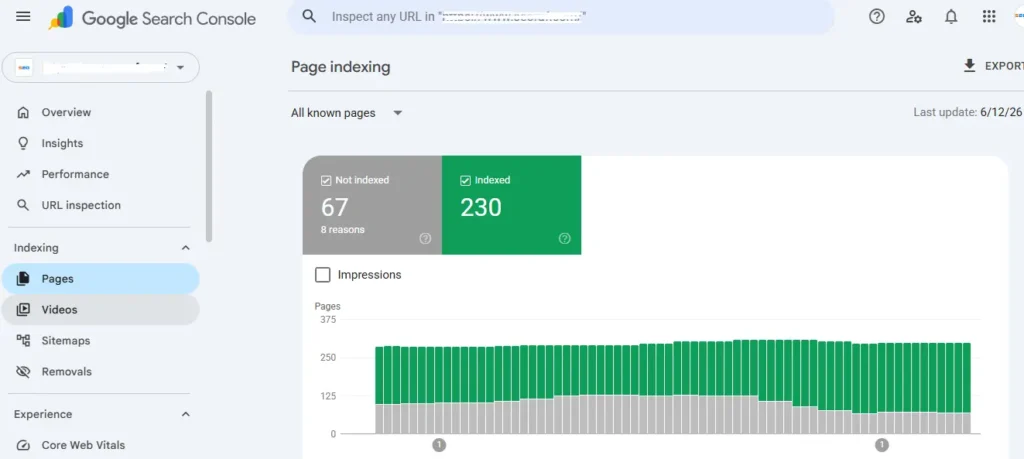
Navigate to Indexing → Pages. Calculate your index ratio monthly: Indexed ÷ (Indexed + Not Indexed) × 100.
The Pages report shows exactly how many URLs Google accepted — and why it rejected every excluded one.
Site Type
Healthy Ratio
Investigate Below
Blog/content
70–85%
60%
Ecommerce
50–70%
40%
Corporate
80–95%
70%
Affiliate
65–80%
55%
💡 Information Gain: Not every excluded page is a problem. Tag pages and admin URLs excluded = Google making the right call. Your product, blog, and service pages excluded = the actual problem. Also watch the opposite failure — index bloat: too many thin, near-duplicate indexed pages can suppress your strongest pages’ rankings. The signal: important pages plateau outside the top 5 despite improvements, while many indexed URLs show zero Performance data. Fix via consolidation — noindex thin pages, merge content into stronger ones.
Every Indexing Status
The Pages report categorises every excluded URL by reason. The table below covers the statuses that account for the vast majority of real-world indexing questions:
Status
Type
Primary Fix
Crawled — currently not indexed
Content quality signal
Improve content depth, add internal links, then request indexing
Discovered — currently not indexed
Crawl priority signal
Add internal links, reduce low-value URL count
Excluded by noindex tag
Usually expected
Verify intentional
Duplicate — Google chose different canonical
Problem
Fix internal links to match canonical
Not Found (404) / Soft 404
Problem if valuable
Restore, redirect, or add real content
Server Error (5xx)
Critical
Fix server immediately
💡 Information Gain: These two top statuses require opposite fixes, and guides regularly conflate them. Discovered = not yet visited (fix: links). Crawled = visited and rejected (fix: content). Paginated archive pages (/page/2/) showing “Crawled — not indexed” is expected — noindex them deliberately; they still pass link signals while crawling continues independently of indexing.
Related Guide: Read our [Indexing Troubleshooting Guide] to learn how to diagnose every indexing status in Google Search Console, investigate sitewide indexing drops, and find orphan pages by cross-referencing the Internal Links report with indexed URLs—a five-minute audit that often uncovers hidden structural issues on established websites.
URL Inspection and Test Live URL
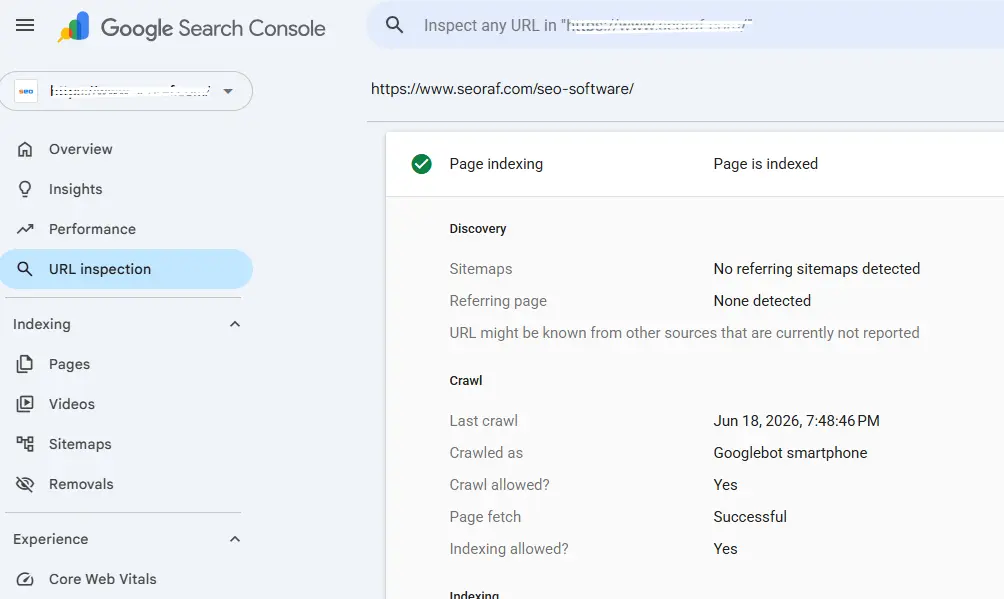
Enter the exact URL (protocol, www, trailing slash must match). Key fields: Indexing status (read the specific reason, not just the headline); Last crawl date (30+ days on an important page signals weak internal linking, not a technical block); Canonical match (user-declared vs Google-selected).
URL Inspection shows everything Google recorded during its last crawl of a single page — including whether it agreed with your canonical declaration.
💡 Information Gain: When Google overrides your canonical, the cause is almost never the tag itself — it’s internal links pointing to a different URL variant. If most of your internal links point to example.com/page without a trailing slash, but your canonical declares example.com/page/ with one, Google reads the link pattern as the stronger signal. Standardise internal links to match your canonical exactly; updating the tag alone rarely resolves it because the mismatched links continue overriding it on every subsequent crawl.
Test Live URL fetches the page as Googlebot sees it right now — rendered HTML, not a PageSpeed simulation. Essential for JavaScript sites: Googlebot processes content in two waves (raw HTML immediately, then JS-rendered content hours to weeks later). Critical content that only exists post-render may not be indexed for days or weeks.
Learn how Google processes JavaScript websites in our <a href=”/javascript-seo-guide/”>JavaScript SEO Guide</a>, where we explain two-wave indexing, server-side rendering (SSR), client-side rendering (CSR), hydration, rendering diagnostics, and framework-specific SEO best practices.
Key Takeaways — Section 4
Calculate your index ratio monthly — a declining ratio appears before rankings move
“Crawled — not indexed” = content problem; “Discovered — not indexed” = crawl priority problem
Fix internal links before touching canonical tags when Google overrides your declaration
Test Live URL reveals what Googlebot actually rendered — critical for JS-heavy sites
Technical Reports — Core Web Vitals, Security, and Manual Actions
Quick Answer: Check Manual Actions and Security Issues first in any traffic drop — ten seconds to rule out the highest-urgency problems. Then check Core Web Vitals Mobile tab and sitemap submitted-to-indexed gap. Always deploy fixes to production before clicking Validate Fix.
Sitemaps — “Success” means Google read the XML, not that URLs inside are healthy. The Submitted vs Indexed gap is the diagnostic number; investigate widening gaps in the Pages report rather than resubmitting repeatedly.
For a detailed walkthrough, see our Complete XML Sitemap Guide covering sitemap types, excluded URLs, validation, submission, and every common GSC sitemap error.
Core Web Vitals
Check the Mobile tab first — mobile-first indexing means your mobile field data drives ranking signals for all users regardless of device. Classifications (Good/Needs Improvement/Poor) come from real Chrome user data (CrUX) over a rolling 28-day window — this is why a 90+ PageSpeed lab score can coexist with GSC showing Poor: lab tests exclude consent banners, third-party scripts, and real device variety that field data captures from actual visitors.
Metric
Good
Poor
Note
LCP
< 2.5s
> 4.0s
Often unoptimised hero images or slow TTFB
INP
< 200ms
> 500ms
Replaced FID in March 2024
CLS
< 0.1
> 0.25
Often images without defined dimensions
Fix workflow: Identify affected URL group → diagnose root cause in PageSpeed Insights (it identifies the specific failing element — usually an unoptimised hero image for LCP, or a third-party script blocking the main thread for INP) → fix on staging → deploy to production → confirm live → click Validate Fix → wait 28 days.
⚠️ Warning: Clicking Validate Fix before confirming production deployment wastes the entire 28-day cycle — the most expensive and most avoidable process mistake in technical SEO.
💡 Information Gain: If a Good CWV score suddenly regresses with no obvious page change, use GSC’s date comparison to find when the Poor count started rising, then check your deployment log for changes made 3–5 weeks earlier (field data lags real changes by the 28-day window). For LCP/INP root-cause diagnosis (PageSpeed element identification, Chrome DevTools Long Tasks, and the common consent-banner INP culprit), see the linked guide below.
🔗 Internal link: [Core Web Vitals Complete Guide] — step-by-step LCP and INP diagnosis workflows, CWV regression detection, and template-level fixes for every common cause.
Security Issues and Manual Actions
Security Issues (malware, hacked content, phishing) trigger a Chrome “Dangerous Site” warning that effectively eliminates CTR — most users see the full-page warning and click back immediately. Emergency sequence: contact host → independent malware scan (Sucuri or Wordfence) → remove all injected code → reset every credential → patch the entry point → only then request a review. Requesting review before full cleanup resets the review clock and extends the damage window.
Manual Actions — applied by a human reviewer, visible explicitly in GSC, and appealable via reconsideration request. This differs fundamentally from an algorithmic ranking change, which has no GSC notification and no appeal process — the distinction determines your entire response strategy:
Manual Action
Algorithmic Change
Visible in GSC
Yes
No
Appeal available
Yes
No
Timeline
Weeks if approved
1–3 update cycles
💡 Information Gain: The costliest post-drop mistake is submitting a reconsideration request for an algorithmic decline — it has no effect. Check Manual Actions in the first ten seconds of any investigation. For reconsideration requests, completeness and evidence (screenshots, dated outreach emails, disavow files) matter more than narrative explanation — a request describing remediation without proof is almost always denied on first submission.
🔗 Internal link: [Manual Actions Recovery Guide] — the full evidence-based reconsideration request structure and every manual action type with required remediation.
Key Takeaways — Section 5
The submitted-to-indexed sitemap gap matters more than the Success status label
Always check Mobile CWV first; never click Validate Fix before confirming production deployment
INP replaced FID in March 2024 — outdated guides still reference FID
Manual actions are appealable; algorithmic changes are not — check Manual Actions first in any drop investigation
Advanced Features — Links, Discover, Crawl Stats, and Data Access
Quick Answer: GSC’s advanced reports reveal authority distribution gaps, hidden traffic surfaces, and leading crawl health signals most site owners never check — exactly where experienced practitioners find compounding leverage.
Links Report — Two datasets: External Links (top linked pages, top linking sites, anchor text — a sample, complement with Ahrefs/Semrush for full profiles) and Internal Links. Your top externally linked page is your domain’s authority hub; every internal link from it carries more weight. Cross-reference top linked pages against your priority commercial pages — on most sites without deliberate strategy, these lists don’t match. The Internal Links sub-report often reveals the homepage and blog index receive the most internal links while commercial pages receive a fraction — fixable in minutes with no new content.
💡 Information Gain: The “Top linking text” anchor data can flag over-optimisation risk before Google acts: if a single exact-match keyword anchor exceeds 20–25% of your total anchor profile, that page carries elevated unnatural-link risk. The fix is diluting with branded/natural anchors, not removing links.
🔗 Internal link: [Internal Linking Strategy Guide] — the full authority redistribution workflow.
Structured Data — Errors block rich result eligibility entirely; fix within 48 hours. Warnings are valid-but-diminished and are where ecommerce revenue hides — a product page missing AggregateRating (a warning, not an error) loses 15–30% potential CTR from missing star ratings.
🔗 Internal link: [Structured Data and Rich Results Guide] — required vs recommended fields per schema type.
Discover — switch Search Type to Discover to see which content topics Google’s interest-matching algorithm associates with your audience, independent of search queries — a content demand signal hiding in a report most teams never open.
Crawl Stats (Settings → Crawl Stats) — a leading indicator: declining crawl rate typically precedes a ranking drop by 2–6 weeks, since Googlebot reduces crawl frequency when server reliability or content quality signals degrade.
Metric
Good
Investigate
Response time
< 200ms
> 500ms
404 rate
< 5%
> 10%
Redirect rate
< 10%
> 20%
Data Access — the UI caps exports at 1,000 rows, hiding most long-tail keyword opportunity; a site with 50,000 ranking queries sees only 2% of its data in the interface. The Looker Studio native GSC connector bypasses this with no code; the Search Analytics for Sheets add-on does the same directly in Google Sheets (up to 25,000 rows). The GSC API and BigQuery serve developer-level and enterprise-scale needs, including the CrUX History API for 25 months of field CWV data on low-traffic URLs that GSC’s native report can’t assess.
🔗 Internal link: [GSC Data Export and Automation Guide] — Looker Studio setup, Sheets integration, API authentication, and BigQuery for enterprise reporting.
Key Takeaways — Section 6
Your top externally linked page is your authority hub — audit whether it links to your priority pages
Structured data warnings represent measurable lost CTR, not minor issues
Crawl Stats is a leading indicator — check monthly for early warning of ranking risk
The 1,000-row cap hides your best long-tail opportunities — use Looker Studio or Sheets to bypass it
Best Practices, Common Mistakes, and the Monthly Audit
Quick Answer: Consistent monthly audits beat sporadic checks. A five-phase process, role-specific weekly habits, and avoiding known mistakes produce compounding results that no single tactic matches.
Top Best Practices
Setup: Domain property + two verification methods (DNS primary, HTML meta tag backup). Property added before launch — the retention clock starts at setup. Agencies at User (Full), never Owner. Data reading: Never use sitewide average position as a KPI. Compare equal-length periods; use year-over-year for seasonal content. Triage Not Indexed exclusions before acting — not every exclusion is a problem. Optimisation: Filter positions 4–15 monthly for quick wins. Page filter → Queries tab before editing any page. Record before-state metrics for every change so results are attributable. Technical: Deploy fixes before clicking Validate Fix. Fix structured data errors within 48 hours; treat warnings as revenue items, not minor issues. Check Crawl Stats monthly for early warning signals. Monitoring: Export data annually before the 16-month rolloff. Check Manual Actions before any change after a traffic drop — it takes ten seconds and rules out the highest-urgency cause.
Top Mistakes
Choosing URL Prefix when DNS is available — permanent data fragmentation. Single verification method — single point of failure. Granting agencies Owner access — risk of permanent property deletion. Reporting sitewide average position as a KPI — mathematically misleading. Requesting indexing on unimproved thin pages — wastes quota for zero result. Clicking Validate Fix before deployment — wastes a 28-day cycle. Submitting reconsideration requests for algorithmic drops — has no effect. Ignoring structured data warnings — represents lost CTR. Never checking Crawl Stats — misses a 2–6 week early warning window.
🔗 Internal link: [Complete GSC Mistakes and Best Practices Reference] — the full 25-item and 20-item lists with detailed explanations.
Traffic Drop Investigation — Five Steps
A traffic drop is the highest-urgency situation GSC helps diagnose. Working through these steps in order — rather than jumping to a fix — prevents the most expensive reactive mistakes:
Confirm it’s organic — check GA4 all channels; if everything dropped together, it’s a tracking failure, not SEO
Find the exact date — 6-month Performance view to pinpoint when clicks changed
Cross-reference algorithm updates — Google Search Central blog, SERoundtable
Check Manual Actions and Security Issues — if active, stop here; that’s the cause
Filter by page type, country, device to isolate scope (content-only = quality signal; one country = geo/hreflang; mobile-only = usability/CWV)
⚠️ Critical: Never make content changes until root cause is identified, and never during an active algorithm rollout — data is unreliable until it completes.
🔗 Internal link: [Traffic Drop Investigation Guide] — full decision tree for each diagnostic branch.
The Monthly GSC Audit (90 Minutes)
Run this on the same date every month — consistency converts isolated checks into a comparable site history. Twelve consistent monthly audits produce something qualitatively different from twelve isolated data checks: a documented record that makes every traffic drop explainable, every opportunity identifiable, and every optimisation measurable.
Phase 1 — Critical Issues (10 min): Manual Actions, Security Issues, sitemap status, indexed count vs last month — a 10%+ month-over-month decline triggers immediate investigation Phase 2 — Performance (20 min): 28 days vs last year; positions 4–15 export for quick wins; CTR below 3% at positions 1–5 flagged for title review Phase 3 — Indexing (15 min): Index ratio calculated and recorded; Not Indexed breakdown triaged; sitemap submitted-to-indexed gap checked Phase 4 — Technical (15 min): CWV Mobile Poor count compared to baseline; mobile usability errors; structured data errors fixed within 48 hours; Crawl Stats reviewed for response time or rate decline Phase 5 — Links and Documentation (10 min): Internal Links cross-referenced against priority pages; all metrics recorded; three specific action items written
💡 Information Gain — Mandatory Closing Rule: Never close an audit without three specific, written action items with a date and owner. “Improve content quality” is not an action; “Add a section on X to /page/ by [date]” is. Specificity is what converts awareness into results.
🔗 Internal link: [Monthly GSC Audit Template and Tracking Sheet] — the printable checklist, the before/after documentation template for attributing results to specific changes, and role-specific weekly workflows for bloggers, affiliates, agencies, and in-house SEOs.
Key Takeaways — Section 7
The five-phase audit sequence is ordered by urgency — critical issues always first
The mandatory closing rule converts awareness into measurable improvement
Never make changes before completing the five-step traffic drop diagnostic
Consistency compounds — 12 monthly audits beat any number of irregular checks
Frequently Asked Questions
Is Google Search Console free?
Yes, completely free — no paid tier, usage limits, or premium features of any kind. You only need a Google account and ownership verification.
How long until GSC shows data after setup?
Initial data appears within 2–3 days of verification. GSC cannot backfill history from before setup; the 16-month retention window starts at the date of verification, not the date your site launched.
What’s the difference between GSC and Google Analytics?
GSC shows what happens before the click — indexing, search queries, technical issues. GA4 shows what happens after the click — sessions, behaviour, conversions. Both are required; neither replaces the other.
Why are my pages not showing up in Google?
Use URL Inspection to find which of the four pipeline stages the page is stuck at. “Crawled — currently not indexed” is the most common cause for important pages — a content quality signal, not a technical error.
What does “Crawled — currently not indexed” mean?
Google visited, evaluated, and rejected the page on content quality grounds. Improve the content, add internal links, confirm sitemap inclusion, then request indexing — never the other way around.
What does “Discovered — currently not indexed” mean?
Google knows the URL exists but hasn’t crawled it yet — a crawl priority issue, not a content quality issue. Add internal links from pages Google is actively crawling.
What’s a good CTR in GSC?
Position 1 typically achieves 25–35%. Positions 4–6 achieve 5–10%. Positions 7–10 achieve 2–5%. Use your own historical baseline as the primary benchmark, since CTR varies by query type and SERP features.
What does average position mean?
The mean ranking across all queries, devices, and countries for the selected filters — only meaningful when filtered to a specific page and query, never as a sitewide figure.
Why does GSC show different numbers than Analytics?
A 10–20% discrepancy between GSC clicks and GA4 sessions is normal due to different measurement models. A discrepancy above 50% signals a GA4 tracking implementation problem worth investigating.
Does GSC show all my keywords?
No — approximately 60–80% of your actual keyword footprint. Queries below the privacy threshold are excluded entirely, not shown as zero. Use Looker Studio or Sheets to bypass the 1,000-row UI cap.
Manual action vs algorithm penalty — what’s the difference?
A manual action is applied by a human reviewer, is visible in GSC, and can be appealed. An algorithmic change is automatic, generates no notification, and cannot be appealed — it requires content improvement and waiting for the next update cycle.
What do Core Web Vitals mean for rankings?
A confirmed Google ranking signal, but a tiebreaker rather than a primary factor — strong content quality outranks poor Core Web Vitals in most cases.
Why is my PageSpeed score high but GSC shows Poor CWV?
PageSpeed Insights is lab data from a controlled environment; GSC is field data from real Chrome users running your full production stack, including consent banners and third-party scripts that lab tests don’t capture.
Does crawl budget affect my site?
Rarely for sites under 10,000 pages. At larger scale, reducing low-value crawlable URLs concentrates Googlebot’s attention on your priority content.
How often should I check GSC?
A fixed 90-minute monthly audit is the professional standard, plus daily checks during the first two weeks after a launch and within 48 hours of any confirmed algorithm update completing its rollout.
🔗 Internal link: [Complete GSC FAQ Hub] — extended answers covering hreflang errors, robots.txt vs noindex, site migration monitoring, and ten additional high-volume questions.
Final Checklists and Conclusion
Complete Setup Checklist
[ ] Domain property verified via DNS TXT; URL Prefix added as backup
[ ] Sitemap validated and submitted; GA4 linked; notifications enabled
[ ] User permissions reviewed (agencies at User Full, never Owner)
[ ] URL Inspection run on five priority pages; CWV and Manual Actions baseline recorded
Your First 30 Days
Week 1: Complete setup. Week 2: Performance report — top 10 pages, Page filter → Queries for content gaps. Week 3: Pages report — calculate index ratio, triage exclusions. Week 4: First full monthly audit; export your quick-win list; write three action items.
What’s normal at each stage: Months 1–3, expect very few indexed pages and “Discovered — not indexed” on most content — this reflects Google evaluating a site with no established authority yet, not a problem. Months 3–6, crawl frequency rises and Performance data starts appearing, mostly at positions 15–40. Months 6–12, pages begin moving into positions 10–20 with first page-one appearances for long-tail queries. Months 12–24, position improvements on stagnant pages often happen with no content change, as accumulated domain authority lifts pages when the next update recrawls the site.
🔗 Internal link: [New Site GSC Roadmap] — the full month-by-month breakdown, including the most common new-site mistake (publishing without internal links) visible in GSC data by month three.
Recommended Schema
Article, FAQPage (Section 8), BreadcrumbList, Organization, and Person (author) schema — validate all with the Google Rich Results Test.
🔗 Internal link: [Structured Data and Rich Results Guide] — full JSON-LD implementation.
Conclusion
Google Search Console is the only tool that shows you what Google actually knows about your website — not an approximation, the direct record. Everything in this guide serves one outcome: turning that record into decisions that improve visibility over time.
The practitioners who get the most from GSC aren’t the most technically sophisticated — they’re the most consistent. Monthly audits on a fixed schedule, three written action items every time, create a site history that makes every traffic drop explainable and every optimisation measurable. Irregular checking produces awareness; consistent checking produces compounding results.
Start with the setup checklist if you haven’t verified your property yet. Start with Phase 1 of the monthly audit if you have. Either way, the most important thing is to start before another month of baseline data disappears from the retention window permanently.
The core principle: GSC shows you exactly what Google knows. What you do with that information is the only variable you control.
Final Key Takeaways
GSC provides direct Google data no third-party tool can replicate
Publishing triggers nothing automatically — GSC shows which pipeline stage content is stuck at
GSC and GA4 are complementary; a 10–20% data discrepancy between them is normal
“Crawled — not indexed” = content signal; “Discovered — not indexed” = crawl priority signal
Average position is only useful filtered to a specific page and query
Never click Validate Fix before confirming production deployment
Structured data warnings represent real, measurable lost revenue
Crawl Stats is a leading indicator — appears weeks before ranking impact
Manual actions are appealable; algorithmic changes are not
Monthly audits with written action items compound — consistency is the advantage
Related Guides
🔗 [Technical SEO Audit Checklist] · [Core Web Vitals Complete Guide] · [XML Sitemap Guide] · [Structured Data and Rich Results Guide] · [Google Analytics 4 Complete Guide] · [Internal Linking Strategy Guide] · [Content Optimisation Workflow Guide] · [Manual Actions Recovery Guide] · [Traffic Drop Investigation Guide] · [JavaScript SEO Guide] · [Indexing Troubleshooting Guide] · [GSC Data Export and Automation Guide]
Mousume Akter
Founder of SEORAF • SEO Strategist • Technical SEO Specialist
Mousume Akter is the founder of SEORAF and an SEO Strategist specializing in Technical SEO, Google Search Console, AI Search Optimization, Topical Authority, and SEO software research. Her guides combine hands-on testing, Google’s official documentation, and real-world SEO experience to help businesses and website owners achieve sustainable organic growth.
Technical SEO
Google Search Console
AI Search Optimization
Topical Authority