
Google URL Inspection Tool: How to Check, Test and Request Indexing
The Google URL Inspection Tool in Search Console helps you understand how Google sees a specific URL. It shows information about the page’s indexed version, including its indexing status, last crawl, and Google-selected canonical. You can also run a live test to check whether Google can access the current version of the page.
Use the tool when you need to answer three practical questions: Is this URL indexed? Can Google access the live page? And what does the available inspection data suggest you should check next?
One distinction matters throughout this guide: the indexed report describes Google’s stored version from its last crawl, while the live test checks the current page. Neither a successful live test nor a Request indexing submission guarantees that Google will index the URL or show it in search results. If a URL has been crawled but is still missing from Google’s index, see my guide to Crawled – currently not indexed for a closer explanation.
Quick answer
- What it is: A Google Search Console tool for inspecting one URL at a time.
- What to do first: Inspect the exact URL, read the indexed verdict, and check the Page indexing details before changing anything.
- When to run a live test: When you need to check whether Google can access and process the current page.
- What not to assume: A successful live test does not guarantee indexing, and Request indexing does not force Google to index a page.
How information is labelled in this guide. Statements introduced as “Google documents” refer to Google Search Central or Search Console Help. “My recommendation” identifies editorial guidance from SEORAF, not an official Google instruction. SEORAF is an independent SEO knowledge resource, not an agency. Examples in this guide are illustrative, not client results or verified tests on third-party properties.
What Is the Google URL Inspection Tool?
The Google URL Inspection Tool is a feature in Google Search Console that provides information about a specific URL. It reports on Google’s indexed version of the page and offers a live test to check whether the current URL may be accessible and indexable.
Depending on the page, the report can also include information about structured data, video, and linked AMP results. Google’s URL Inspection tool help page explains the available report details and testing features.
In practical terms, the tool helps answer three questions:
- What does Google currently know about this URL?
- Can Google’s inspection crawler fetch the live page?
- Does the report show an indexing, crawling, or canonical issue that needs attention?
What the tool does and does not do
URL Inspection is a diagnostic tool, not a ranking checker. It helps you understand indexing and accessibility information for one URL. It does not tell you where that page ranks for a particular keyword or guarantee that the page will appear in search results.
Google also documents that URL Inspection does not check manual actions, security issues, content removals, or whether a page meets Google’s quality guidelines. Those topics require other Search Console reports or separate investigation.
Two terms are important throughout this guide:
- Crawling: Google fetches a URL and processes its accessible content and resources.
- Indexing: Google analyses information about a page and may store it in its Search index.
URL Inspection vs the Page indexing report
Both features are available in Search Console, but they serve different purposes. URL Inspection provides details about one URL. The Page indexing report provides broader information about URLs Google knows about across a property.
Google recommends using URL Inspection when investigating a specific page. The Page indexing report is more useful for identifying patterns across groups of URLs. Google also notes that smaller sites may not need to rely on the Page indexing report as heavily as larger sites.
| Aspect | URL Inspection | Page indexing report |
|---|---|---|
| Scope | One URL | URLs Google knows about in a property |
| Main purpose | Investigating a specific page | Finding indexing patterns and groups of affected pages |
| Live test | Yes | No |
| Request indexing | Available for eligible URLs | No direct single-URL request action |
| Validate Fix | Not performed here | Available for supported report issues |
| Best use | Page-level diagnosis | Site-wide monitoring |
For more detail, see Google’s Page indexing report documentation.
Why Is the URL Inspection Tool Important?
A page that does not appear in Google Search may have several different explanations. It might not be indexed, it might be indexed but not ranking for the query, it might redirect to another URL, or Google might have found a technical access problem.
URL Inspection helps narrow down the issue by showing information from Google’s perspective. It is useful for several reasons:
- Check index status: See whether Google’s indexed report says the URL is on Google.
- Investigate crawl problems: Review crawl and page-fetch information.
- Compare old and current versions: Use the indexed result and live test to understand whether Google may have seen a recent change.
- Review canonical information: Check the user-declared and Google-selected canonical values when available.
- Inspect rendered content: Use the available page information to investigate missing content or resources.
- Request a recrawl: Submit an eligible new or significantly updated URL for consideration in Google’s crawl queue.
The tool is most useful when you have a specific URL and a clear diagnostic question. It should not replace broader technical SEO monitoring. For a wider review of technical SEO issues, use my advanced SEO audit checklist to assess other areas that may affect your website.
How to Access URL Inspection in Google Search Console
You need access to a Google Search Console property that contains the URL you want to inspect. If you have not configured Search Console, start with Google’s Search Console getting-started guide.
- Open Google Search Console.
- Select the property that contains your website URL.
- Find the URL Inspection search field at the top of the interface.
- Paste the complete URL you want to inspect.
- Press Enter and wait for the report.
Google also allows you to open an inspection from the Inspect option next to a URL in many Search Console reports.
Understand Search Console property types
The URL must belong to the property currently selected in Search Console.
- Domain property: Covers the domain and its subdomains across protocols.
- URL-prefix property: Covers URLs that begin with the exact protocol, host, and path prefix configured for that property.
If the inspected URL falls outside the selected property’s scope, Search Console cannot provide the expected inspection report for it.
Who can request indexing?
Google’s recrawl documentation states that the user must be an owner or full user of the Search Console property to request indexing. Having a URL alone does not provide permission to submit an indexing request for a property you cannot access.
For more information, read Google’s Ask Google to recrawl your URLs documentation.
How to Use the URL Inspection Tool Step by Step
Use the following process to inspect a page without jumping to conclusions or changing settings unnecessarily.
Step 1: Choose the correct property
Select the Search Console property that includes the URL. Confirm that you are inspecting the correct domain, protocol, and URL prefix.
Step 2: Enter the exact URL
Paste the full URL, such as https://www.example.com/blog/sample-post/. Protocol, hostname, path, trailing slash, and parameters can distinguish one URL from another.
My recommendation is to inspect the exact version you intend to keep indexed. If the URL redirects, check the destination separately as well.
Step 3: Read the indexed result first
Start with the overall verdict. Then review Page indexing details, including Discovery, Crawl, and Indexing. Check the canonical information and any available enhancements.
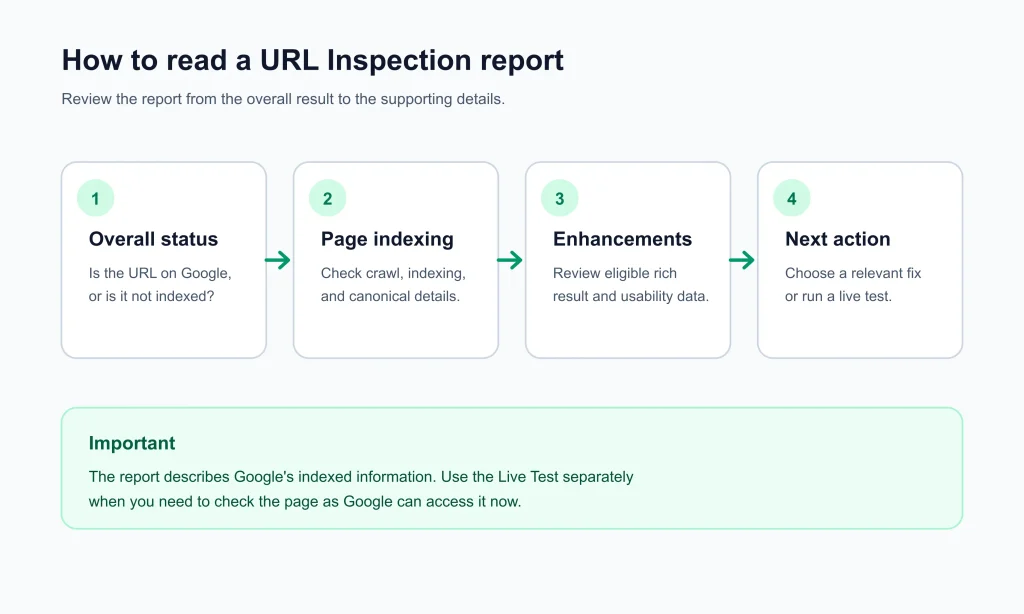
Step 4: Decide whether a live test is necessary
If the indexed report reflects an older crawl or you have recently fixed an access issue, run Test live URL. The live test helps you understand whether Google’s inspection crawler can access the current page.
Step 5: Choose the appropriate next action
Depending on the result, you may need to leave the page alone, correct a technical issue, review canonical signals, or request indexing after a meaningful change. A request is not a substitute for fixing the underlying problem.
How to Check Whether a URL Is Indexed
To check whether Google has indexed a page, inspect the exact URL in Search Console and read the overall verdict.
Understand the main verdicts
- URL is on Google: The indexed report indicates that the URL is in Google’s index and is eligible to appear in Search results. This does not guarantee that it will appear for a particular query.
- URL is not on Google: The URL is not currently eligible to appear in Search results based on the indexed report.
- URL is an alternate version: Google treats the inspected URL as an alternate of another URL.
- URL is on Google, but has issues: The URL is indexed, but the report identifies an issue that may affect certain search features or presentation.
Google recommends checking the exact URL in Search when you need to confirm whether it is appearing in results. A search result check and the URL Inspection report answer related but different questions.
When a page is indexed but still not appearing
An indexed page can still be difficult to find for a particular query. URL Inspection does not diagnose ranking performance, query relevance, competition, or every policy-related issue.
If the URL is indexed but does not appear as expected, check the relevant Search Console reports as well:
- Manual Actions report: Review whether Google has reported a manual action.
- Security Issues report: Check for reported security problems.
- Removals tool: Review relevant removal requests or temporary removals.
- Performance report: Review search queries, impressions, clicks, and page-level performance.
Illustrative example: A site owner searches for a page title but cannot find the page near the top of the results. URL Inspection says the URL is on Google. That means the page is indexed and eligible to appear, but it does not explain its position for that search. The next investigation should focus on query relevance, competing results, and other applicable Search Console reports.
Redirected and variant URLs
If you inspect a URL that redirects, make sure you understand which URL you entered and which destination it points to. Google may treat the redirecting URL and its destination differently in the indexed report and live test.
My recommendation is to inspect the preferred destination URL separately and check whether internal links, redirects, and canonical signals consistently point to it.
Understanding the Google Index Report
The indexed result describes Google’s stored information about the inspected URL. It is based on Google’s previous crawl, not necessarily the current version of the page.
The overall verdict
The top section provides a summary of the URL’s indexed status. Read this first, but do not stop there. The details below explain why the URL has that status.
Page indexing details
This section provides information about how Google discovered the URL, whether it crawled the page, and whether it can be indexed. Depending on the URL, it can also show canonical information.
The crawled page view
The report may provide access to information about the page Google crawled, including the HTML and related response details. This can help you investigate whether Google received important page content or directives.
Google documents that a screenshot is available from a successful live test, rather than from the indexed result.
Enhancements
If the page contains supported structured data or other supported search features, Search Console may display related enhancement information. The absence of an enhancement report does not automatically mean that the page is invalid or cannot be indexed.
Interface note: Search Console labels can change over time. Older tutorials may refer to Coverage or other historical labels. Follow the current interface and Google’s current help documentation when the wording differs.
Google Index vs Test Live URL
The difference between the indexed result and Test live URL is one of the most important parts of URL Inspection.
The indexed result describes Google’s stored version from its last crawl. The live test checks the current page by attempting to fetch it with Google’s inspection crawler. These results can differ because the page, its directives, or its accessibility may have changed since the last crawl.
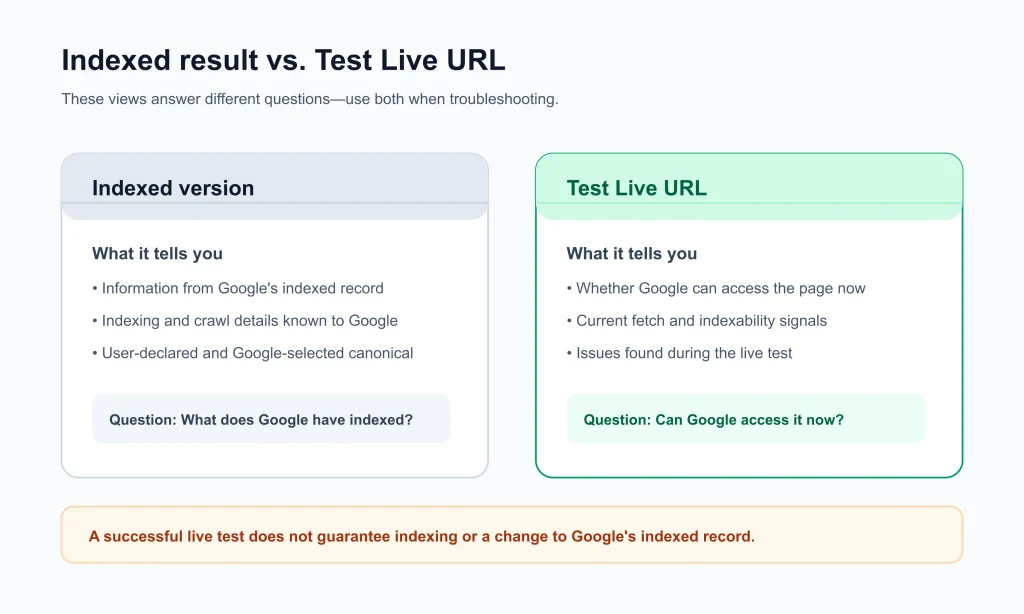
What each result represents
| Aspect | Indexed result | Test live URL |
|---|---|---|
| Data source | Google’s last crawl | Current live fetch |
| Main purpose | Shows Google’s stored information | Checks current accessibility and indexability signals |
| Google-selected canonical | Available in indexed data | Not available as a live-test result |
| Sitemap and referring-page details | May be shown | Not checked by the live test |
| Screenshot | Not available as an indexed-result screenshot | Available after a successful live test |
| Question answered | What does Google have stored? | Can Google’s inspection crawler access the current page? |
How to run a live test
- Open URL Inspection in Search Console.
- Enter the complete URL.
- Wait for the indexed result.
- Click Test live URL.
- Wait for the test to finish.
- Review the live verdict and available page information.
The live test checks the current page, but it does not reproduce every part of Google’s indexing process. It is a diagnostic fetch, not a guarantee that Google will index the URL.
What the live test cannot check
Google documents several limitations of the live test. It does not:
- Check whether the URL appears in a sitemap or has referring pages.
- Show the Google-selected canonical.
- Determine whether the page is a duplicate or alternate version in the same way as indexed data.
- Test every indexed-status condition.
- Guarantee that the page will be indexed after a successful test.
Google lists statuses such as Crawled – currently not indexed and Discovered – currently not indexed among the states that cannot be evaluated through the live test.
Reading the indexed and live results together
The following table is a SEORAF interpretation to help organise the next diagnostic step. It is not an official Google decision table.
| Indexed result | Live test | What it may suggest | Recommended next step |
|---|---|---|---|
| URL is on Google | Available | The page is indexed and currently accessible to the inspection crawler. | If it does not appear for a query, investigate ranking and query relevance separately. |
| URL is not on Google | Available | Google can access the current page, but the indexed report does not show it as indexed. | Review the Page indexing reason and decide whether a recrawl request is appropriate. |
| URL is on Google | Not available | The indexed version exists, but the current fetch has an access problem. | Investigate the current server, access, or rendering issue. |
| URL is not on Google | Not available | The page is not indexed and the live test also reports an access or indexability problem. | Fix the reported problem before considering a request. |
How to Request Indexing
Request indexing is a Search Console feature that lets eligible users ask Google to crawl a URL. It does not guarantee that the page will be crawled immediately, indexed, or shown in search results.
Google explains that submitting a URL places it in a crawl queue. Crawling and indexing can take time, and a request does not override Google’s normal systems for deciding what to crawl and index.
When requesting indexing makes sense
Consider requesting indexing when:
- The page is new and you want Google to consider crawling it.
- You have made a significant change to an important page.
- You have corrected an issue that previously prevented Google from accessing or indexing the page.
- The live test indicates that the current page is accessible and indexable.
If nothing important has changed, there is usually no reason to submit the same URL repeatedly. Google explains that repeated requests for the same URL do not make it crawl faster.
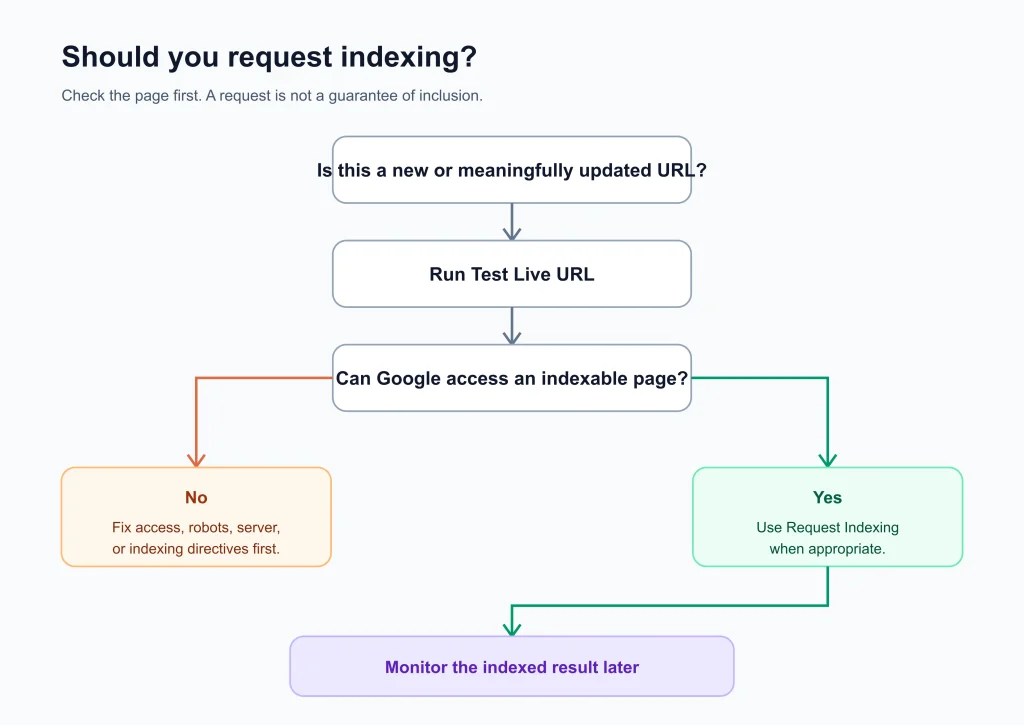
Request indexing decision process
- Is the URL new or has it changed significantly?
- Inspect the exact URL in Search Console.
- Review the indexed result and Page indexing reason.
- Run Test live URL when a current access check is relevant.
- If the live test identifies an issue, fix it first.
- If the URL is eligible and the request is appropriate, click Request indexing once.
- Monitor the indexed result later. Do not assume that the request guarantees indexing.
One status deserves special attention. For Crawled – currently not indexed, Google says there is no need to resubmit the URL for crawling. See the dedicated section below.
How to request indexing step by step
- Open the correct Search Console property.
- Enter the full URL in the URL Inspection field.
- Review the indexed result.
- Run a live test if appropriate.
- Fix any issue that prevents the page from being accessed or indexed.
- Click Request indexing when the option is available and a request is justified.
- Wait for Google to process the request.
Google requires an owner or full user role to request indexing for a property.
Limits, timing and what a request cannot do
- Request limits exist: Google applies limits to individual URL indexing requests. The interface does not provide a permanent public number that should be treated as universal.
- Repeated requests do not speed up crawling: Google explicitly advises that requesting the same URL again does not make it crawl faster.
- Timing varies: Crawling can take days or longer. Google does not promise a fixed indexing time.
- Indexing is not guaranteed: A URL can be crawled and still not be indexed.
- It is not a ranking tool: A recrawl request does not improve a page’s position by itself.
Requesting many URLs: use a sitemap
For multiple new or updated URLs, a sitemap is generally more suitable than submitting each URL individually. Google recommends keeping sitemap information accurate, including meaningful last modification dates where applicable.
See Google’s sitemap overview for supported sitemap formats and submission guidance.
Understanding URL Inspection Statuses
URL Inspection uses different messages for the overall verdict and the reasons shown in Page indexing details. Understanding the difference helps prevent incorrect fixes.
Verdicts in the indexed report
| Verdict | Meaning | What to check next |
|---|---|---|
| URL is on Google | The URL is indexed and eligible to appear in Search. | Review canonical details if relevant. Investigate ranking separately if it does not appear for a query. |
| URL is on Google, but has issues | The URL is indexed, but the report identifies an issue. | Review the specific issue and whether it affects a search feature. |
| URL is not on Google | The URL is not currently eligible to appear in Search based on the indexed report. | Read the Page indexing reason and check the live page if appropriate. |
| URL is an alternate version | Google treats the inspected URL as an alternate of another URL. | Review the Google-selected canonical and your preferred URL signals. |
Verdicts in the live test
The live test uses different wording because it checks the current page rather than the stored index version. You may see messages such as:
- URL is available to Google: The live test did not identify a blocking issue that prevents Google from accessing the page.
- URL is available to Google, but has issues: The page is accessible, but the report identifies one or more issues.
- URL is not available to Google: The live test found a problem that prevents access or indexability.
Always read the details beneath the verdict. The summary alone may not explain the cause.
Common Page indexing reasons
The following table covers selected reasons that can appear in the Page indexing report. The recommended action depends on whether the URL is supposed to be indexed.
| Reason | Plain meaning | First check |
|---|---|---|
| Server error (5xx) | Google encountered a server-side error. | Check server availability, logs, and response codes. |
| Redirect error | Google could not complete the redirect process. | Review redirect destinations, loops, and chains. |
| URL blocked by robots.txt | Robots.txt rules prevented crawling. | Check whether the block is intentional. |
| URL marked noindex | Google found a noindex directive. | Check the HTML meta tag and HTTP response headers. |
| Soft 404 | The page appears to be an error or empty page without returning an appropriate not-found response. | Review the content and HTTP status code. |
| Not found (404) | The server returned a not-found response. | Confirm whether the URL should remain removed or be restored. |
| Blocked due to unauthorized request (401) or forbidden access (403) | The page requires access or is forbidden. | Check authentication and access rules. |
| Crawled – currently not indexed | Google crawled the page but did not index it. | Review the page and its indexing context; repeated resubmission is not needed. |
| Discovered – currently not indexed | Google knows the URL but has not crawled it yet. | Review crawl accessibility and site-level conditions. |
| Alternate page with proper canonical tag | Google recognises the URL as an alternate of another canonical URL. | Usually no action is needed if this is intentional. |
| Duplicate without user-selected canonical | Google identified duplicate content without a declared canonical. | Review whether a canonical should be specified. |
| Duplicate, Google chose different canonical than user | Google selected a canonical different from the one declared. | Review consistency among canonical tags, redirects, internal links, and sitemaps. |
| Page with redirect | The inspected URL redirects to another URL. | Usually expected. Inspect the destination URL if necessary. |
| Indexed, though blocked by robots.txt | Google has indexed a URL that crawling rules currently block. | Remember that robots.txt is not a reliable way to remove a URL from the index. |
Not every URL needs to be indexed. A deliberate redirect, duplicate, or noindex page may be excluded for a valid reason. Decide what the page is supposed to do before changing its settings.
Crawl Allowed and Indexing Allowed
Crawl allowed and Indexing allowed are different checks. One concerns whether Google can crawl the page under robots.txt rules. The other concerns whether the page has a directive that prevents indexing.
| Field | Question answered | Main control |
|---|---|---|
| Crawl allowed? | Do robots.txt rules allow Google to crawl this URL? | robots.txt |
| Indexing allowed? | Does a directive tell Google not to index the page? | Meta robots noindex or X-Robots-Tag HTTP header |
Crawl allowed
This field indicates whether the relevant robots.txt rules allow Google’s crawler to fetch the URL. If the answer is No, inspect the rule that matches the URL before changing anything.
Google’s robots.txt documentation explains how crawling rules work. A robots.txt block prevents crawling, but it does not reliably remove a URL that Google already knows about from Search results.
Indexing allowed
This field indicates whether Google has detected a directive that prevents indexing. The directive may appear in an HTML meta robots tag or an HTTP response header such as X-Robots-Tag.
Google explains these controls in its documentation about blocking Search indexing with noindex and robots meta tags and X-Robots-Tag.
Why robots.txt and noindex can be confusing
If robots.txt blocks a page, Google may not be able to fetch the page and read its noindex directive. As a result, the inspection can show that indexing is allowed even though the page contains a noindex rule that Google cannot currently see.
This is why robots.txt should not be used as a substitute for noindex when the goal is to prevent a page from appearing in Search.
Illustrative example: A page has a noindex meta tag but is also blocked by robots.txt. Google cannot crawl the page to read the meta tag. If the page should be excluded using noindex, Google must be able to crawl it and see the directive.
Google-Selected vs User-Declared Canonical
Canonical signals help Google understand which URL should represent a group of duplicate or substantially similar pages. URL Inspection can show the canonical you declared and the canonical Google selected in its indexed data.
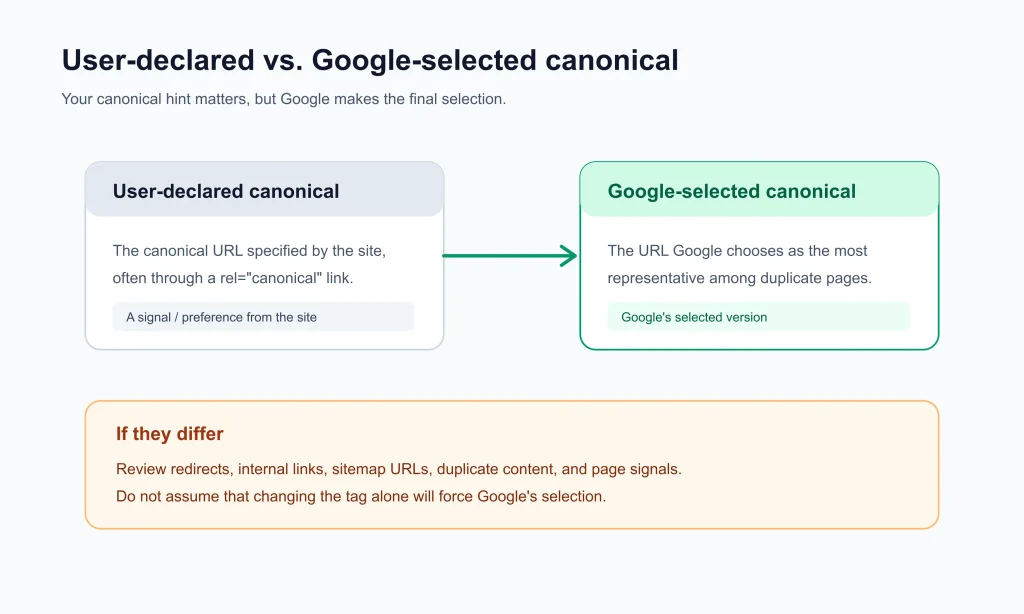
What each field means
| Field | Meaning | Where it comes from |
|---|---|---|
| User-declared canonical | The canonical URL specified by the site owner. | Usually a rel=”canonical” link element or an HTTP header. |
| Google-selected canonical | The URL Google chose to represent the duplicate or similar group. | Google’s indexing and canonicalisation systems. |
A user-declared canonical is a signal, not an instruction that guarantees Google’s selection. Google may select a different URL after evaluating multiple signals.
Why Google may choose a different URL
Google’s canonicalization documentation explains that canonical selection can consider redirects, HTTPS, sitemap inclusion, and canonical annotations, among other signals.
A mismatch can happen when your signals are inconsistent or when Google considers another URL a better representative of the duplicate group.
When a mismatch matters
A different Google-selected canonical is not automatically an error. It matters when Google selects a URL you do not want to represent the page.
My recommended checks are:
- Confirm that the pages are genuinely duplicates or substantially similar.
- Check the canonical tag on the preferred page.
- Review redirects and URL variants.
- Check whether internal links consistently point to the preferred URL.
- Confirm that the sitemap lists the preferred canonical URL.
- Review Google’s canonical troubleshooting guidance.
Illustrative example: Two URLs show the same page, but one includes a tracking parameter. The site declares the clean URL as canonical, while Google selects the parameter version. This is a reason to review the site’s signals; it is not proof by itself that the page has a technical error.
Last Crawl, Page Fetch and Referring Pages
These fields provide information about Google’s previous crawl and how it may have discovered the URL.
Last crawl and Crawled as
Last crawl shows when Google last crawled the page. If you changed the page after that date, the indexed report may not reflect the latest version.
Crawled as identifies the crawler type used for the crawl, such as a mobile or desktop user agent. This helps you understand which rendering and crawling context produced the indexed information.
My recommendation is to compare the last crawl date with the date of your most recent important change. If the indexed data is older than the change, run a live test to check the current page before deciding what to do next.
Page fetch
Page fetch reports whether Google could retrieve the page during the relevant crawl or test. A failed fetch may point to a server, redirect, access, or network problem.
A successful fetch does not automatically mean that the page is indexed. Crawling and indexing are separate processes, and Google can crawl a page without adding it to the index.
For further diagnosis, see Google’s crawl error troubleshooting documentation.
Referring pages and sitemaps
The Discovery section can show information about how Google found the URL.
- Referring page: A page Google may have used to discover the URL. The value may be missing even when links to the URL exist.
- Sitemaps: The report may list sitemaps submitted through Search Console or identified through robots.txt.
- Other discovery sources: Google may know about the URL through sources that are not displayed in the report.
The live test does not check sitemap or referring-page information. My recommendation is to use a missing referring-page value as a reason to review internal links, not as proof that no page links to the URL. You can use my technical SEO checklist to review other important technical SEO checks.
How to Fix Common URL Inspection Problems
Before making changes, identify whether the URL should be indexed. A page that is intentionally redirected, duplicated, or marked noindex may be working as intended.
The following diagnostic order is a SEORAF recommendation based on the types of information Google provides in URL Inspection.
- Should this page be indexed? Confirm the intended purpose of the URL first.
- Is the last crawl older than your latest change? Compare the indexed result with the current live page.
- Is Crawl allowed set to No? Review the robots.txt rule.
- Did Page fetch fail? Investigate server responses, redirects, access restrictions, or network problems.
- Is Indexing allowed set to No? Check the meta robots tag and HTTP headers.
- Does the Google-selected canonical differ? Review canonical signals and duplicate URLs.
- Is the status Crawled or Discovered – currently not indexed? Follow the relevant section below.
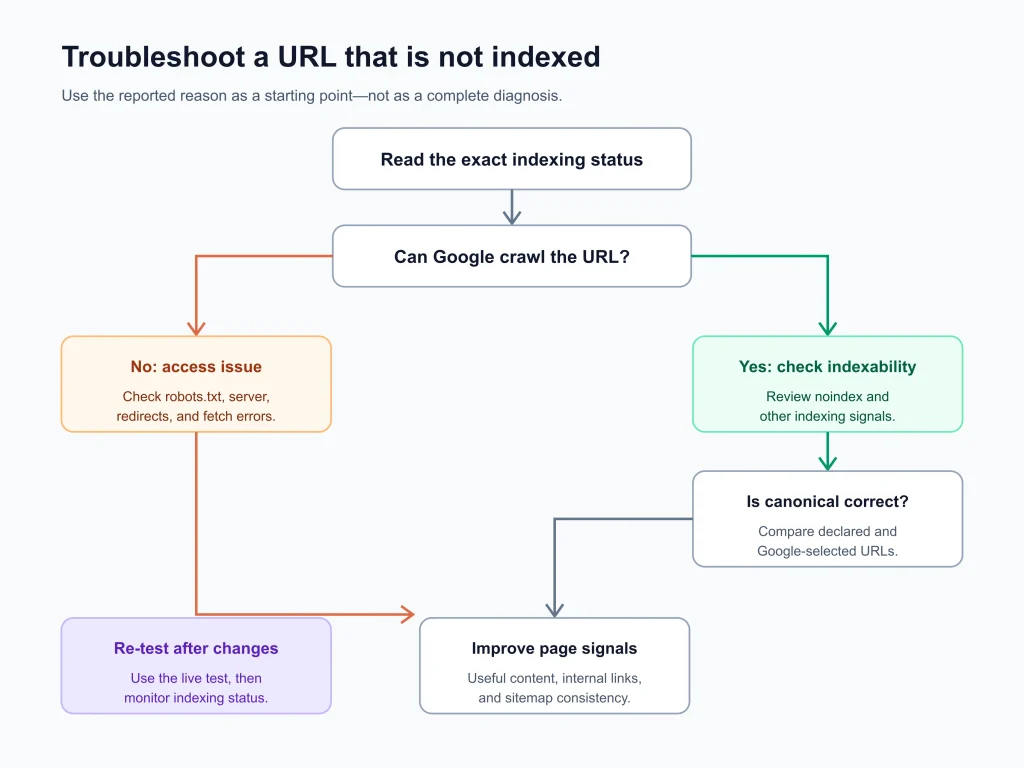
| What you see | First check | Recommended next step |
|---|---|---|
| Crawl allowed: No | robots.txt rules | Change the matching rule only if the page should be crawlable. |
| Indexing allowed: No | Meta robots and HTTP headers | Remove unintended noindex directives, then check the live page. |
| Page fetch failed | Server logs, status codes, redirects and access rules | Fix the underlying response or access issue. |
| Last crawl predates the latest change | Current live page | If the page is now correct, consider a single recrawl request. |
| Google-selected canonical differs | Canonical signals and duplicate URLs | Align canonical tags, redirects, internal links and sitemap entries. |
| Live test passes but URL is not indexed | Page indexing reason | Follow the reported reason. A passing live test does not guarantee indexing. |
| Request indexing unavailable | Live test and Search Console permissions | Fix indexability problems and confirm the account role. |
Blocked or noindexed pages
Remove a robots.txt block or noindex directive only when the page is supposed to be crawled or indexed. A noindex directive can be present in the HTML or in an HTTP response header.
After removing a noindex directive, Google must recrawl the page to discover the change. You can use URL Inspection to request a recrawl when appropriate, but the request does not guarantee when Google will revisit the page.
Fetch failures
Review server errors, redirect loops, broken destinations, 404 responses, soft 404 responses, authentication requirements, and firewall rules. Check whether the problem affects one URL or a wider group of pages.
Rendering and resource problems
Use the available live-test screenshot, HTML, and resource information to investigate whether Google can access the content and resources that matter. If important content is missing, check whether its resources are blocked, unavailable, or dependent on a rendering process that fails.
Canonical and duplicate outcomes
Do not change a canonical simply because Google selected a different URL. First confirm whether the pages are duplicates, whether the selected URL is appropriate, and whether the site’s signals are consistent.
When not to fix a not-indexed URL
Not every URL should be indexed. Redirected URLs, intentional duplicates, filtered variations, and pages with deliberate noindex directives may be excluded for valid reasons.
My recommendation is to prioritise important canonical pages and URLs that are genuinely intended to appear in Search. Avoid spending time trying to index every URL on a website.
Crawled – Currently Not Indexed
Crawled – currently not indexed means Google crawled the URL but did not add it to the index at the time represented by the report.
Google explains that the page may or may not be indexed in the future. Its documentation also says there is no need to resubmit the URL for crawling simply because it has this status.
What URL Inspection can tell you
The indexed report can provide information such as:
- The last crawl date.
- The crawl and page-fetch details.
- The user-declared and Google-selected canonical information, when available.
- The version of the page Google previously crawled.
Google lists this status among the conditions that cannot be tested directly through the live test. A successful live test therefore does not remove or explain the indexed status by itself.
What to investigate next
Google’s status tells you that the page was crawled but not indexed. It does not provide a complete diagnosis of every reason behind that decision.
My recommended investigation is to review:
- Whether the page is intended to be indexed.
- Whether the page has a clear purpose and provides useful information beyond similar pages.
- Whether the canonical URL is correct.
- Whether internal links point to the preferred URL.
- Whether important content is accessible to Google.
- Whether the page is substantially similar to another URL on the site.
These checks are SEORAF recommendations, not a list of confirmed Google causes for every URL with this status. Avoid repeatedly submitting the same URL when Google says resubmission is unnecessary.
Discovered – Currently Not Indexed
Discovered – currently not indexed means Google knows about the URL but has not crawled it yet, according to the report.
Google explains that crawling may have been postponed because it expected crawling the URL could overload the site. The URL may be scheduled for a later crawl.
How this differs from Crawled – currently not indexed
| Aspect | Discovered – currently not indexed | Crawled – currently not indexed |
|---|---|---|
| Has Google crawled the URL? | No, not according to this status. | Yes. |
| Has Google indexed it? | No, not according to this status. | No, not according to this status. |
| Last crawl date | Usually not available for this status. | Available in the report. |
| Main investigation focus | Discovery and crawl scheduling. | The crawled page and indexing context. |
What to check
My recommended checks include:
- Confirm that the URL returns the intended response and is accessible.
- Check whether the URL is included in the appropriate sitemap.
- Review internal links from relevant, accessible pages.
- Check for crawl blocks, redirects, and server errors.
- Review whether the site is experiencing broader crawl or server issues.
Google’s documented explanation focuses on crawl scheduling. Other possible contributing factors should be treated as investigation hypotheses, not confirmed causes for every URL with this status.
How to Validate a Fix
Validate Fix is part of the Page indexing report, not the URL Inspection tool itself. It tells Google that you have addressed a reported issue and asks Google to check the affected URLs again.
Test the fix first when possible
Google recommends testing a correction on a few affected pages before starting validation, where the issue can be checked through the live test. Some indexing issues cannot be tested live, so follow the validation process described in the relevant report.
Start validation in the Page indexing report
- Identify the issue in the Page indexing report.
- Review the affected URL examples.
- Fix the underlying issue across the relevant pages.
- Use the live test on representative URLs when applicable.
- Open the issue details and click Validate fix.
- Wait for Search Console to complete its checks.
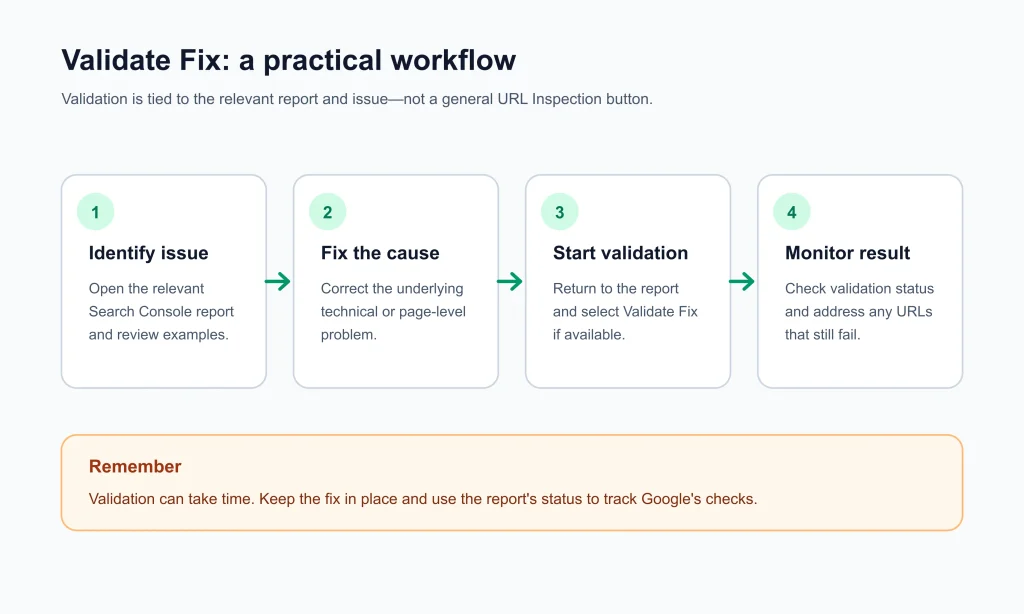
Do not repeatedly start validation while an existing validation is still running. Google may take days or longer to complete the process, depending on the issue and the URLs involved.
Reading validation results
| Level | Example states | How to interpret them |
|---|---|---|
| Issue | Not started, Started, Looking good, Passed, N/A, Failed | Shows the overall validation state for the issue. |
| URL instance | Pending, Passed, Failed, Other | Shows the status of an affected URL instance. |
A Passed validation status does not mean that every affected page is indexed. It means Google considers the reported issue resolved for the relevant URL instances under its validation process. A page may still be excluded for another reason.
If validation fails, inspect the remaining affected URLs, correct the issue, and start another validation when appropriate. Google may also update report counts as it recrawls URLs outside a formal validation process.
URL Inspection Tool Limitations
It does not check everything
URL Inspection is designed for page-level indexing and live accessibility checks. It does not replace the Manual Actions report, Security Issues report, Removals tool, or Performance report.
A clean inspection does not guarantee that a page meets every Search policy or quality requirement.
Indexed data is not always current
The indexed result reflects Google’s last crawl. If the page changed after that crawl, the stored information may not reflect the current version. The live test can help check the current page, but it does not replace the indexed report.
Live tests have limitations
The live test does not check every indexing condition. It cannot show the Google-selected canonical and does not provide all the sitemap, referring-page, or indexed-status information available in the indexed report.
Interface quotas and the URL Inspection API
Google applies usage limits to Search Console inspection features. The interface does not provide a permanent public number that should be treated as a universal daily allowance.
For programmatic workflows, Google provides a URL Inspection API method. The API returns information about Google’s indexed version of a URL; it does not provide the same live-test functionality as the Search Console interface.
Review Google’s Search Console API usage limits before building a workflow that depends on request quotas. Limits can change, so avoid relying on outdated figures copied from older tutorials.
When to use other tools
URL Inspection is useful for one URL at a time. For wider investigations, use the relevant Search Console reports, a sitemap review, server logs, or a technical SEO crawler.
My recommendation is to choose a tool based on the question:
- One URL: URL Inspection.
- Groups of URLs: Page indexing report.
- Many technical URLs: A suitable crawler or log-analysis workflow.
- Search visibility: Search Console Performance report.
Best Practices
Build a simple inspection routine
Inspect important pages when they are published, after significant changes, or when a specific indexing question arises. A fixed daily inspection schedule is not necessary for every website.
For each inspection, follow the same sequence:
- Inspect the exact URL.
- Read the indexed verdict.
- Review Page indexing details.
- Compare the live test when necessary.
- Fix the underlying issue if one exists.
- Request indexing only when appropriate.
- Monitor the result without repeatedly submitting the same URL.
Prioritise URLs that matter
Start with pages that are important to the website’s purpose, such as core guides, essential resources, and key landing pages. Do not assume that every parameter URL, archive, duplicate, or filtered page needs to be indexed.
Keep a change log
A simple inspection log helps you compare what changed and when. The example below is a blank template, not real inspection data.
| URL | Date inspected | Indexed verdict | Last crawl | Declared / selected canonical | Change made | Next review |
|---|---|---|---|---|---|---|
| https://www.example.com/sample-page/ | Enter date | Enter verdict | Enter date | Enter both values | Describe the change | When needed |
Know when to stop checking
Repeated indexing requests do not make Google crawl a URL faster. If you have fixed a problem and the live page is accessible, allow Google time to process the change. For Crawled – currently not indexed, Google says resubmitting the URL for crawling is unnecessary.
Use URL Inspection to answer a specific question, not as a tool that needs to be refreshed continuously.
Frequently Asked Questions
What is the Google URL Inspection Tool?
It is a Google Search Console feature that shows information about Google’s indexed version of a URL and provides a live test to check the current page’s accessibility and indexability.
How do I check if a page is indexed in Google?
Open Search Console, select the correct property, enter the full URL in the URL Inspection field, and read the indexed verdict. “URL is on Google” means the page is indexed and eligible to appear in Search, but it does not guarantee visibility for a particular query.
What is the difference between Google Index and Test Live URL?
The indexed result describes Google’s stored information from its last crawl. Test Live URL checks the current page. The two can differ when the page or its access conditions have changed.
Does Request indexing guarantee that Google will index a page?
No. Request indexing asks Google to consider crawling the URL. Google does not guarantee that it will crawl the page immediately or add it to the index.
How often should I request indexing?
Request indexing when a URL is new or has undergone a significant change and a request is appropriate. Do not repeatedly submit the same URL to try to speed up crawling. Google says repeated requests do not make it crawl faster.
Why does URL Inspection say Crawled – currently not indexed?
It means Google crawled the page but did not index it at the time represented by the report. Review whether the page should be indexed, its canonical signals, its content, and its accessibility. Google says there is no need to resubmit the URL for crawling simply because it has this status.
What does Discovered – currently not indexed mean?
It means Google knows about the URL but has not crawled it yet. Google explains that crawling may have been postponed because it expected crawling could overload the site. Review crawl accessibility and site-level conditions.
Can I use URL Inspection on a website I do not own?
You need access to a Search Console property that includes the URL to use its URL Inspection report. Public testing tools such as the Rich Results Test can check certain page features, but they do not provide another site’s indexed URL Inspection data.
Which Search Console role do I need to request indexing?
Google’s recrawl documentation says you must be an owner or full user of the property to request indexing.
Can I inspect a page behind a login?
The live test needs to access the page. A page that requires authentication may not be accessible to Google’s inspection crawler. Review the relevant access and firewall settings before interpreting the result.
Do I need to inspect every page on my website?
No. Focus on important URLs, new pages, significant updates, and pages with a specific indexing issue. Not every URL needs to be indexed.
Can I inspect multiple URLs at once?
The Search Console URL Inspection interface is designed for individual URL checks. For multiple URLs, use a sitemap to help Google discover URLs, review the Page indexing report for patterns, or use the URL Inspection API within its limits for programmatic checks.
Why does URL Inspection disagree with the Page indexing report?
The reports may reflect different crawl states or update times. The live test also cannot check every indexed condition. Review the last crawl date and the specific issue before deciding that a report is incorrect.
Sources and Last Verified
This guide is based primarily on Google’s official Search Console Help and Google Search Central documentation. Interface labels and documentation can change, so check the current source pages when following the steps.
- URL Inspection tool – Search Console Help
- Page indexing report – Search Console Help
- Ask Google to recrawl your URLs – Search Central
- Canonicalization – Search Central
- Block Search indexing with noindex – Search Central
- Robots meta tag and X-Robots-Tag – Search Central
- Introduction to robots.txt – Search Central
- Sitemap overview – Search Central
- Troubleshoot crawling errors – Search Central
- Search Console API usage limits
- URL Inspection API method reference
Last checked: 1 November 2026. Search Console’s interface and Google’s documentation may change after this date. If a label on your screen differs from this guide, follow the current interface and official Google documentation.